How to Change Netflix Language: Step-by-Step Guide for Every Device (2026)
Learn how to change Netflix language in under a minute. Step-by-step for web, mobile and TV, plus audio, subtitles and fixes.
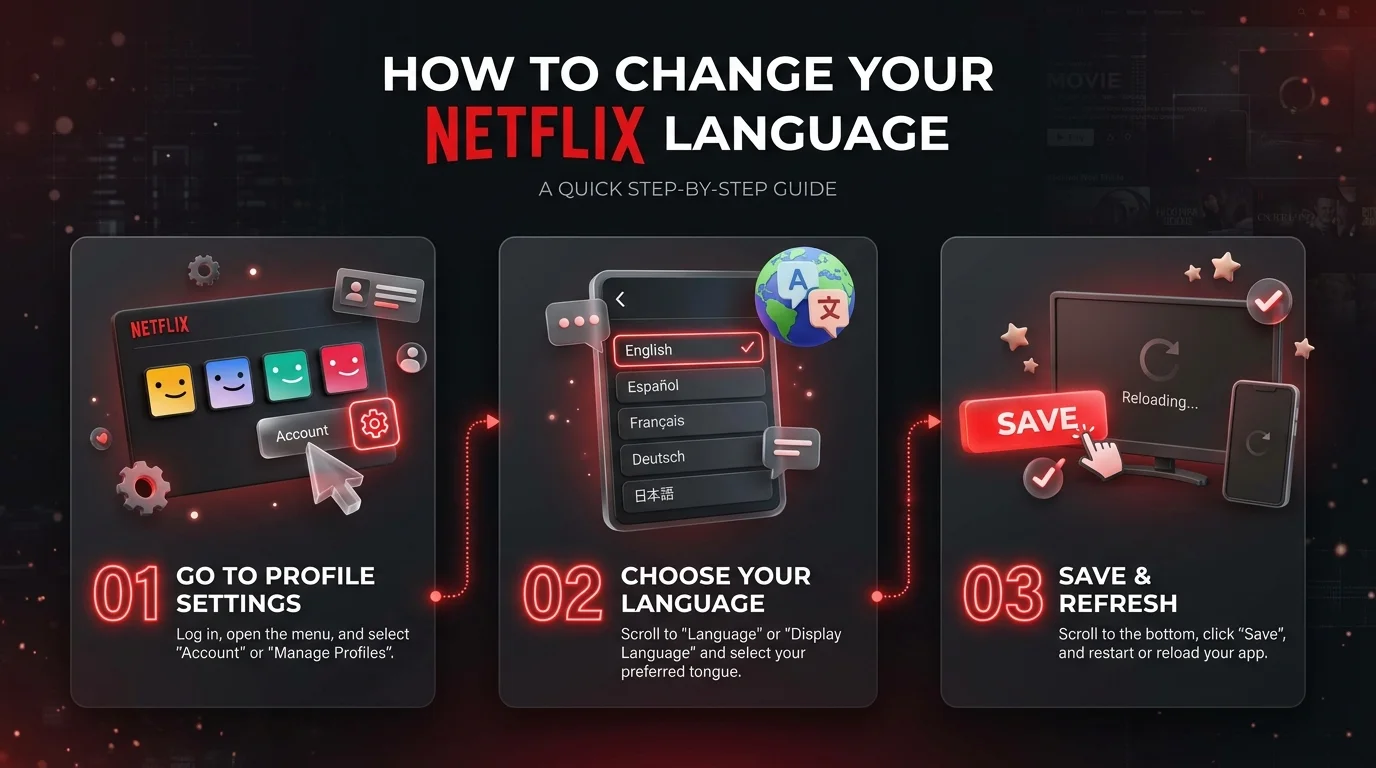
To change Netflix language, open your profile settings, pick a display language, and save. On the web, go to Account > Profiles > Languages. On mobile, tap My Netflix > Manage Profiles > Display Language. To change audio and subtitles, open the Audio & Subtitles menu while a title plays.
Display Language vs. Audio vs. Subtitles: What's the Difference?
Netflix splits language into three separate settings, and mixing them up is the number one reason people get stuck. I've watched friends hunt through menus for ten minutes when they just needed a different setting. So before you click anything, let me clear this up. Once you know which one you need, the rest takes about a minute.
Here's the short version:
Display language: menus, titles, descriptions, and search text
Audio language: the original or dubbed soundtrack
Subtitles and captions: onscreen text while you watch
Each Netflix profile keeps its own settings. That means changing one profile won't touch the others.
Netflix Language Settings at a Glance
Want the fast route? This table covers every device in one place. I like tables like this because you can scan them in five seconds and move on. The paths below come straight from the Netflix Help Center pages on changing language and audio and subtitles. Find your device, follow the path, and you're done.
Device | Where to go | What to know |
|---|---|---|
Web browser | Account > Profiles > your profile > Languages > Display Language | Select Save. Sign out and back in if nothing changes |
iPhone, iPad, Android | My Netflix > profile name > Manage Profiles > Display Language | Saves automatically |
Smart TV or streaming device | Profile selection screen > Edit icon > Language | Saves automatically, then select Done |
Audio and subtitles (any device) | Start a title, then open Audio & Subtitles | On TVs, choose Other to see every language |
Downloads | Same Audio & Subtitles menu | Netflix shows the two most relevant languages |
How to Change Netflix Display Language Step by Step
Now let's get into the details. Different gadgets mean slightly different steps, but the idea never changes: find your profile, find the language option, pick one. That's it. I'll walk you through the web browser, your phone, and your TV below. Pick whichever one you're holding right now and follow along.
On a Web Browser
The browser is usually the quickest option, and your change will sync to your devices afterward. It takes maybe thirty seconds. Just don't skip the last step. I forget to hit Save more often than I'd like to admit, and then I wonder why nothing changed. Follow these steps:
Go to your Account page on Netflix.
Select Profiles, then choose your profile.
Click Languages.
Choose a Display Language.
Select Save.
You can also try the direct Language Preferences page, which Digital Trends mentions in its Netflix language guide.
On iPhone, iPad, or Android
Mobile works just as well, and you don't need a browser at all. The Netflix app has everything you need. The menu is a little hidden the first time, though. You'll go through Manage Profiles, and that's the part most people miss. After that, it's smooth sailing. Here's the route:
Open the app and tap My Netflix (bottom right).
Tap your profile name at the top.
Tap Manage Profiles and choose a profile.
Tap Display Language.
Choose a language. It saves automatically.
On a Smart TV or Streaming Device
TVs feel clunky, I know. Remotes are slow, and menus hide things. But the steps are short, and they work on Roku, Fire TV, Apple TV, and most smart TVs. You start at the profile selection screen, which is where most people never think to look. Once you spot the pencil icon, you're nearly finished.
Open Netflix and go to the profile selection screen.
Select the Edit icon on your profile.
Choose Language.
Pick a language, then select Done.
Don't see the change right away? Sign out, then sign back in. Netflix suggests exactly that.
How to Change Audio and Subtitle Language While Watching
Menus sorted? Great. Now let's fix the show itself. This is my favorite part, because you can switch languages during an episode. No restart, no hunting through settings. You'll use the Audio & Subtitles menu, which Netflix documents here. Not every title offers every language, so you'll see only what's available for that show or movie.
The Step by Step Method
Start playing any title first. Then bring up the player controls. On a phone or computer, tap or click the screen. On a TV, press the up or down arrow on your remote. On Apple TV 4 and Apple TV 4K, swipe up or press the up arrow, according to Netflix.
Start a TV show or movie.
Open Audio & Subtitles.
Choose your audio language and subtitle language.
If yours isn't listed on a TV, select Other.
Why Does My Audio Keep Resetting?
Annoying, right? Here's a trick straight from Netflix. If you have to reset your audio every time, play a title rated Teens or above for two to three minutes. That helps lock in your preferred audio language, per Netflix's guide.
Also, preferences usually don't save when you watch most Kids titles from an adult profile. So for kids' shows, use a Kids profile instead.
Smart Netflix Language Tricks Most People Miss
Basic steps are great, but a few extras can seriously improve your viewing. These are small things, yet I use them all the time. Think of them as bonus features hiding in plain sight. Some save you scrolling, and others make shows more accessible. Let's go through them quickly.
Search for dubbed titles. Type "English Dubbed Movies & TV" into search to see matching titles, as Netflix suggests.
Look for the SDH badge. It marks Subtitles for the Deaf and Hard of Hearing, which include sound and music cues, not just dialogue.
Expect some surprise subtitles. You may see them even when they're off if a scene uses a language different from the title's original.
Know the regional rule. In some countries, including Belgium, Greece, Indonesia, Poland, Switzerland, Thailand, and Türkiye, changing language preferences can limit you to titles available in that language, according to Netflix.
Find where a show is streaming. Can't spot a title with your language options on Netflix? Our Reelgood review and streaming guide shows you how to track titles across services.
Netflix Language Not Changing? Try These Fixes
Sometimes it just won't cooperate. I get it, and it's frustrating. But the cause is usually small, and the fix usually takes under a minute. Work through the list below from top to bottom. Most problems come down to a wrong profile, a missed Save button, or a device that needs you to log in again.
Check the profile. Language belongs to each profile, not the whole account.
Sign out and back in. It refreshes the app.
Press Save on the web. The change won't apply without it.
Check for unexpected changes. If your language suddenly switched to something unfamiliar, Sky's help article on the wrong Netflix language is a useful starting point.
Try another route. If the TV won't cooperate, change it on the web or in the mobile app instead.
Using a Samsung, LG, or Roku device? The steps above apply to the Netflix app itself, so they work the same way. If the language still looks wrong afterward, contact the Netflix Help Center for support with your specific device.
Netflix Language FAQ
People ask me the same handful of questions again and again, so I've pulled them together here. Each answer is short on purpose. If you're in a hurry, you can skim this section and be done. Think of it as the cheat sheet for everything above, written the way you'd ask a friend.
How do I change Netflix back to English?
Open your profile settings, choose Display Language, and select English. On the web, that's Account > Profiles > Languages. On mobile, it's My Netflix > Manage Profiles > Display Language. Then save, and sign out and back in if needed.
Why is my Netflix in a different language?
Each profile has its own language setting, so someone may have changed yours, or you may be in the wrong profile. Check your profile's display language, then change it back. Signing out and in again often refreshes the app.
Does changing display language also change subtitles?
Sometimes. Technobezz's walkthrough of Netflix's settings page notes that a display language change can also apply to default audio and subtitle languages. You can still adjust both in the Audio & Subtitles menu.
Can each profile have a different language?
Yes. Language is saved per profile. That means one person can watch in English, another in Spanish, and a Kids profile can have its own settings, all on the same account.
Why does my audio keep resetting?
Play a title rated Teens or above for two to three minutes to set your preference. Also remember that preferences usually don't save for most Kids titles watched from an adult profile.
Why Netflix Is Worth It for Language Lovers
Here's my honest take. Few streaming services make language control this simple. You get separate settings for menus, audio, and subtitles, all tied to each profile. You can switch during an episode, search for dubbed titles, and turn on SDH captions for accessibility.
Think about it. One account can serve a whole household. Your kids get dubbed cartoons. Your partner watches Korean dramas with English subtitles. You get menus in the language you're most comfortable with. Learners can also pick up real vocabulary from the shows they already enjoy. For even faster progress, pair your watch time with one of the best language learning apps in 2026.
So if you've been on the fence, start a Netflix subscription and set up your profiles. Plans and prices vary by country, so check what's offered in your region on the sign up page. Now that you know how to change Netflix language, there's nothing left to figure out. Pick a plan, press play, and enjoy.
About the Author

Nathan Cole
Nathan Cole is a SaaS writer and AI product reviewer at Postunreel with a sharp focus on evaluating AI-powered tools for content creators, marketers, and growing businesses. He holds a degree in Computer Science and brings over five years of experience writing about software products, productivity tools, and marketing technology. Nathan approaches every review with rigorous hands-on testing, clear comparison frameworks, and an honest perspective that cuts through marketing hype. His goal is to help Postunreel readers make smarter decisions about the tools they invest in so they can build better content workflows without wasting time or money.
🔥 Limited Time Deal
NewGet lifetime access to Postunreel with a one-time payment. Never pay again!
Your Go-To Solution for Stunning Carousels using AI!
Postunreel is a free AI carousel generator tool that helps you design captivating carousel posts for LinkedIn, Instagram, and other platforms. It makes it easier to increase social media engagement and grow your audience.
Create Free Carousel Now 🚀Related Blogs
How Technical Infrastructure Impacts Digital Marketing (More Than You Think)
Discover how technical infrastructure impacts digital marketing, from website speed and SEO to email deliverability, AI tools, analytics, and scalability.
Paylocity HR & Payroll Review (2026): Is It Worth It for Your Team?
Paylocity HR & Payroll Review. Is Paylocity worth it? Compare 2026 pricing estimates, payroll and HR features, pros, cons, and ADP vs Paycom.