How to Use Google Slides: The Complete Step by Step Guide (2026)
Learn how to use Google Slides in minutes: create decks, add themes, share, present, and try Gemini AI. Free step by step guide for beginners and teams.
To use Google Slides, open slides.new, pick a theme under Slide > Edit theme, add content from the Insert menu, share with Viewer, Commenter or Editor roles, and press Present (Ctrl + F5). It's free with any Google account. Gemini AI features need an eligible Workspace or Google AI plan.
Here's the thing.
I used to waste hours fighting clunky presentation software. Then I switched, and I never looked back.
In this Google Slides tutorial, I'll walk you through everything, from your first blank deck to AI built presentations.
Ready? Let's go.
What Is Google Slides (And Why Should You Care)?
Google Slides is a free online presentation tool that runs right in your browser. You don't install anything or hunt for a license key.
According to Google's Learning Center, your team can edit at the same time and every change saves automatically. That kills the dreaded "final_v7_REAL_final.pptx" problem. It also runs on desktop, Android and iOS.
So what's the catch? Honestly, for most people there isn't one.
How to Use Google Slides: Step by Step
Let me show you the exact workflow I follow every time.
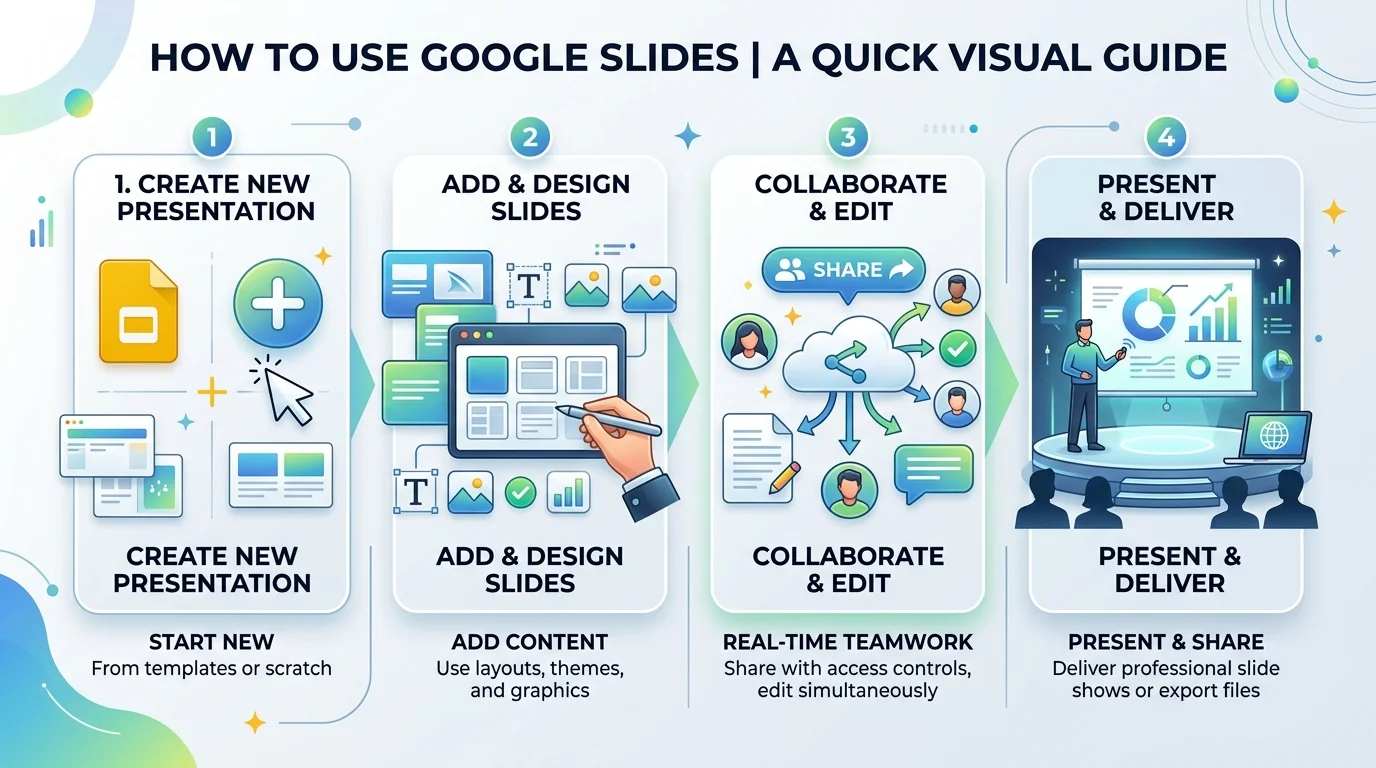
Think of it as three moves: create, design, animate. Follow along, and you'll have a polished slide deck in under an hour.
Step 1: Create Your First Presentation
This takes about ten seconds.
Type slides.new into your browser's address bar, a trick How-To Geek recommends.
Or open Google Drive, click New, then choose Google Slides.
Click "Untitled presentation" and give your deck a real name.
Google also publishes official instructions if you get stuck.
Step 2: Set Up Your Theme and Layouts
Most beginners skip this step, and it's a mistake.
Go to Slide > Edit theme to open the theme builder. You'll see the master slide on top and slide layouts beneath it. Change a font on the master, and every layout updates. BrightCarbon recommends doing this before you build anything.
Don't want to design from scratch? Browse our guide to free PowerPoint and Google Slides templates and start with a ready made Google Slides theme.
Then add text boxes, images, shapes, charts and video from the Insert menu. Need photos? Our free stock photos and videos guide shows you where to find royalty free media for your slides.
Step 3: Add Animations and Transitions
Want your slides to feel alive? Use motion, but don't go crazy.
Click Insert > Animation, or open View > Motion, per Google's help page. Pick an effect, then choose how it starts. You can animate bullet points one at a time with the "By paragraph" option.
My rule: if a movement doesn't help your audience understand faster, cut it. Also note that you can't edit transitions or animations on mobile yet.
How to Share and Collaborate in Google Slides
Collaboration is where Slides beats the competition.
You send one link, and everyone works in the same file. Here's how to control who does what.
Google Slides Sharing Roles Compared
Click Share in the top right corner, then pick a role. Computerworld's cheat sheet breaks them down like this:
Role | Can view | Can comment | Can edit and reshare |
|---|---|---|---|
Viewer | Yes | No | No |
Commenter | Yes | Yes | No |
Editor | Yes | Yes | Yes |
I usually pick Commenter. People can leave comments without wrecking your design.
One limit to remember: up to 100 people can work on a file at once. Beyond that, publish it as a web page instead.
Use Speaker Notes Like a Pro
Under every slide, you'll see "Click to add speaker notes." Type your talking points there.
During your talk, open Presenter view to see them privately. In Google Meet, people presenting with you can read the same notes too, as long as they have edit access and use Chrome or Edge.
Gemini AI in Google Slides: Your New Secret Weapon
Okay, this is where it gets exciting.
Gemini is now built into Slides, so you can generate AI presentations instead of staring at a blank slide.
Google's June 2026 announcement says you can build a full deck with many slides from one prompt. You can ground it in Drive files and match an existing deck's style. Every element stays editable. To make images, click Ask Gemini, then Tools, then Create images.
Want more visual options? Compare tools in our best free AI picture generator roundup.
Free vs. Gemini: What You Get
Feature | Core Google Slides | With Gemini access |
|---|---|---|
Create, edit, share, present | Free | Included |
Generate images and single slides | Not included | Yes |
Full decks from one prompt | Not included | Yes |
Plans | Any Google account | Business Standard/Plus, Enterprise Standard/Plus, Google AI Pro/Ultra |
Heads up: Google offered promotional higher limits for full deck generation through at least August 1, 2026, so check your plan's current limits.
How to Present, Export, and Embed Your Deck
You've built the deck. Now let's ship it.
These tricks are small, but they make you look far more polished.
Present Like You Mean It
Click Present, or press Ctrl + F5. To start from slide one, hit Ctrl + Shift + F5. Press Ctrl + / to see all the official keyboard shortcuts.
Export to PowerPoint, PDF and More
Go to File > Download and pick your format. Here are the formats you can export:
Format | What you get |
|---|---|
.pptx | Full PowerPoint deck |
Full deck, easy to share | |
.odp | OpenDocument presentation |
JPEG, PNG, SVG | First slide only |
.txt | All slide text |
Always recheck embedded video and charts after exporting to PowerPoint.
Embed Slides in Your Blog
Click File > Share > Publish to web, open the Embed tab, then copy the code, per Google's guide. Remember, published files are visible to anyone with the link.
Limits Worth Knowing
Converted files can't exceed 100 MB.
Slides doesn't support .webp images.
Offline editing works natively on mobile apps. On desktop, you need the Google Docs Offline extension.
Google Slides FAQ
Is Google Slides free?
Yes. Anyone with a Google account can use it for free. Only the Gemini AI features require an eligible paid plan.
Can I open a PowerPoint file in Google Slides?
Yes. Upload the file to Google Drive, then open it with Google Slides. It's saved in Slides format and ready to edit.
How many people can edit a deck at once?
Up to 100 people can work on a file at the same time. For larger audiences, publish it as a web page.
Does Google Slides work offline?
Yes. The Android and iOS apps support offline editing natively. On desktop, enable the Google Docs Offline Chrome extension.
Why You Should Start Using Google Slides Today
Let me be blunt.
If you're paying for presentation software you barely use, you're burning money. Google Slides gives you real time collaboration, automatic saving, cloud storage and a clean editor at no cost for personal use. And if you want to move faster, choose a plan with Gemini and let it draft your deck while you grab coffee.
Here's what I'd do in your shoes:
Open slides.new right now.
Set up your theme and layouts first.
Share the deck with one teammate and try comments.
Test Gemini if your plan includes it.
Give it one afternoon. I'm confident you'll wonder why you waited.
About the Author

Rachel Hammond
Rachel Hammond is an AI tools writer and content automation specialist at Postunreel, where she covers everything from AI carousel generators to social media scheduling workflows. She has spent five years helping digital creators and marketing teams understand how to use AI tools practically — not just theoretically. Rachel personally tests every tool she writes about, documents real results, and breaks down complicated AI features into simple, step-by-step guides that anyone can follow regardless of their technical background. Her work focuses on saving creators time while helping them produce content that genuinely performs.
🔥 Limited Time Deal
NewGet lifetime access to Postunreel with a one-time payment. Never pay again!
Your Go-To Solution for Stunning Carousels using AI!
Postunreel is a free AI carousel generator tool that helps you design captivating carousel posts for LinkedIn, Instagram, and other platforms. It makes it easier to increase social media engagement and grow your audience.
Create Free Carousel Now 🚀Related Blogs
How to Remove Background in GIMP: Step by Step Guide for 2026
Learn how to remove background in GIMP with 3 methods: Fuzzy Select, Foreground Select, and Paths. Get a clean transparent PNG in minutes for free.
Free AI Video Maker: 5 Tools That Actually Work in 2026
Free AI video maker guide: real daily credits, watermark rules and clip limits for Google Flow, Kling, Pika and more. Pick the right tool fast.