How to Download YouTube Videos Safely in 2026 (Legal Methods Compared)
Learn how to download YouTube videos legally in 2026 with Premium, YouTube Studio, and Creative Commons. Compare safe methods and dodge malware risks.
How to Download YouTube Videos legally in three ways: YouTube Premium for offline viewing, YouTube Studio for your own uploads, and Creative Commons videos you are allowed to reuse. Third party downloaders break YouTube's rules and often carry malware. For most people, Premium is the easiest and safest choice.
Looking for a different angle? Our YouTube video download methods guide covers more ways to save clips. This post focuses on the official, legal routes.
Is It Legal to Download YouTube Videos?
Before you click anything, you need the rules. I know, boring. But they decide which methods are safe and which ones put your device (and sometimes your account) at risk.
Two things matter here: what YouTube allows, and what copyright law allows. They are separate, and you have to pass both. Let me break each one down.
What the YouTube Terms of Service Say
Short answer? You cannot download a video unless YouTube gives you a way to do it.
The YouTube Terms of Service have long said you should not download content unless you see a "download" or similar link on the service itself. An archived 2016 copy of the terms spells this out.
So every third party video downloader is outside the rules, even when it works. That is the part most guides skip.
Copyright and Fair Use
Now for copyright, which is a different issue.
Even a free video still belongs to its creator. Fair use can protect things like commentary, teaching and research, but courts decide it case by case. The U.S. Copyright Office itself says its Fair Use Index is not a substitute for legal advice.
I am not a lawyer, and you probably are not either. When in doubt, ask the creator or stick to the official routes below.
How to Download YouTube Videos: 3 Official Methods Compared
Good news: you have three legitimate options, and they cover almost every real world need.
One is for watching offline. One is for your own uploads. One is for reusing other people's footage. This table shows how they stack up, as of November 2026.
Method | Cost | Best for | File access | Main limit |
|---|---|---|---|---|
YouTube Premium | Paid plan (price varies by country) | Offline viewing on phone or computer | Stays inside YouTube | Must reconnect periodically |
YouTube Studio | Free | Backing up your own videos | Real MP4 file | Your uploads only |
Creative Commons | Free | Reusing footage in your projects | Depends on source | Credit required |
Pricing changes often. In U.S. coverage this year, Technology.org listed the individual plan at $13.99 a month, so check the Premium page for your country's current price.
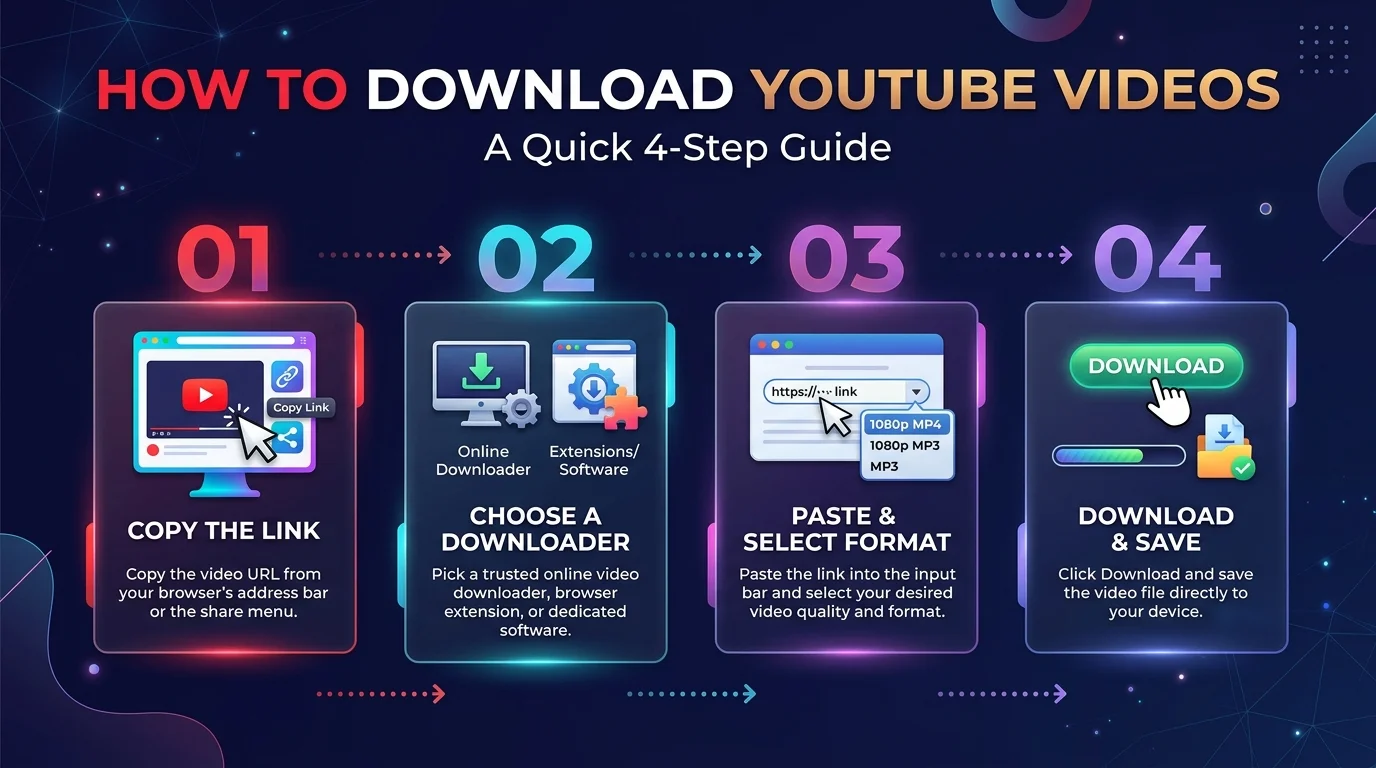
How to Download YouTube Videos on iPhone, Android and PC
Ready to do this? The steps below take about a minute each.
I will start with the method I recommend most, then cover the free options. Follow the one that matches your goal, and you will skip the sketchy installers entirely.
Method 1: Download with YouTube Premium (My Top Pick)
If you want offline viewing with zero drama, YouTube Premium wins.
Here is why I push it so hard. It is built by YouTube, so there is no shady installer, no pop up circus and no guessing. You also get ad free playback and background play, which is a nice bonus.
And honestly? A month of Premium costs less than one bad afternoon cleaning malware off your PC.
Saving videos from other platforms too? Our Facebook video download guide for all devices covers that.
Steps on Your Phone
Ready? Here is the official flow, based on YouTube's mobile help page:
Open the YouTube app and sign in to your Premium account.
Open the video's watch page.
Tap More, then Download.
Choose your video quality.
Find it later under Library, then Downloads.
Want to save data? Turn on the Wi-Fi only option under Settings, then Background and downloads.
Steps on a Computer
On a computer, YouTube Help says you can download in Chrome, Edge, Firefox and Opera.
Sign in to your Premium account at youtube.com.
Open the video.
Click Download below the player.
Done. One catch: downloads play for up to 29 days before you need to reconnect, and in some regions that window is 48 hours. Plan around it.
Cannot find your files afterward? Here is how to check downloads on this device.
Method 2: Download Your Own Videos with YouTube Studio
Maybe the video is yours. Maybe you lost the original file and you are panicking a little.
Relax. YouTube Studio lets you download your own uploads for free. It is perfect for backups, or for repurposing clips on other platforms.
Here is how:
Open YouTube Studio.
Click Content in the left menu.
Hover over your video and open the three dot menu.
Choose Download.
Need your whole library? Use Google Takeout. Typito's walkthrough covers both options.
Method 3: Use Creative Commons Videos
Here is a trick most bloggers miss.
Some creators label their videos with a Creative Commons license, which gives you permission to reuse their work. YouTube Help explains that the CC BY license lets other creators reuse and edit those videos under the license terms.
To find them, search YouTube, open Filters, and pick Creative Commons. This library guide shows where the filter lives. Always credit the creator, because the license requires it.
Planning to edit the footage? Browse the best video editing software for 2026 before you start.
Why I Avoid Sketchy Online YouTube Downloaders
I get the temptation. Paste a link, click a button, done.
But that is exactly how people end up with fake "Setup.exe" files and endless redirects. Gridinsoft describes fake downloader pages that push installers behaving like malware. Graham Cluley documented a downloader plugin that injected fake security warnings.
The legal side is messy too. GitHub removed youtube-dl after an RIAA notice, then reinstated it after new information came in. The law around these tools remains unsettled.
So why gamble with your device, your data and your channel when a clean option exists?
Why Can't You Download Some YouTube Videos?
Sometimes the button just is not there. Annoying, I know.
Usually it is one of a few simple causes, and most take under a minute to fix. YouTube's offline FAQ notes that some videos are not available offline at all.
Check these first:
Your Premium subscription is not active.
The creator turned off downloads.
Premium or downloads are not available in your region.
You are signed in with a different account.
Your app needs an update.
Still stuck? Sign out and back in. If the web player misbehaves, clear your Chrome cache and try again. It sounds silly, but it works more often than you would expect.
YouTube Download FAQ
You probably have a few questions left. These are the ones I hear most, so here are quick, direct answers.
Is it legal to download YouTube videos?
It is allowed when YouTube provides the option (Premium, Studio) or the creator licenses it (Creative Commons). Other downloads break YouTube's terms and may raise copyright issues.
Can I download YouTube videos on my computer?
Yes. With Premium, use the Download button in Chrome, Edge, Firefox or Opera. For your own videos, use YouTube Studio.
How long do Premium downloads last?
Up to 29 days before you must reconnect, or 48 hours in some regions, per YouTube Help.
Does Premium give me an MP4 file?
No. Premium downloads stay inside YouTube. Only Studio gives you a real file, and only for your uploads.
Are free YouTube downloader sites safe?
Many are not. Security researchers flag fake installers, aggressive ads and redirects.
Can I reuse a downloaded video on my blog?
Only with permission, a Creative Commons license that allows it, or a solid fair use case. Credit the creator either way.
My Final Verdict: Get YouTube Premium
So, what should you do?
If you just want to watch videos offline, YouTube Premium is the smartest buy on this list. It is official, it is safe, and it works the second you tap Download. You will also never wonder what is hiding inside a random installer.
If you are a creator, use YouTube Studio. If you are a blogger or editor, filter for Creative Commons. And if you want to get more from your videos, learn how to turn a YouTube video into LinkedIn carousels.
Stop hunting for shortcuts. Pick the right method, and start downloading today.
About the Author

Nathan Cole
Nathan Cole is a SaaS writer and AI product reviewer at Postunreel with a sharp focus on evaluating AI-powered tools for content creators, marketers, and growing businesses. He holds a degree in Computer Science and brings over five years of experience writing about software products, productivity tools, and marketing technology. Nathan approaches every review with rigorous hands-on testing, clear comparison frameworks, and an honest perspective that cuts through marketing hype. His goal is to help Postunreel readers make smarter decisions about the tools they invest in so they can build better content workflows without wasting time or money.
🔥 Limited Time Deal
NewGet lifetime access to Postunreel with a one-time payment. Never pay again!
Your Go-To Solution for Stunning Carousels using AI!
Postunreel is a free AI carousel generator tool that helps you design captivating carousel posts for LinkedIn, Instagram, and other platforms. It makes it easier to increase social media engagement and grow your audience.
Create Free Carousel Now 🚀Related Blogs
How to Screenshot on HP Laptop (2026): 5 Fast Methods That Work
How to screenshot on HP laptop in seconds. Get five easy Windows 11 and Chromebook methods, a shortcut table, and fixes when Print Screen fails.
Yandex Reverse Image Search: How to Use It Step by Step (2026 Guide)
Learn how to use Yandex reverse image search step by step. Find image sources, landmarks and fakes fast, plus 2026 face search limits and privacy tips.