How to Clear Cache in Chrome: Step by Step Guide
Learn how to clear cache in Chrome on desktop, Android and iPhone. Follow our simple steps, try a hard reload, and fix stale pages in under a minute.
How to clear cache in Chrome, press Ctrl+Shift+Delete (Windows or Linux) or Cmd+Shift+Delete (Mac), choose a time range, tick Cached images and files, and confirm. It takes about 30 seconds. If only one page looks wrong, a hard reload is faster.
Ever updated a page and Chrome still shows the old one?
I've been there. It's maddening.
So let me walk you through every method, from the 30 second fix to the developer trick.
What Does Clearing Chrome's Cache Actually Do?
Before you delete anything, you should know what you're deleting. Your browser saves site files like images, scripts and stylesheets in temporary storage. That's the browser cache, and it helps pages load faster on your next visit.
It's brilliant until a site changes and Chrome keeps serving the stale copy. Google's Chrome Help explains the types of data you can delete.
Here's the quick breakdown:
Cache holds site files. Clearing it fixes outdated pages and display errors.
Cookies hold login sessions and preferences. Clearing them signs you out of most sites.
Browsing history is just the list of pages you've visited.
Notice something? Only the first one matters for most website loading issues.
How to Clear Cache in Chrome on Desktop
You want results, not theory. So here's the fastest route on Windows, Mac or Linux. I use this one all the time.
Method 1: The Keyboard Shortcut
Open Chrome.
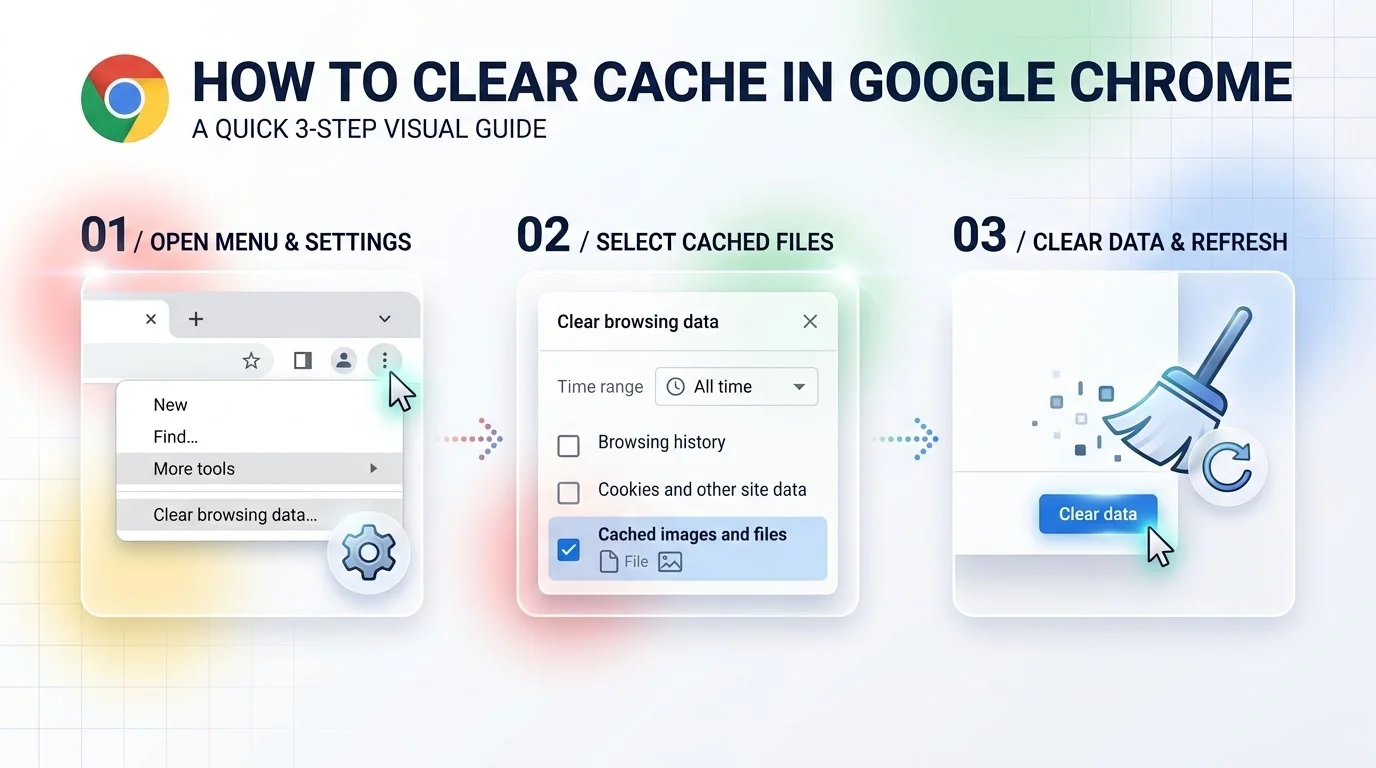
Press Ctrl+Shift+Delete (Windows or Linux) or Cmd+Shift+Delete (Mac).
The Clear browsing data box appears. A university IT guide confirms this shortcut.
Choose your time range.
Tick Cached images and files.
Confirm.
Done. Seriously.
Method 2: The Chrome Menu
Prefer clicking? No problem.
Click More (the three dots, top right).
Choose Delete browsing data. Older versions say More tools, then Clear browsing data.
Pick your options and confirm.
Which Boxes Should You Tick?
Here's my rule of thumb. Pick Cached images and files and nothing else, unless you also have a login problem.
For login trouble, add cookies and other site data. Just know you'll be signed out of most sites. According to one help desk guide, you'll stay signed in to your Google Account.
Choose All time for a deep clean, or Last hour for a light one. Want the full cookie rundown? Check Google's cookie guide.
Worried about your logins? Don't be. Your passwords stay put unless you tick that box in the Advanced tab. If you're unsure what's saved, read our guide on finding your saved passwords on this device first.
How to Clear Cache in Chrome on Android and iPhone
Mobile works a little differently, but it's just as quick. Menus shift between app versions, so if yours looks different, look for History. These steps follow a university knowledge base article.
On Android
Open the Chrome app.
Tap More (top right).
Tap History, then Clear browsing data.
Choose a time range.
Tick Cached images and files.
Tap Clear data.
On iPhone or iPad
Open Chrome.
Tap More (bottom).
Tap History, then Clear browsing data.
Make sure Cached Images and Files is ticked.
Tap Clear browsing data.
Simple, right?
Quick tip for iPhone users: if your browsing looks oddly locked down, you might be in private mode. Here's how to get out of incognito mode on iPhone.
Hard Reload vs. Clearing the Cache: Which Should You Use?
Here's where most guides stop. I won't.
Sometimes you don't need to nuke everything. A hard refresh only skips the cache for the page you're on. A hard refresh guide explains the difference: a hard refresh bypasses the cache for that page, while clearing removes the stored files entirely.
Compare your options:
Method | How | Scope | Best for |
|---|---|---|---|
Clear browsing data | Ctrl or Cmd+Shift+Delete | All sites | General fixes |
Hard reload | Ctrl+F5 or Cmd+Shift+R | Current page | One stale page |
Empty Cache and Hard Reload | DevTools open, right click Reload | Current page | Developers and testing |
Disable cache | DevTools Network settings | While DevTools is open | Live editing |
Shortcuts come from Chatwoot's hard reload guide.
The Developer Trick
Building a site? Open Chrome DevTools (F12), right click the Reload button, and choose Empty Cache and Hard Reload.
One catch: DevTools must be open or the option won't appear. You can also tick Disable cache in the Network settings, though that only works while DevTools is open.
When Should You Clear Your Chrome Cache?
Good question. You don't need to do it daily. Doing it too often actually slows you down, because Chrome has to download everything again. One university help guide notes that some sites may load more slowly right after clearing.
Do it when:
A site shows outdated content or broken layouts
Pages won't load or throw odd errors
You've just updated your own website
You need to free up storage space
You're troubleshooting before a bigger fix
If none of that applies, leave it alone.
Curious why caching exists in the first place? It's one of the ideas behind the tech that made the web move quicker. It's a fun read.
Frequently Asked Questions
Is clearing cache the same as clearing cookies?
No. Cache stores site files. Cookies store sign in and preference data. You can delete one without the other.
Will clearing cache delete my passwords?
No, not unless you tick the passwords box in the Advanced tab. Leave it unticked.
How often should I clear Chrome's cache?
Only when something breaks. A few times a year is plenty for most people.
Why does Chrome still show the old page after clearing?
Try a hard reload or restart Chrome. If it's your own site, a CDN or server cache might be serving the old version.
Does clearing cache make Chrome faster?
Sometimes, if a corrupted cache was the problem. Otherwise, pages may load a bit slower at first.
Final Thoughts: Stop Fighting Stale Pages
You've now got the shortcut, the mobile steps, and the developer trick. Not bad for five minutes.
If you build and design in the browser every day, a clean cache keeps your tools snappy. That includes browser based editors like Postunreel, where a stale tab can make a fresh design look broken. Clear your cache, reload, and get back to creating.
Now go clear that cache. Then tell me which method worked for you.
About the Author

Rachel Hammond
Rachel Hammond is an AI tools writer and content automation specialist at Postunreel, where she covers everything from AI carousel generators to social media scheduling workflows. She has spent five years helping digital creators and marketing teams understand how to use AI tools practically — not just theoretically. Rachel personally tests every tool she writes about, documents real results, and breaks down complicated AI features into simple, step-by-step guides that anyone can follow regardless of their technical background. Her work focuses on saving creators time while helping them produce content that genuinely performs.
🔥 Limited Time Deal
NewGet lifetime access to Postunreel with a one-time payment. Never pay again!
Your Go-To Solution for Stunning Carousels using AI!
Postunreel is a free AI carousel generator tool that helps you design captivating carousel posts for LinkedIn, Instagram, and other platforms. It makes it easier to increase social media engagement and grow your audience.
Create Free Carousel Now 🚀Related Blogs
URL Encoder and Decoder SpellMistake: Fix Broken Links and Encoding Errors (2026 Guide)
Learn how a URL encoder and decoder fixes broken links, %20 errors and double encoding. Follow the step by step guide, then try SpellMistake today.
SQL Server Management Studio (SSMS): The 2026 Guide
Learn what SQL Server Management Studio is, what's new in SSMS 22, and how to install it step by step. Free download, system requirements, and FAQs.