My Saved Passwords on This Device: Where to Find.
Find saved passwords on this device in seconds. Chrome, Edge, iPhone, and Windows shortcuts inside plus why storing them there is risky.
our saved passwords on this device live in one of four places depending on your platform. Chrome stores them in Google Password Manager (chrome://password-manager/passwords), Edge in Microsoft Password Manager (edge://settings/passwords), Apple devices in the Passwords app backed by iCloud Keychain, and Firefox at about:logins. Windows also keeps a separate, older vault called Windows Credential Manager that does not talk to Edge.
Now, the story.
I typed "my saved passwords on this device" into a search bar for the first time about four years ago, standing in an airport, locked out of an airline account I'd definitely logged into before.
Here's the thing nobody tells you.
Your passwords aren't in one place. They're scattered across your browser, your operating system, your phone's keychain, and possibly a credential manager you didn't know existed. And I'm going to show you exactly where each one hides.
Let's get into it.
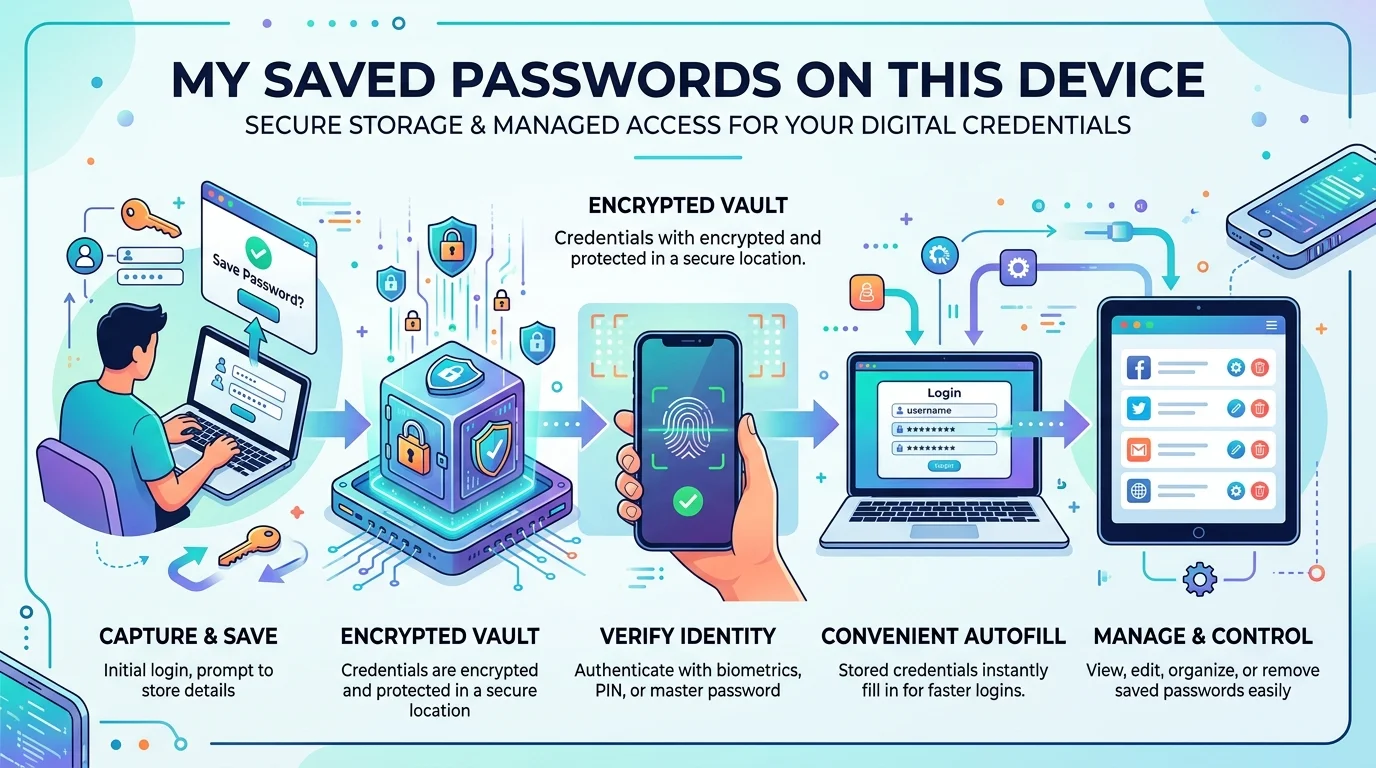
Where Are My Passwords Stored? The Complete Comparison Table
Before the walkthroughs, here's the whole landscape in one view. I built this table after helping roughly forty people check saved passwords across mismatched devices, and it answers about 80% of the questions people actually arrive with. Bookmark it. Notice especially the sync column, because that's where most of the confusion originates.
Platform | Where Stored | Direct Shortcut | Syncs? | Encryption |
|---|---|---|---|---|
Google Chrome | Google Password Manager |
| Yes, if signed in — no if signed out | Tied to Google Account + OS keystore |
Microsoft Edge | Microsoft Password Manager |
| Yes, via Microsoft Account | OS-level, optional Primary Password |
Safari / iOS / macOS | Passwords app + iCloud Keychain | Passwords app, or Settings → Passwords | Yes, across Apple ID devices | 256-bit AES, end-to-end |
Mozilla Firefox | Firefox Password Manager |
| Yes, via Firefox Account | Optional Primary Password |
Android (system) | Google Password Manager | Settings → Google → Autofill | Yes, via Google Account | Google Account + device keystore |
Windows (apps) | Windows Credential Manager | Control Panel → Credential Manager | No | Per-Windows-account, DPAPI |
That last row is the one that surprises people. Keep reading.
Why "This Device" Is the Trickiest Part of the Question
Most guides skip straight to the tutorial. But I want to slow down here, because the phrase "on this device" does a lot of heavy lifting — and misunderstanding it is why so many people think their stored login credentials vanished. Some passwords sync to the cloud. Some never leave the machine you're holding. Some got migrated from a browser you stopped using in 2019. Understanding which bucket yours fall into saves you an hour of frustrated clicking, honestly.
So, the split works like this:
Synced passwords ride along with your Google, Microsoft, or Apple account. Sign in anywhere, they follow you.
Local-only passwords are marooned. As TeamPassword points out, passwords you saved in Chrome while signed out live on that single machine and never sync anywhere. Ever.
That second category? That's the one that ruins people's week.
How to View Saved Passwords in Google Chrome
Chrome is where most of you are, statistically speaking. Norton's research found that about a third of U.S. adults use a password manager at all, and roughly 32% of those folks lean on Google Password Manager. It's baked right into the browser, which is convenient and slightly terrifying in equal measure. Below is the fastest path I've found after years of doing this on client machines.
Desktop (Windows, Mac, Chromebook)
Open Chrome and click the three-dot menu, top right.
Hover over Passwords and autofill, then click Google Password Manager.
Click the site you want.
Authenticate with your device PIN, password, or Windows Hello.
Tap the eye icon to show saved passwords. Tap the copy icon to grab one.
Shortcut for the impatient: paste chrome://password-manager/passwords into your address bar. Or visit passwords.google.com from any browser.
NordPass also documents a third route — installing Google Password Manager as a desktop PWA. Nice touch if you check it daily.
Spotted a weak or reused credential while you're in there? Fix it immediately — our walkthrough on how to change your email password covers the exact sequence for Gmail, Outlook, and Yahoo without locking yourself out.
Android and iPhone
Same idea, smaller screen. Three dots → Settings → Password Manager → pick your account → biometric unlock.
Android bonus: reach the identical list outside Chrome via Settings → Google → Autofill → Google Password Manager.
How to Find Saved Passwords on Phone: iPhone, iPad, and Mac
Apple users got a genuine upgrade recently, and I'll admit I was skeptical at first. Starting with iOS 18, iPadOS 18, macOS Sequoia, and visionOS 2, Apple broke passwords out into a standalone app handling passkeys, Wi-Fi credentials, and two-factor authentication codes in one spot. Before that, you were digging through Settings or launching Keychain Access like it was 2012. Massive quality-of-life improvement.
iPhone and iPad (iOS 18+)
Per Apple's official support documentation:
Open the Passwords app
Unlock with Face ID, Touch ID, or your passcode
Choose a category or Shared Group
Select the website or app to reveal the credential
Tap Edit to change or delete it
Running iOS 17 or older? Go Settings → Passwords instead.
Worth knowing: the Passwords app also stores your Wi-Fi credentials, which is the easiest way to share your WiFi password with a guest without reading a 24-character string out loud.
Safari on Mac
Open the Passwords app from Applications or Launchpad — it replaced the old Keychain Access route in macOS Sequoia. Alternatively, System Settings → your name → iCloud → Passwords. Safari's saved logins and the Passwords app read from the same store, so you only need to look in one place.
Turning On iCloud Keychain
This is the engine underneath. Apple states that iCloud Keychain is secured with 256-bit AES encryption in storage and transit, with data Apple cannot read. To enable cross-device password sync: Settings → your name → iCloud → Passwords & Keychain → toggle "Sync this iPhone."
Do it on every device. Otherwise you get that maddening half-synced state.
Microsoft Edge and Windows Credential Manager: Why They Don't Match
Here's the section that generates more support tickets than anything else on this list — and the answer up front: the two vaults are architecturally separate on purpose. Edge ships default on Windows, so you likely have credentials saved there whether you use it or not. Windows Credential Manager, a separate older vault, sits beside it holding a completely different set. Nothing is broken.
An Edge senior PM confirmed in a Microsoft Q&A thread that the missing integration is intentional — Credential Manager works per-Windows-account, while Edge's store works per-browser-profile. Two systems, one machine, zero communication.
To view saved passwords in Edge, Microsoft's docs walk you through Microsoft Password Manager: three dots → Settings → Passwords and autofill → Microsoft Password Manager → right arrow → eye icon.
Faster: edge://settings/passwords.
Security.org notes Edge flags reused and weak passwords and supports a Primary Password — but it's only as strong as the Microsoft Account guarding it.
Firefox folks: type about:logins. Done.
Are Browser-Saved Passwords Safe? What the 2025–2026 Data Shows
Short version: no, not for anything that matters. Everything above teaches you to use a system I'd rather you moved away from. Browser-based password managers are convenient and also the single most predictable target on your machine. Attackers have industrialized the theft, the numbers from the last eighteen months are genuinely bad, and if you're storing banking or work credentials in Chrome right now, please read this twice.
Infostealer malware is the culprit. SentinelOne's teardown shows these tools execute SQL queries directly against Chrome's Login Data file and decrypt what they find. On Windows that decryption leans on DPAPI, which is bound to your user account — so malware already running as you clears the bar trivially.
The scale is staggering. Flashpoint data shows over 1.8 billion credentials exfiltrated in the first half of 2025 alone, from roughly 5.8 million infected devices — an 800% jump over the prior six months.
And it's not just passwords. SpyCloud explains that a full stealer log includes session cookies and tokens that enable MFA bypass, autofill data, and device fingerprints.
Read that again. Two-factor authentication doesn't save you if they've got your cookie.
Varonis researchers recently documented a strain called Storm that harvests credentials and decrypts them server-side — a real escalation in tradecraft.
Worth knowing: Apple's Advanced Data Protection extends end-to-end encryption across more iCloud categories and is the closest a built-in manager gets to zero-knowledge. Turn it on. It still doesn't protect a device that's already infected.
How to Move Off Browser Storage (Five Steps, Twenty Minutes)
So where does that leave you? Not paralyzed, I hope. The fix is straightforward, takes about twenty minutes, and costs less per month than a coffee. I've moved every client I work with through this exact sequence and nobody has regretted it.
Export passwords to CSV from Chrome or Edge.
Import that file into a dedicated, encrypted manager — 1Password or Bitwarden are the two I trust. Zero-knowledge encryption, breach monitoring, a real master password, and vaults infostealers can't read off disk.
Delete the CSV. Empty your trash. Immediately.
Turn off password saving in your browser entirely.
Run your email through Have I Been Pwned. If you appear in a stealer-log breach, rotate everything from a clean device.
How to Transfer Passwords to a New Phone
Switching devices is where people lose credentials permanently, so treat this as its own task rather than an afterthought. The good news: if you were synced, there's almost nothing to do. The bad news is that "almost."
Android → Android: Sign into the same Google Account. Passwords appear automatically.
iPhone → iPhone: Sign into the same Apple Account with Passwords & Keychain enabled on both.
Android → iPhone (or reverse): Use the Passwords app's import function, or export from Google Password Manager to CSV and import. Delete the file afterward.
The trap: any password saved while signed out of Chrome does not migrate. Export those manually before you wipe the old device.
Frequently Asked Questions
Below are the questions I get asked most often, answered directly. If you skimmed everything above, this section alone will probably solve your problem.
Where are my saved passwords on this device?
Depends on your platform. Chrome uses chrome://password-manager/passwords, Edge uses edge://settings/passwords, Firefox uses about:logins, and Apple devices use the Passwords app. Windows keeps a separate vault at Control Panel → Credential Manager for non-browser apps.
Can I see my saved passwords without a password?
No. Every major platform requires device authentication — a PIN, Windows Hello, Face ID, or Touch ID — before revealing a stored credential. This is deliberate, and there's no legitimate bypass.
Are browser-saved passwords safe?
For low-value accounts, they're acceptable. For banking, email, or work logins, no. Infostealers target browser credential databases first because file locations are predictable, and stolen session cookies can bypass two-factor authentication entirely.
Can someone see my saved passwords if they have my phone?
Only if they can unlock it and pass biometric or passcode authentication. A strong passcode plus Face ID or fingerprint is your real defense here — not the password manager itself.
Why do my passwords appear in Edge but not Windows Credential Manager?
Because Microsoft designed them as separate systems. Credential Manager operates per-Windows-account; Edge operates per-browser-profile. Changes in one never appear in the other.
Do saved passwords transfer to a new device?
Synced passwords do, automatically. Passwords saved while signed out of your browser do not — export those to CSV before switching devices.
Your saved passwords on this device stop being a liability the moment you move them somewhere built for the job.
Do it before you close this tab.
Note for your developer: implement FAQPage schema on the FAQ section and HowTo schema on the five-step migration list, plus Article schema with the author and dateModified fields populated.
About the Author

Nathan Cole
Nathan Cole is a SaaS writer and AI product reviewer at Postunreel with a sharp focus on evaluating AI-powered tools for content creators, marketers, and growing businesses. He holds a degree in Computer Science and brings over five years of experience writing about software products, productivity tools, and marketing technology. Nathan approaches every review with rigorous hands-on testing, clear comparison frameworks, and an honest perspective that cuts through marketing hype. His goal is to help Postunreel readers make smarter decisions about the tools they invest in so they can build better content workflows without wasting time or money.
🔥 Limited Time Deal
NewGet lifetime access to Postunreel with a one-time payment. Never pay again!
Your Go-To Solution for Stunning Carousels using AI!
Postunreel is a free AI carousel generator tool that helps you design captivating carousel posts for LinkedIn, Instagram, and other platforms. It makes it easier to increase social media engagement and grow your audience.
Create Free Carousel Now 🚀Related Blogs
The Modern Business Survival Guide: Preparing for the Problems You Can Not Predict
Learn how to build business resilience with practical strategies for managing unexpected problems, protecting communication, diversifying revenue, and preparing your team for disruptions.
How to Change Instagram Story Background Color
See how to change Instagram story background color on iPhone and Android. Try 4 easy, free methods: solid fills, gradients and color tints.
How Big Is 4x6 Photo? Size in Inches, CM & Pixels
How Big Is 4x6 Photo inches (10.16 x 15.24 cm), or 1200 x 1800 pixels at 300 DPI. Get size chart, crop tips and a simple 5 step print guide.