How to Share Your WiFi Password Safely (2026)
Share your WiFi password fast and safe on any device. QR code, guest network, and security tips inside no more spelling it out loud
The fastest way to share your WiFi password is through your phone's built-in sharing feature — iPhones use a Share Password prompt or a QR code via the Passwords app, while Android generates a QR code straight from Wi-Fi settings. For guests you don't fully trust, set up a guest Wi-Fi network instead of sharing your main password at all.
I'll be honest with you — I used to just shout my Wi-Fi password across the room like a maniac.
"It's lowercase P, then seven, then..." Yeah. Not fun for anyone.
If you've ever fumbled through spelling out a 16-character password to a confused dinner guest, you already know the pain. And here's the thing — you don't have to do that anymore.
In this guide, I'm going to walk you through every method for sharing your Wi-Fi password in 2026 — iPhone, Android, Mac, Windows, and even the old-school WPS button — plus why some of the "easy" ways you're currently using might be putting your network security at risk.
Let's get into it.
Quick Comparison: Which Wi-Fi Sharing Method Is Best?
Before we go step-by-step, here's the cheat sheet. I timed each method myself on a regular Tuesday night with actual guests, so these aren't just theoretical.
Method | Works Between | Speed | Security Level |
|---|---|---|---|
iPhone Share Prompt | iPhone → iPhone/iPad | ~10 seconds | High (Bluetooth + Contacts required) |
iOS QR Code (Passwords app) | iPhone → Android | ~30 seconds | High |
Android Built-in QR Code | Android → any device | ~25 seconds | High |
Printed QR Code | Any device | ~15 seconds | Medium (reusable, but visible to anyone) |
Texting the password | Any device | ~1–2 minutes | Low (plain text, easily forwarded) |
Guest Wi-Fi Network | Any device | Setup: ~5 min once | Highest (isolates your main network) |
If you only remember one row: guest network wins for security, QR code wins for speed.
Why How You Share Your Wi-Fi Password Actually Matters
Quick gut check before the how-to steps: sharing your password isn't just a convenience thing. It's a network security thing too.
Every time you hand out your Wi-Fi credentials, you're giving someone a key to your digital front door. Most of the time that's fine (hi, mom). But casual sharing methods like texting or sticky notes create real security risk, especially if that password ends up screenshotted, forwarded, or left lying around.
This isn't just a home-network problem either — if you work remotely or handle client files, the same carelessness applies to how online professionals protect sensitive work data. A leaked Wi-Fi password is often the easiest entry point into a much bigger privacy problem.
So yes, convenience matters. But so does knowing which method actually protects you.
Method 1: Sharing Wi-Fi Password on iPhone
Let's start with Apple's ecosystem because, honestly, this is where sharing feels smoothest.
If you're connecting one iPhone to another iPhone (or iPad), Apple built a genuinely slick feature for this:
Make sure Bluetooth is turned on for both devices
Turn off personal hotspot on both phones
Add each other as Contacts (yes, this is required)
Stand close together — within 6 feet
Have the guest tap the Wi-Fi network on their device
A prompt appears on your phone asking to share — tap Share Password
That's it. No typing. No spelling out characters.
The iPhone-to-Android Problem (And How to Fix It)
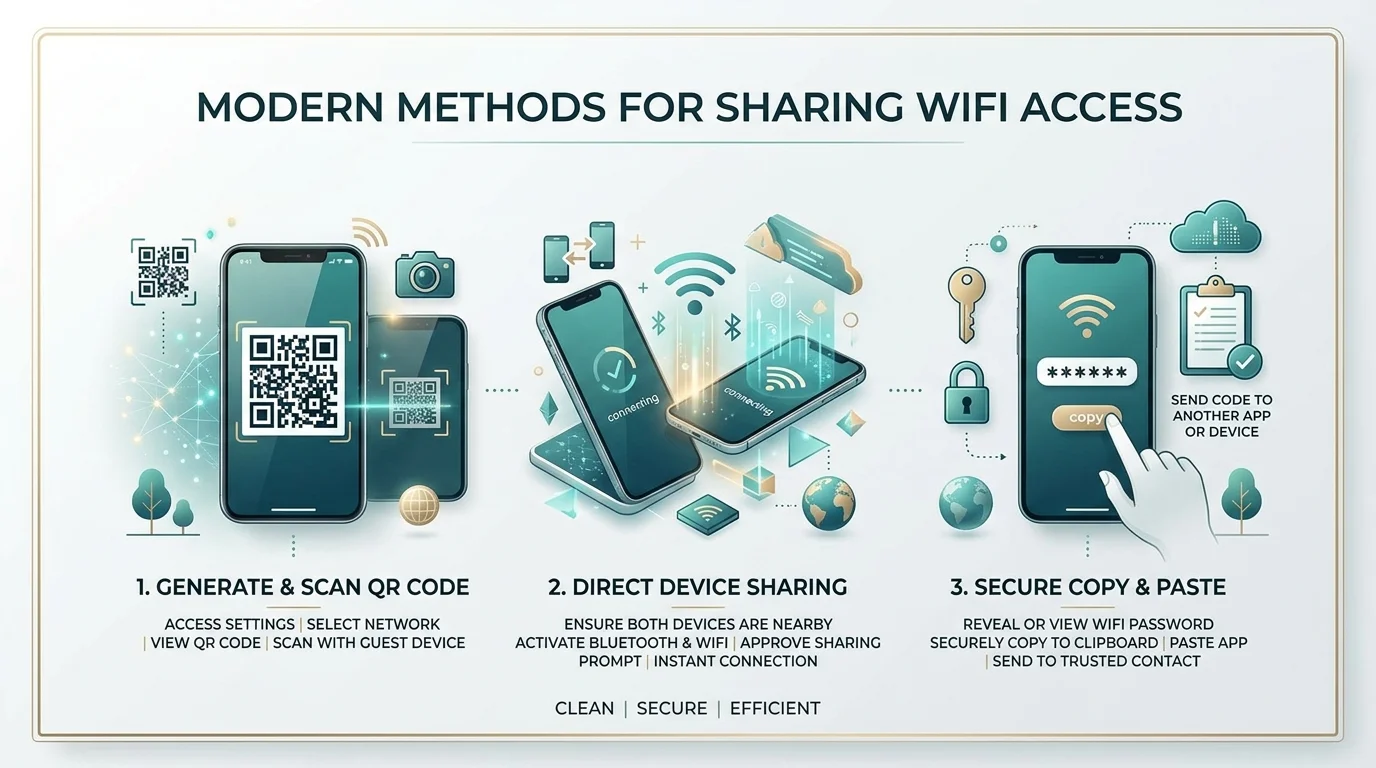
Apple and Android don't talk to each other the same way, so your best bet is generating a Wi-Fi QR code through the iOS Passwords app (iOS 18+):
Go to Settings > Passwords
Authenticate with Face ID or your passcode
Tap your saved Wi-Fi network
Tap Show QR Code
Have your Android friend scan it with their camera
On older iOS versions, use the Shortcuts app's "QR Your Wi-Fi" automation instead — it takes a couple extra minutes to set up once, then becomes a one-tap shortcut forever.
Method 2: Sharing Wi-Fi Password on Android
Android makes this genuinely painless. Since Android 10, there's a built-in QR code generator baked right into your Wi-Fi settings:
Open Settings
Tap Network & Internet
Tap Internet
Tap the gear icon next to your current network
Tap Share
Verify your identity (fingerprint or PIN)
A QR code appears — your guest scans it with any camera app
This works both ways — Android-to-Android and Android-to-iPhone.
Method 3: Sharing Wi-Fi on Mac and Windows
On Mac: if a nearby iPhone or iPad belongs to someone in your Contacts, it'll get an automatic share prompt the moment it tries to join your network. You just click Share Password and you're done — no QR code needed. If you're a creator or freelancer working off your Mac around clients or coworking spaces, it's worth pairing this with good Mac security practices for creators so a shared network never becomes a shared vulnerability.
On Windows: there's no built-in sharing prompt like Apple's, so your most reliable options are:
Manually reading the password from Network & Internet settings > Wi-Fi > Network Properties
Generating a QR code using a free online generator and printing it
Using the router's WPS button (see below) for a password-free connection
The WPS Button Method (Old-School but Still Works)
Most routers have a physical WPS (Wi-Fi Protected Setup) button. Press it, then within two minutes select your network on the new device — it connects automatically, no password typed at all. It's fast, but I'd only recommend it for trusted guests, since anyone in physical reach of your router can trigger it.
Method 4: The QR Code Route (Best for Repeat Guests)
If you want something more permanent — like for guests who visit often, or a small business — printing a physical QR code is genuinely underrated.
It feels more secure than handing out a plain-text password, because most people glancing at a QR code have no idea what the actual password is. Stick it on your fridge, your welcome mat, or your Airbnb guidebook.
Just remember — if you ever change your network name (SSID) or password, you'll need to generate a fresh code.
Why You Should Stop Sharing Your Main Password Altogether
Real talk for a second: should you even be sharing your main Wi-Fi password at all? I'd argue probably not.
Setting up a dedicated guest Wi-Fi network is one of the smartest moves you can make. A guest network runs parallel to your primary network, keeping your personal devices and smart home gadgets protected from anything sketchy that might hitch a ride on a guest's phone.
How to Set Up a Guest Network (Quick Version)
Log into your router (usually via its IP address in your browser)
Find the wireless settings tab
Look for Guest Network or Guest Access
Enable it and give it a distinct SSID (never reuse your main network's name)
Set a strong, unique password — don't recycle your main one
Choose WPA3 encryption if supported, or WPA2 at minimum
This one extra step changes your entire security posture — the difference between "I hope nothing weird happens" and actually knowing your home network is protected.
The Smartest Way to Manage It All
My honest recommendation: use a password manager for long-term storage and sharing.
Tools built for this encrypt your network passwords so you're not relying on sticky notes or group texts that can be screenshotted, forwarded, or lost. You share access with one tap, revoke it whenever you want.
Combine that with a guest network, strong encryption protocols, and regular firmware updates, and you've built a genuinely solid home network setup.
Frequently Asked Questions
Can I share Wi-Fi without giving out the actual password?
Yes — a QR code or a guest network both let people connect without ever seeing your real password in plain text.
Does changing my Wi-Fi password disconnect people I've already shared it with?
Yes. Changing your password immediately disconnects every device using the old credentials, which is also the fastest way to revoke access from someone.
Is sharing via QR code actually safe?
Safer than texting or writing it down, but keep in mind the password is embedded in the code and can technically be extracted if someone really wants to try.
Why isn't the iPhone or Android share prompt working?
Usually it's Bluetooth being off, devices not being in each other's Contacts, or devices being too far apart. Restarting both devices often fixes it.
Should I use my main network or a guest network for visitors?
A guest network, every time you can. It isolates visitor devices from your personal files and smart home gadgets.
Wrapping This Up
Sharing your Wi-Fi password doesn't need to be a whole production. Whether you're using the iPhone share prompt, Android's QR generator, the WPS button, or a printed code taped to your fridge — you've got options that are faster and more secure than reading off a password like it's a phone number from 2003.
But if you really want peace of mind? Set up that guest network. Grab a password manager. Future-you will thank present-you.
Read Also: How to Change Your Email Password 2026
About the Author

Nathan Cole
Nathan Cole is a SaaS writer and AI product reviewer at Postunreel with a sharp focus on evaluating AI-powered tools for content creators, marketers, and growing businesses. He holds a degree in Computer Science and brings over five years of experience writing about software products, productivity tools, and marketing technology. Nathan approaches every review with rigorous hands-on testing, clear comparison frameworks, and an honest perspective that cuts through marketing hype. His goal is to help Postunreel readers make smarter decisions about the tools they invest in so they can build better content workflows without wasting time or money.
🔥 Limited Time Deal
NewGet lifetime access to Postunreel with a one-time payment. Never pay again!
Your Go-To Solution for Stunning Carousels using AI!
Postunreel is a free AI carousel generator tool that helps you design captivating carousel posts for LinkedIn, Instagram, and other platforms. It makes it easier to increase social media engagement and grow your audience.
Create Free Carousel Now 🚀Related Blogs
Dark Blue Hex Code: #00008B, Navy Midnight Shades
Dark blue hex code is #00008B (RGB 0,0,139). Compare navy, midnight blue, contrast ratios, and pairing tips in this quick guide.
Best Free Photo Editing Software in 2026
Find best free photo editing software in 2026. Compare Affinity, GIMP, darktable, Photopea and Paint.NET, with edit workflow for bloggers.
How to Improve Focus in Photos: 11 Fixes
Blurry photos? Learn how to improve focus in photos with 11 proven fixes, from autofocus modes to focus stacking. Get sharper shots.