How to Screenshot on HP Laptop (2026): 5 Fast Methods That Work
How to screenshot on HP laptop in seconds. Get five easy Windows 11 and Chromebook methods, a shortcut table, and fixes when Print Screen fails.
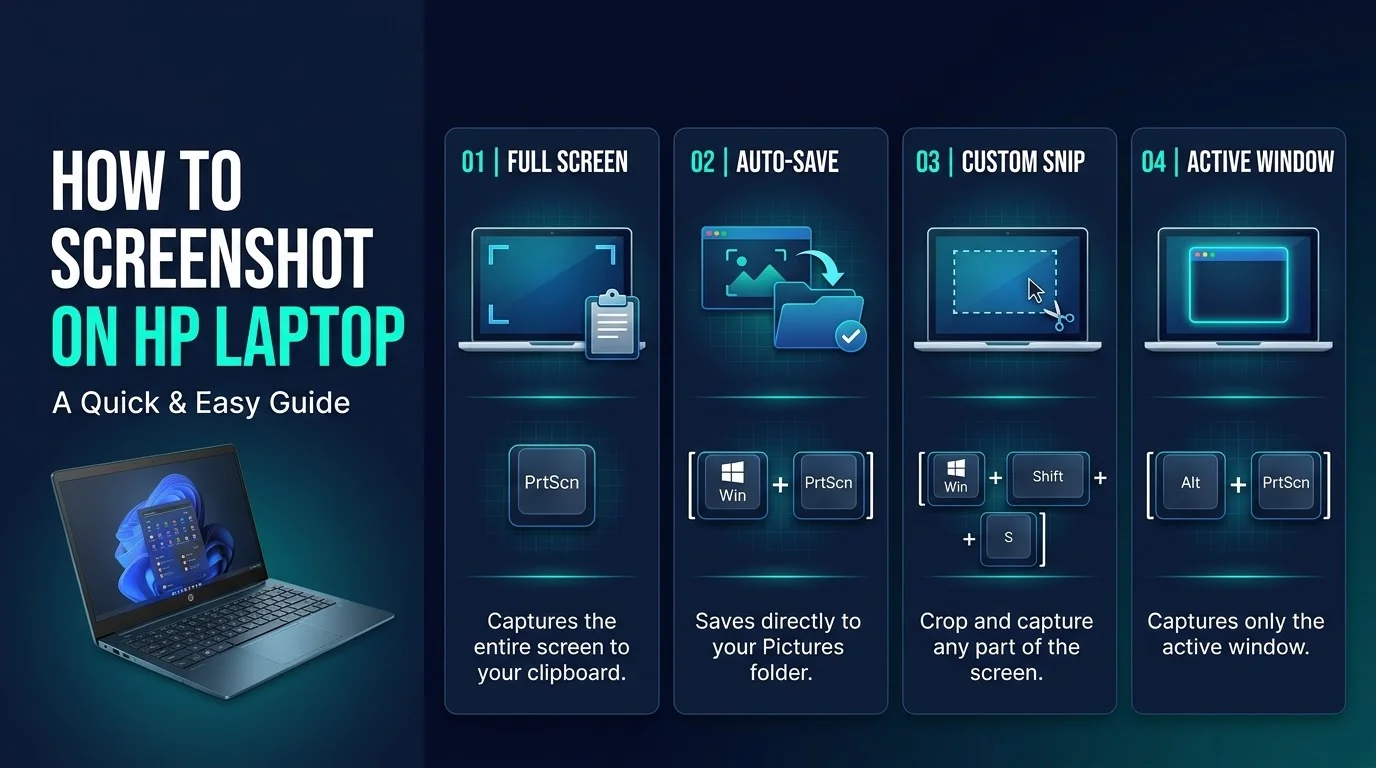
How To screenshot on HP laptop running Windows, press Windows + Shift + S to capture part of the screen, or Windows + PrtSc to save the full screen automatically. On an HP Chromebook, press Ctrl + Show Windows. Both work without extra software.
Okay, quick confession.
I used to open Paint, paste, crop, and save every single time I needed a screenshot. Painful, right?
Then I learned the real HP laptop screenshot shortcuts, and I never looked back. You can capture your screen in about two seconds, and I'll show you how.
Which Screenshot Shortcut Should You Use?
Before the details, let me save you some time. Different shortcuts do different jobs, and picking the right one is half the battle. This table pulls them together from Microsoft's shortcut list and Microsoft's Snipping Tool guide. Bookmark it.
Shortcut | What it captures | Where it goes |
|---|---|---|
PrtSc | Entire screen | Clipboard (may open Snipping Tool, depending on your settings) |
Windows + PrtSc | Entire screen | Pictures > Screenshots folder |
Alt + PrtSc | Active window | Clipboard |
Windows + Shift + S | Area you choose | Clipboard |
Windows + Shift + R | Video of an area | Snipping Tool recording |
Ctrl + Show Windows (Chromebook) | Entire screen | Downloads folder |
Use the Print Screen Key (The Classic Method)
First up is the Print Screen key, the oldest trick in the book. It works on nearly every Windows laptop. You'll usually find it in the top right of your keyboard, labeled PrtSc or PrtScn, as HP's own guide explains.
Here's how to do it:
Press PrtSc once to copy your full screen screenshot to the clipboard.
Open Paint, Word, or any image editor.
Press Ctrl + V to paste it.
Save it as a PNG for the cleanest quality.
Nothing happens? Try Fn + PrtSc. Some HP keyboards need that extra key.
Save Screenshots Automatically with Windows + PrtSc
Hate pasting? Same. Press the Windows key + PrtSc, and your screen briefly dims. That's your confirmation. Per Microsoft's keyboard shortcut page, the image lands as a file in Pictures > Screenshots.
No PrtSc key? Microsoft says Fn + Windows logo key + Space Bar does the same job.
Capture One Window with Alt + PrtSc
Sometimes you don't want your messy desktop in the shot. That's where Alt + PrtSc shines. It grabs only the active window and copies it to the clipboard.
So, try this:
Click the window you want.
Press Alt + PrtSc.
Paste with Ctrl + V.
For tutorials or support tickets, that's gold. Want to polish the result afterward? Check out our list of the best free photo editing software.
Take a Partial Screenshot with Snipping Tool (Win + Shift + S)
Here's my personal favorite. The Snipping Tool gives you control, so you're not stuck with the whole screen. Press Windows logo key + Shift + S and the overlay opens, offering rectangle, freeform, window, and full screen modes.
Follow these steps:
Press Win + Shift + S.
Pick your snipping mode.
Drag across the area you want.
Click the notification to annotate and save.
Delay a Snip to Capture Menus
Ever tried to screenshot a dropdown menu? It vanishes when you click. The fix is the delay option: pick up to five seconds, open your menu, and wait for the screen to gray out.
Record a Video Snip
Need motion? Press Windows + Shift + R, select an area, and start. That's a quick screen recording with zero extra software.
New on Copilot+ PCs
If you own a Copilot+ PC, Microsoft says the Snipping Tool also offers Perfect Screenshot and a color picker. Regular Windows 11 laptops don't get those two.
Heads Up: Print Screen Can Behave Differently
Here's a twist. On some setups, pressing PrtSc opens the snipping toolbar instead of copying silently. Microsoft says you can switch that off under Settings > Accessibility > Keyboard. If your shortcut feels off, check that toggle first.
How to Screenshot on an HP Chromebook
Using a Chromebook instead? Different keys, same idea. Google's Chromebook help page and HP's Chromebook guide agree on these:
Ctrl + Show Windows takes a full screenshot.
Shift + Ctrl + Show Windows opens the Screen Capture toolbar.
Power + Volume Down works in tablet mode, per Google's shortcut list.
Ctrl + Shift + F5 works on external keyboards.
Files save to your Downloads folder by default.
Fix Common Problems and Level Up
If PrtSc isn't working, restart first, then try the Fn combo. HP's UK guide also suggests updating drivers through HP Support Assistant.
Want a scrolling screenshot? Windows doesn't include one. HP's guide points to Snagit, ShareX, or PicPick.
Pro tip: hide personal info before you capture. And if you're curious whether people get alerted when you capture social content, read our guide on the Instagram screenshot notification for stories.
Why an HP Laptop Makes Screenshotting Effortless
Every method above runs smoothly on a modern HP laptop. You get a familiar keyboard layout and a full set of Windows 11 capture tools, with no extra software required.
Still wrestling with an old, sluggish machine? I'd honestly say upgrade. Students, bloggers, and remote workers screenshot all day, so a reliable laptop pays off fast. Windows 10 support also ended on October 14, 2025, so a Windows 11 HP laptop keeps you current. Not sure how to get there? Our Windows 11 Update Assistant guide walks you through it.
Browse HP's latest laptops today and pick one that fits your budget.
Frequently Asked Questions
How do I take a screenshot on an HP laptop?
Press Windows + Shift + S to capture part of your screen, or Windows + PrtSc to save the full screen to Pictures > Screenshots. PrtSc alone copies the screen to your clipboard. Chromebook users press Ctrl + Show Windows.
Where do screenshots go on an HP laptop?
Windows + PrtSc saves files to Pictures > Screenshots. PrtSc, Alt + PrtSc, and Windows + Shift + S copy to the clipboard, so paste them with Ctrl + V. Chromebooks save to the Downloads folder by default.
How do I screenshot without a Print Screen key?
Use Windows + Shift + S, or open Snipping Tool from the Start menu. Microsoft also lists Fn + Windows logo key + Space Bar for devices without a PrtScn button.
Why is Print Screen not working on my HP laptop?
Try Fn + PrtSc first, since some HP keyboards require it. Then restart, update drivers through HP Support Assistant, and check the Print Screen setting under Accessibility > Keyboard.
Can I take a scrolling screenshot on an HP laptop?
Not with built in Windows tools. HP suggests third party apps like Snagit, ShareX, or PicPick.
Final Thoughts
You now know every reliable way to screenshot on an HP laptop. Start with Win + Shift + S for precision, use Win + PrtSc for instant saves, and keep Alt + PrtSc handy for single windows.
Practice each shortcut once, and it becomes muscle memory.
Got a favorite trick I missed? Drop it in the comments.
About the Author

Nathan Cole
Nathan Cole is a SaaS writer and AI product reviewer at Postunreel with a sharp focus on evaluating AI-powered tools for content creators, marketers, and growing businesses. He holds a degree in Computer Science and brings over five years of experience writing about software products, productivity tools, and marketing technology. Nathan approaches every review with rigorous hands-on testing, clear comparison frameworks, and an honest perspective that cuts through marketing hype. His goal is to help Postunreel readers make smarter decisions about the tools they invest in so they can build better content workflows without wasting time or money.
🔥 Limited Time Deal
NewGet lifetime access to Postunreel with a one-time payment. Never pay again!
Your Go-To Solution for Stunning Carousels using AI!
Postunreel is a free AI carousel generator tool that helps you design captivating carousel posts for LinkedIn, Instagram, and other platforms. It makes it easier to increase social media engagement and grow your audience.
Create Free Carousel Now 🚀Related Blogs
Yandex Reverse Image Search: How to Use It Step by Step (2026 Guide)
Learn how to use Yandex reverse image search step by step. Find image sources, landmarks and fakes fast, plus 2026 face search limits and privacy tips.
Best Video Editing Software in 2026: Top Picks, Prices and What to Buy
Compare the best video editing software of 2026: real prices, pros and cons, free picks, and which editor to buy for your YouTube channel and blog.