Windows 11 Update Assistant: How to Upgrade Your PC Step by Step (2026)
Learn how to use the free Windows 11 Update Assistant to upgrade your Windows 10 PC safely. Get step by step setup, requirements, fixes, and FAQs.
The Windows 11 Update Assistant is the common name for Microsoft's official Windows 11 Installation Assistant. It is a free tool that performs an in place upgrade from Windows 10 (version 2004 or later) to Windows 11. It needs 9 GB of free disk space and an x64 processor, and it keeps your files and apps. Download it only from Microsoft's official download page.
Let me guess. You have been refreshing Windows Update, waiting for Windows 11 to show up, and nothing is happening.
I have been there. It is frustrating.
So here is what I will show you. How the tool works, how to run it, how to fix it when it breaks, and when to pick something else. Ready? Let's go.
Key Facts at a Glance
Before the details, here are the numbers you need.
Fact | Detail |
|---|---|
Official name | Windows 11 Installation Assistant |
Minimum Windows version | Windows 10, version 2004 or higher |
Free disk space needed | 9 GB |
Supported processors | x64 only (not Arm based PCs) |
Typical time | Under an hour |
Download size via the tool | About 3 GB (compared with a 166 KB enablement package via Windows Update) |
Current release on Microsoft's page | Windows 11 25H2 at the time of research (check the page before you upgrade) |
What Is the Windows 11 Update Assistant?
Here is something most guides skip. A tool with that exact name does not exist. Action1 explains that Microsoft's support page for "Windows Update Assistant" redirects to the Windows 11 download page, where the tool is called the Installation Assistant. People just search for the older name.
It is small, free, and official.
It performs an in place upgrade, so your files, apps and most settings stay put. No USB drive. No bootable media. No headaches.
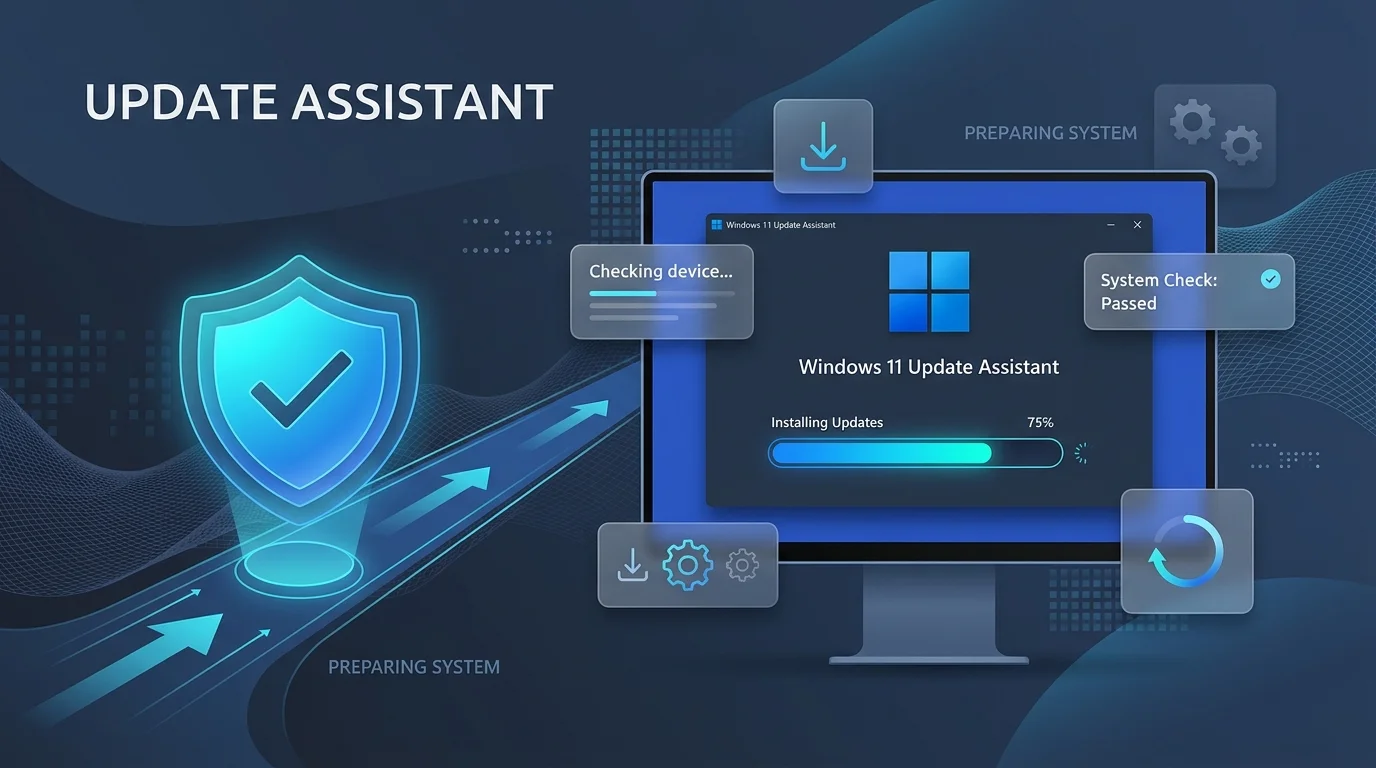
When should you use it?
Use it when Windows 11 is not showing up in Settings. Pureinfotech notes it also works when other unknown issues block the update, as long as your hardware qualifies. You can even use it on purpose to force the Windows 11 25H2 upgrade and skip the wait.
Can Your PC Run It? Check the Requirements First
Check your hardware before you download anything. It takes five minutes and saves hours.
The tool itself needs:
Windows 10, version 2004 or higher
9 GB of free disk space
A valid Windows license
An x64 processor, because it does not run on Arm based PCs
Not sure how much space you actually have? Our quick explainer on how many gigabytes are in a terabyte makes drive sizes easy to read.
Windows 11 itself is stricter. It needs UEFI firmware, Secure Boot and TPM 2.0.
How to check TPM 2.0 and Secure Boot
Press Windows + R.
Type tpm.msc and hit Enter.
Read the TPM version shown.
PC Gamer recommends this quick check, and also suggests Microsoft's PC Health Check app. TechRepublic adds that it tells you plainly whether your PC can run Windows 11.
Not compatible? That is useful to learn now, not halfway through an install.
Step by Step: How to Use the Windows 11 Update Assistant
Now the fun part. It takes five steps, and I will walk you through each. I always back up my files first. You should too.
Step 1: Download it from Microsoft only
Go to Microsoft's official page. Under "Windows 11 Installation Assistant," click Download Now.
Please do not grab it from random sites. Atera warns that malware authors love faking Windows tools.
Step 2: Run the file
Open Windows11InstallationAssistant.exe. It runs a compatibility check automatically.
For a deeper hardware check, the tool prompts you to run PC Health Check. Then click Refresh in the Assistant window.
Step 3: Accept and install
Click Accept and install. It downloads the Windows 11 files.
Windows Latest points out the tool pulls a fresh copy of about 3 GB. Windows Update uses a 166 KB enablement package for 25H2 instead. Same destination, different route.
Step 4: Restart and finish
Hit Restart now. Your PC will reboot several times.
Do not panic. Do not unplug anything.
Step 5: Verify your version
Press Windows + R, type winver, and confirm your version number.
Installation Assistant vs. Media Creation Tool vs. Windows Update
Which tool should you pick? Each one fits a different job. Microsoft offers three options, and Windows Central explains you can also upgrade through the ISO file.
Method | Best for | Needs USB? | Keeps files and apps? |
|---|---|---|---|
Windows Update | Safest, easiest route if offered | No | Yes |
Installation Assistant | Manual in place upgrade right now | No | Yes, by default |
Media Creation Tool | Clean install, new drive, another PC | Yes (USB or DVD) | Depends on how you run setup |
ISO file | Custom setups, virtual machines | Optional | Yes, if you mount it and run setup.exe |
For most people upgrading their own PC, the Installation Assistant wins. If you want a clean install or need to set up another computer, read our guide to the Media Creation Tool first.
When the Installation Assistant Fails (And How to Fix It)
I would love to say it works every time. It does not.
Sometimes it freezes or crawls at 99%. Annoying? Absolutely. Fixable? Usually.
Quick fixes to try first
KapilArya's troubleshooting guide recommends:
Run the tool as administrator
Repair corrupted files with sfc /scannow
Update your graphics drivers
Reset Windows Update components
Confirm you have enough storage and a stable connection
Common errors at a glance
Symptom or code | Likely cause | Fix |
|---|---|---|
0xc00000f0 at 79%, or stuck at step 3 of 3 | Assistant fails on some systems | Use the ISO or Media Creation Tool instead (WinHelpOnline) |
0xc004f015 at the end | Activation problem, not an install failure | Run the Activation Troubleshooter (Microsoft Tech Community) |
Will not start or progress | Not enough space, corrupted files | Free 9 GB, run sfc /scannow |
The ISO workaround
Download the Windows 11 ISO, right click it and choose Mount, then run setup.exe. Pick "Not right now" when asked about updates to turn off dynamic updates. Afterwards, install the latest updates through Windows Update.
Why I Recommend You Upgrade Today
Let me be straight with you.
If your PC qualifies, upgrading is a no brainer. The tool is free from Microsoft. The upgrade keeps your files and apps. And a Microsoft Tech Community reply notes the official route keeps your PC receiving updates normally.
You do need a genuine license. If you do not have one, buy it from Microsoft or an authorized retailer. Skip the suspiciously cheap keys.
So check your requirements, back up your files, and download the Windows 11 Installation Assistant from Microsoft's official page.
Then press Download Now. Your future self will thank you.
Frequently Asked Questions
Is there a Windows 11 Update Assistant?
Not by that name. Microsoft's tool is the Windows 11 Installation Assistant, per Action1. People still search for "Update Assistant."
Is the Windows 11 Installation Assistant safe?
Yes, when you download it from Microsoft's official page. Atera warns against copies from other sites.
Will it delete my files?
By default it performs an in place upgrade that preserves files, apps and most settings, according to TechSpot. Back up first anyway.
How long does it take?
Usually under an hour, per Pureinfotech.
How much space do I need?
At least 9 GB of free disk space, per Microsoft.
Does it work on Arm based PCs?
No. It only works on x64 processors, per Microsoft.
What if it gets stuck at 99%?
Try the quick fixes above. If it still hangs, use the ISO method from WinHelpOnline.
Installation Assistant or Media Creation Tool?
Use the Assistant for an in place upgrade. Use the Media Creation Tool for a clean install or another PC.
About the Author

Nathan Cole
Nathan Cole is a SaaS writer and AI product reviewer at Postunreel with a sharp focus on evaluating AI-powered tools for content creators, marketers, and growing businesses. He holds a degree in Computer Science and brings over five years of experience writing about software products, productivity tools, and marketing technology. Nathan approaches every review with rigorous hands-on testing, clear comparison frameworks, and an honest perspective that cuts through marketing hype. His goal is to help Postunreel readers make smarter decisions about the tools they invest in so they can build better content workflows without wasting time or money.
🔥 Limited Time Deal
NewGet lifetime access to Postunreel with a one-time payment. Never pay again!
Your Go-To Solution for Stunning Carousels using AI!
Postunreel is a free AI carousel generator tool that helps you design captivating carousel posts for LinkedIn, Instagram, and other platforms. It makes it easier to increase social media engagement and grow your audience.
Create Free Carousel Now 🚀Related Blogs
How to Split Screen on Mac: The Fast, No-Nonsense Guide (2026)
Learn how to split screen on Mac with Split View, window tiling and shortcuts. Step-by-step guide plus fixes when it won’t work.
How to Use Excel Pivot Table: Step by Step (2026)
Learn how to use Excel pivot table in 5 easy steps. Prep data, summarize, group, add slicers and refresh. Start building smarter reports today.