How to Split Screen on Mac: The Fast, No-Nonsense Guide (2026)
Learn how to split screen on Mac with Split View, window tiling and shortcuts. Step-by-step guide plus fixes when it won’t work.
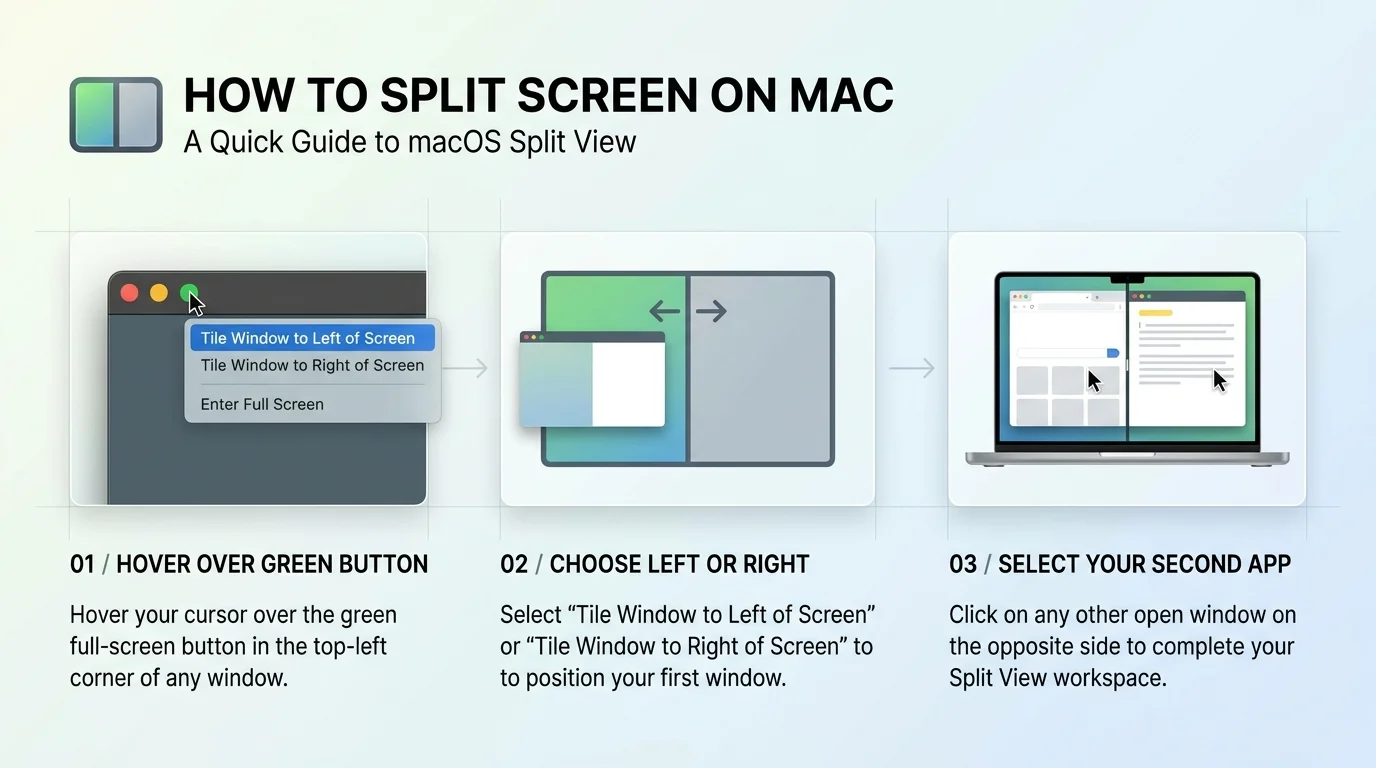
To split screen on Mac, hover over the green button on a window, choose Full Screen, then Left of Screen or Right of Screen, and click a second window. On macOS Sequoia 15 or later, you can also drag a window to the screen edge to tile it. Both methods are built in and free.
I used to waste hours dragging windows around like a frustrated librarian.
Then I learned the proper methods, and my whole workflow changed.
In this guide, you'll get every option, plus fixes for when things break. If you also juggle posting schedules, my list of productivity tools for social media managers pairs nicely with the tricks below. Let's go.
Which Split Screen Method Should You Use?
Not every method fits every job. Before you start clicking, you need to pick the right tool. Here's the cheat sheet I wish someone had handed me. It compares the built in options and third party window managers at a glance, so you can skip straight to what suits you.
Method | Best for | Needs full screen? | macOS version | Cost |
|---|---|---|---|---|
Split View | Distraction free focus on two apps | Yes | Since El Capitan | Free |
Window tiling | Flexible halves, quarters and layouts | No | Sequoia 15 or later | Free |
Stage Manager | Taming window clutter | No | Ventura or later | Free |
Magnet or Rectangle | Shortcuts and custom layouts | No | See each app | Paid or Free |
Split View has worked on Macs since El Capitan. Tiling is newer and needs macOS Sequoia 15 or later. Stage Manager arrived with macOS Ventura.
How to Split Screen on Mac With Split View
Split View is Apple's original split screen feature. It puts two apps side by side in full screen mode, with everything else hidden. Honestly, it's still the cleanest option when you need zero distractions. Apple documents it in its official Split View guide, and the steps below follow that guide.
Here's the step by step:
Open the two apps you want to use.
Hover your pointer over the green button in the top left corner of the first window.
Choose Full Screen, then Left of Screen or Right of Screen.
Click the second app on the other side.
Done.
Want one side bigger? Drag the separator bar in the middle. Want to swap sides? Drag a window by its title bar.
If you prefer the menu bar, it works there too. On Tahoe, choose Window > Full Screen Tile > Left of Screen.
Leaving Split View
To exit, hover over the green button again and pick Exit Full Screen. On older macOS versions, pressing Control + Command + F does the same job.
The other app then sits in its own space. You reach it through Mission Control and the Spaces bar.
How to Use Window Tiling on macOS Sequoia and Tahoe
If Split View feels too rigid, you'll love window tiling. It's Apple's take on Windows style snapping, and you keep your Dock and menu bar visible. Apple covers every option on its Tile windows page. Better still, you can arrange up to four windows at once.
Tile by Dragging
Grab a window by its title bar and drag it to the left or right edge. A preview outline appears. Let go, and it snaps into place.
Drag to a corner for a quarter of the screen. Drag to the menu bar to fill the whole screen.
Hold Option while dragging for faster tiling. Computerworld confirms this works toward any edge or corner.
Tile With the Green Button or Window Menu
Prefer clicking? Hover over the green button and pick a layout under Move & Resize. Use Fill & Arrange to tile several windows at once.
No green button handy? Open the Window menu instead. Same options, different door.
One warning, though. Dragging through the top edge can open Mission Control. TidBITS explains how to tame these settings in Desktop & Dock.
Split Screen Settings and Shortcuts at a Glance
You don't need to memorize everything. Bookmark this table instead.
What you want | How to do it |
|---|---|
Split two apps in full screen | Green button, then Full Screen, then Left or Right of Screen |
Tile a window to an edge | Drag it to the edge of the screen |
Tile faster | Hold Option while dragging |
Fill the screen | Drag the window to the menu bar |
Exit Split View | Green button, then Exit Full Screen |
Open Mission Control | Control + Up Arrow, or swipe up with three or four fingers |
Turn tiling off | System Settings, then Desktop & Dock, then Windows |
The Mission Control shortcut comes straight from Apple's Split View page.
What to Do When Split Screen Isn't Working on Your Mac
Nothing's more annoying than a feature that refuses to show up. A green button that only offers Enter Full Screen is a common complaint, and the fix is usually embarrassingly simple.
Try these in order:
Open System Settings and go to Desktop & Dock.
Turn on Displays have separate Spaces (older versions list it under Mission Control).
Log out and back in.
Update macOS and the app you're using.
Why does this matter? Because this setting is required for Split View, even on a single display. DEVONtechnologies suggests the same log out fix.
Still stuck? The app may not support it. iGeeksBlog notes that VLC doesn't.
Can Stage Manager Replace Split Screen?
Sort of, but not really. Stage Manager keeps your active app front and center, with other windows waiting on the left. You can even group apps together, as Apple's Stage Manager page explains.
My honest take: it organizes clutter. It doesn't give you precise, side by side control.
Turn it on from Control Center or Desktop & Dock. Try it for a day, and you'll know quickly whether it suits you.
Working with client files across lots of windows? Keep your setup safe too. My guide to Mac security for creators covers the basics.
Why I Recommend a Window Manager (And Why You Should Buy One)
Apple's built in tools are good. But they're limited. You get no custom layouts, no shortcut for every position, and no thirds for ultrawide monitors. Even reviewers admit Apple's version lacks advanced features that third party tools deliver.
That's where a window manager earns its keep.
My pick for most people is Magnet. The Sweet Setup called it essential for comparing documents and juggling research. Install it once, and you'll forget it's there.
Here's what you get:
Keyboard shortcuts for halves, thirds and quarters
Snapping by dragging, with a live preview
Support for apps that ignore Split View
A low price on the Mac App Store (check the current listing for your region)
Do the maths. If you split your screen twenty times a day, saving five seconds each time adds up to hours over a year. For the price of a coffee, that's a bargain.
Prefer open source? Rectangle is free and supports macOS 10.15 and later. Its creator's GitHub profile shows more than 26,000 stars on the project, which tells you how many people trust it.
So here's your next step. Download Magnet, set up your first two shortcuts and snap your first window today.
Split Screen on Mac: Frequently Asked Questions
How do I split screen on a Mac without full screen?
Use window tiling. On macOS Sequoia 15 or later, drag a window to the left or right edge of the screen. Release it when the outline appears. You can also use the Window menu or the green button.
Why can't I split screen on my Mac?
Most often, Displays have separate Spaces is turned off. Enable it in Desktop & Dock, then log out and back in. Also check that your app supports Split View.
How do I exit split screen on Mac?
Hover over the green button and choose Exit Full Screen. On older macOS versions, press Control + Command + F.
Can I split screen with three or four apps?
Not with Split View, which handles two. With window tiling you can arrange up to four windows on one screen.
How do I turn off window tiling?
Go to System Settings, then Desktop & Dock, then Windows. Switch off the drag to edge options, as Cult of Mac describes.
Is split screen on Mac free?
Yes. Split View, window tiling and Stage Manager are all built into macOS.
Final Thoughts on How to Split Screen on Mac
You now know how to split screen on Mac in every way that matters. Use Split View for focus, window tiling for flexibility, and Stage Manager for clutter.
But if you want speed, buy a window manager like Magnet. It's the single upgrade I'd make first.
Go split that screen.
About the Author

Nathan Cole
Nathan Cole is a SaaS writer and AI product reviewer at Postunreel with a sharp focus on evaluating AI-powered tools for content creators, marketers, and growing businesses. He holds a degree in Computer Science and brings over five years of experience writing about software products, productivity tools, and marketing technology. Nathan approaches every review with rigorous hands-on testing, clear comparison frameworks, and an honest perspective that cuts through marketing hype. His goal is to help Postunreel readers make smarter decisions about the tools they invest in so they can build better content workflows without wasting time or money.
🔥 Limited Time Deal
NewGet lifetime access to Postunreel with a one-time payment. Never pay again!
Your Go-To Solution for Stunning Carousels using AI!
Postunreel is a free AI carousel generator tool that helps you design captivating carousel posts for LinkedIn, Instagram, and other platforms. It makes it easier to increase social media engagement and grow your audience.
Create Free Carousel Now 🚀Related Blogs
How to Use Excel Pivot Table: Step by Step (2026)
Learn how to use Excel pivot table in 5 easy steps. Prep data, summarize, group, add slicers and refresh. Start building smarter reports today.
Detect Language to English: A Practical Guide With Free Tools (2026)
Detect language to English with translation in 5 steps. Compare Google, Azure and DeepL, avoid common errors, and pick the right tool for you now.