How to Use Excel Pivot Table: Step by Step (2026)
Learn how to use Excel pivot table in 5 easy steps. Prep data, summarize, group, add slicers and refresh. Start building smarter reports today.

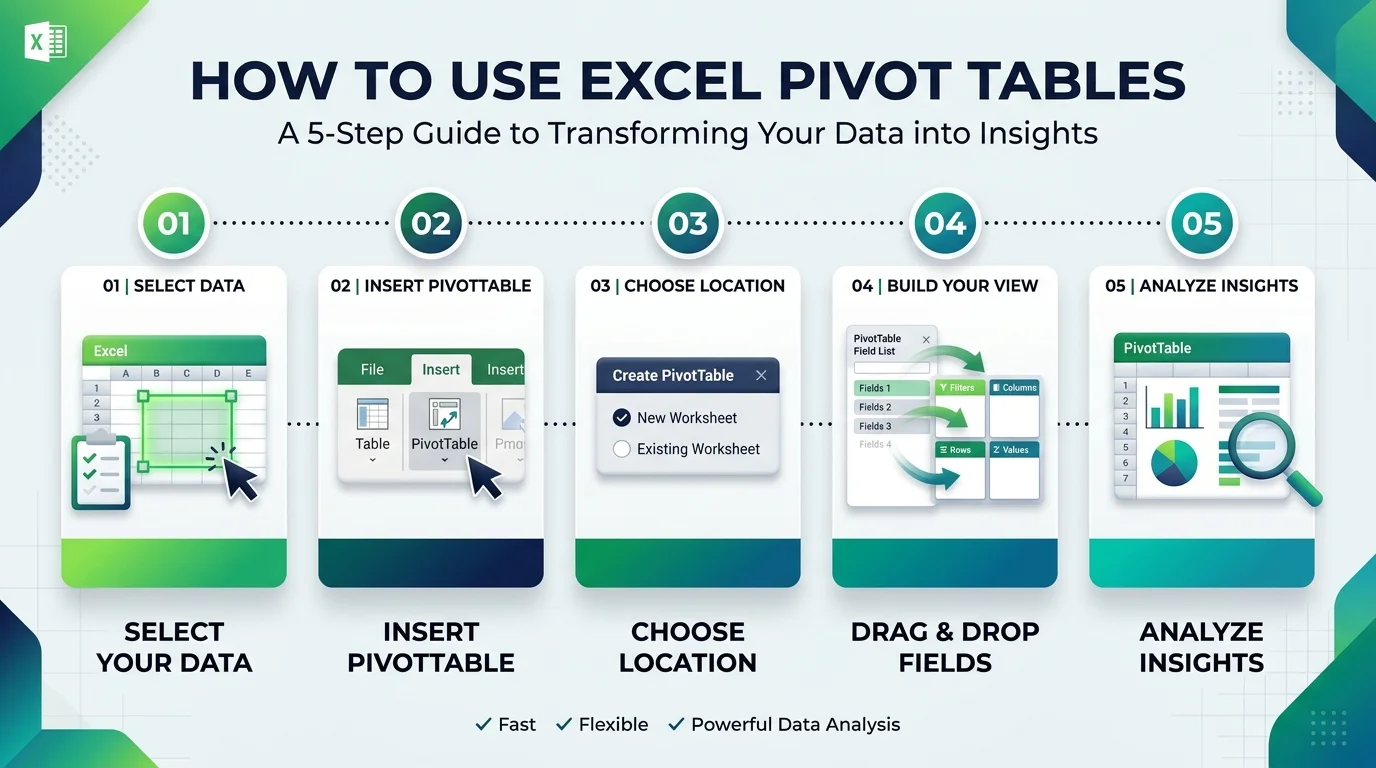
To use Excel pivot table, click inside your data, choose Insert > PivotTable, then drag fields into Rows, Columns, Values and Filters. Keep one header row and no blank rows. Press Alt+F5 to refresh after your data changes.
What Is a Pivot Table, and Why Should You Care?
I'll be straight with you: a PivotTable is the fastest way I know to turn a messy sheet into answers. It calculates and summarizes your data so you can spot comparisons, patterns and trends. Better yet, it leaves your source data untouched. So you can experiment freely, and nothing breaks.
Think thousands of sales rows. Now think one clean summary.
That's the magic.
Step 1: Prepare Your Data (Don't Skip This)
Before you build anything, your source data needs a quick check. Microsoft says your range should have a single header row and no empty rows or columns, and I've seen this one tip prevent most pivot headaches. Frankly, bad data is the reason most pivots misbehave. So spend two minutes here.
Here's my checklist:
Give every column a unique header.
Delete blank rows and columns.
Fill blank cells in number columns with 0. One blank can make Excel show Count instead of Sum.
Press Ctrl+T to turn the range into an Excel Table. Then new rows get picked up on refresh.
Step 2: Create Your First PivotTable
Now the fun part. Honestly, it takes under a minute. You click once, pick a location, and Excel does the heavy lifting. If you're unsure which layout fits your data, let Excel suggest one. Recommended PivotTables preview layouts for you, although they're only available to Microsoft 365 subscribers.
Follow these steps:
Click any cell in your data.
Go to Insert > PivotTable.
Confirm the Table/Range.
Choose New Worksheet (my default) or Existing Worksheet, then click OK.
Tick fields in the PivotTable Fields pane.
Excel places text fields in Rows, dates in Columns and numbers in Values. Want a different layout? Just drag.
Step 3: Summarize and Calculate Your Values
This is where your pivot starts earning its keep. By default, numbers use SUM and text uses COUNT, but you're not stuck with that. Right click a value, then choose Summarize Values By or Value Field Settings to switch to Average, Max, Min and more. Next, try Show Values As for percent of grand total, running total or rank.
Here's a trick I love: drag the same field into Values twice. Now you see the actual number and its percentage side by side.
Calculated Field vs Calculated Item
Need a custom formula? Use a calculated field or a calculated item. They sound similar, but they behave very differently. In short, one works on totals and the other works on individual records. This table keeps it simple.
Feature | Calculated Field | Calculated Item |
|---|---|---|
Works on | Sum of underlying fields | Individual records |
Where it lives | Fields list | Inside one field |
Cell references | Not allowed | Not allowed |
Grouped fields | Fine | Cannot be added |
Step 4: Group, Filter and Make It Interactive
A big pivot gets overwhelming fast. Luckily, you can tame it in seconds. Right click a value and choose Group to bundle dates into months, quarters or years, or numbers into bands like age ranges. Then add slicers, which are clickable filter buttons that stay visible on your sheet.
Two quick wins:
Timeline: Go to PivotTable Analyze > Insert Timeline for a date filter. It needs a real date field.
Shared slicers: One slicer can drive several pivots, but only if they share the same data source.
Want a visual? Add a PivotChart and filter right on the chart. And if your reporting needs outgrow Excel, take a look at these big data analytics tools for heavier datasets.
Step 5: Refresh Your Pivot Table (Or It Lies to You)
Here's the catch nobody warns you about. A pivot does not update itself. You change the data, and the pivot sits there, confidently wrong. So build the habit: right click and choose Refresh, use Data > Refresh All, or press Alt+F5. You can also tick "Refresh data when opening the file" in PivotTable Options.
Still seeing old items? Check the options on the Data tab. Pivots built on the same source also share one cache. So ungrouping one can change another.
Go Bigger: Multiple Tables and Power Pivot
Eventually, one table won't be enough. Maybe you've got sales in one sheet and customers in another. Good news: you can build one pivot from several related tables with the Data Model. Just add each table and link them on a matching field like an ID. Note that the Data Model isn't supported on Excel for Mac.
Want more? Power Pivot on Windows adds DAX measures and handles millions of rows.
Why I Recommend Microsoft 365 for Pivot Tables
You can learn all of this on an older version. However, if you build reports every week, I'd get Microsoft 365. You'll get Recommended PivotTables, the full Data Model and Power Pivot on Windows, and ongoing updates. A March 2026 overview of Mynda Treacy's guide also highlights AI assisted shortcuts. Check Microsoft's site for current plans and Copilot licensing before you buy.
If pivots save you even one hour a week, the upgrade pays for itself. Not sure? Run the numbers with this guide on how to calculate your payback period and ROI.
So open Excel and try it today.
Frequently Asked Questions
How do I create a pivot table in Excel?
Select your data, click Insert > PivotTable, choose where to place it, then drag fields into Rows, Columns, Values and Filters. Make sure your data has one header row and no blank rows first.
How do I refresh a pivot table?
Right click inside the pivot and choose Refresh, or press Alt+F5. You can also use Data > Refresh All, or set the file to refresh automatically when you open it.
Why does my pivot table show Count instead of Sum?
Blank or text cells in a number column usually cause it. Fill blanks with 0, then rebuild the pivot or change the summary function in Value Field Settings.
Can I make a pivot table from multiple sheets?
Yes. Add each table to the Data Model, create relationships on matching fields, then insert a PivotTable from the Data Model. It's available in Excel for Windows, not Mac.
What's the difference between a calculated field and a calculated item?
A calculated field applies a formula to summed fields. A calculated item applies a formula across items inside one field, working on individual records.
Final Thoughts
Pivot tables take minutes to learn and save hours every month. Clean your data, build the pivot, then refresh it and add slicers. That's the whole game.
About the Author

Nathan Cole
Nathan Cole is a SaaS writer and AI product reviewer at Postunreel with a sharp focus on evaluating AI-powered tools for content creators, marketers, and growing businesses. He holds a degree in Computer Science and brings over five years of experience writing about software products, productivity tools, and marketing technology. Nathan approaches every review with rigorous hands-on testing, clear comparison frameworks, and an honest perspective that cuts through marketing hype. His goal is to help Postunreel readers make smarter decisions about the tools they invest in so they can build better content workflows without wasting time or money.
🔥 Limited Time Deal
NewGet lifetime access to Postunreel with a one-time payment. Never pay again!
Your Go-To Solution for Stunning Carousels using AI!
Postunreel is a free AI carousel generator tool that helps you design captivating carousel posts for LinkedIn, Instagram, and other platforms. It makes it easier to increase social media engagement and grow your audience.
Create Free Carousel Now 🚀Related Blogs
Detect Language to English: A Practical Guide With Free Tools (2026)
Detect language to English with translation in 5 steps. Compare Google, Azure and DeepL, avoid common errors, and pick the right tool for you now.
JPG to PDF Converter: The Complete 2026 Guide to Free, Fast and Safe Conversion
JPG to PDF converter under a minute on Windows, Mac or phone. Compare free tools, keep image quality high and avoid risky uploads. Try it today.