JPG to PDF Converter: The Complete 2026 Guide to Free, Fast and Safe Conversion
JPG to PDF converter under a minute on Windows, Mac or phone. Compare free tools, keep image quality high and avoid risky uploads. Try it today.
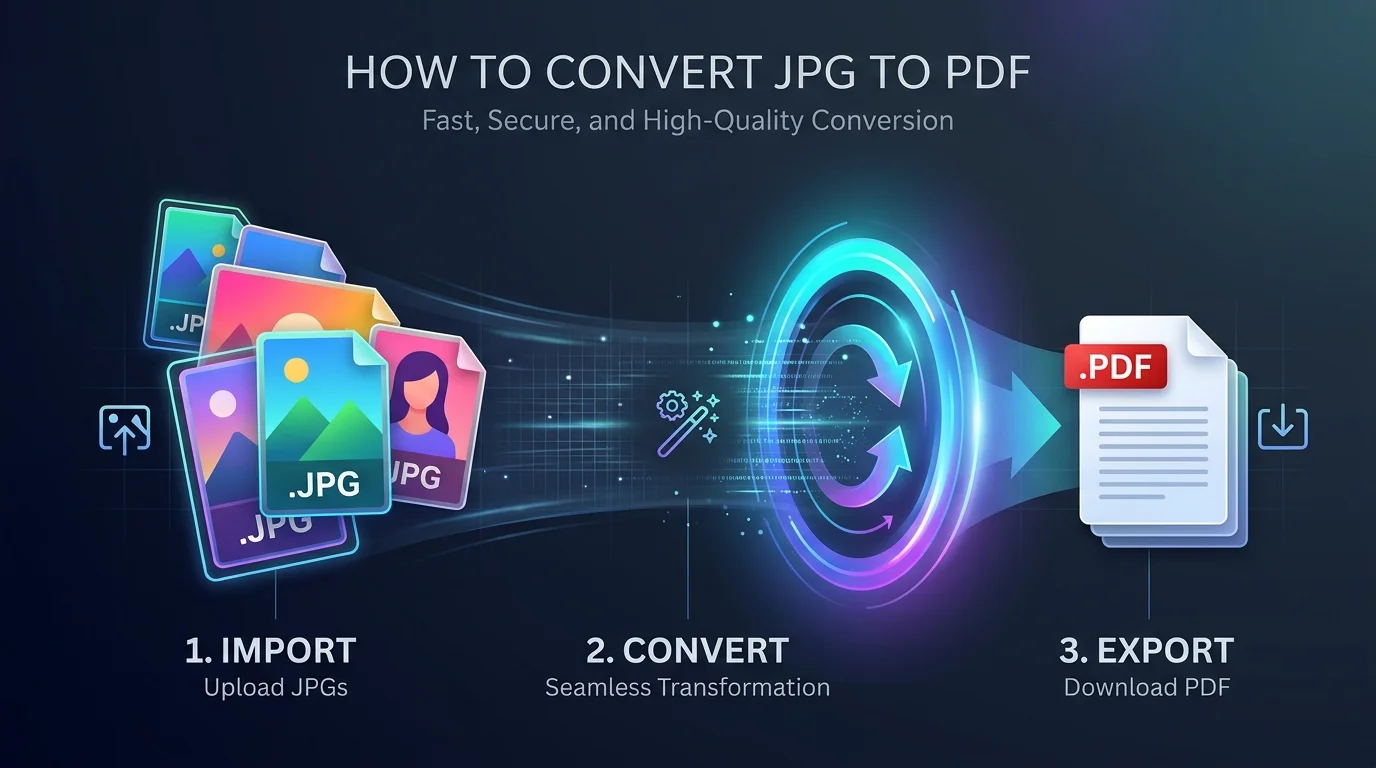
You can convert a JPG to PDF in under a minute. Use Microsoft Print to PDF on Windows, Export as PDF in Preview on Mac, or the print menu on your phone. To merge many images, use an online JPG to PDF converter. For IDs and contracts, pick a tool that works on your own device so your files never get uploaded.
Let me guess how you got here.
You have a photo of a signed form, a few scanned receipts, or a pile of screenshots. Now someone wants one PDF, please.
I review software for a living, and this tiny task still annoys me more than it should.
So I went through the research and the tools and put everything in one place. By the end, you will know how to convert images to PDF without losing quality or leaking your data.
Disclosure: This guide may contain affiliate links. If you buy through them, I may earn a commission at no extra cost to you.
Why You Should Convert JPG to PDF
Sending ten loose photos is a bad look. They arrive out of order, messaging apps squash them, and nobody enjoys opening them one by one. A single PDF document keeps everything in sequence, opens on any device and looks professional. Whether you are applying for a job, billing a client or archiving paperwork, one tidy file wins every time.
The Real World Perks
Think about the last time you emailed a stack of photos. Half of them probably got compressed, and the recipient had to guess the order. A PDF fixes that in one move. It also works across every phone and laptop, which is why printers and offices prefer it, as Adobe explains.
Here is what you gain:
Cross platform compatibility, so the file looks identical everywhere
Multiple images in one file, which makes batch conversion painless
Easier email attachments and faster uploads to job portals
Cleaner printing, with fixed layouts and page size control
A format that supports digital signatures and annotations
Pretty handy, right?
JPG vs PDF: What Is Actually Different?
Before you convert, it helps to know what happens under the hood. This takes two minutes and explains almost every quality complaint you will ever hear. A JPG is a single image. A PDF is a container that can hold images, text and many pages together.
Lossy Image vs Document Container
JPEG is a lossy compression format, defined in ITU-T T.81, a standard that dates back to the early 1990s. It shrinks files by throwing away detail your eyes rarely notice.
PDF works differently. It is an open standard, and the current version is published as ISO 32000-2:2020. PDF.net's comparison lays out the key differences if you want more depth.
So when you convert, you are wrapping a raster image inside a PDF container.
Here is the catch: wrapping a blurry photo will not sharpen it. Garbage in, garbage out.
Need to go the other way? My guide to a PDF to JPG converter covers the reverse process.
JPG to PDF Methods Compared
You have plenty of options, and picking the wrong one wastes time. So here they are side by side. Find the row that matches your situation, then jump to the matching section below. The table covers cost, offline use, batch support and best use cases.
Method | Cost | Works Offline | Multiple Images | Best For |
|---|---|---|---|---|
Windows Print to PDF | Free | Yes | Yes | Quick, private jobs on a PC |
Mac Preview | Free | Yes | Yes | Mac users and simple merging |
Phone print menu | Free | Yes | Limited | One off conversions on the go |
Smallpdf | Free tier plus paid plans | No | Yes | Reordering, rotating, merging |
Adobe online tool | Free online tool | No | Yes | A trusted brand and simple use |
PDF24 Tools | Free | No | Yes | Free use without watermarks, per this guide |
Free tiers and limits change often, so check each tool's page before you commit.
Step by Step: How to Convert JPG to PDF on Any Device
Time to get practical. Below are the methods I trust, from built in tricks to dedicated tools. Pick the one that fits your device and you will be done in under a minute. I kept every step short, because nobody wants a ten paragraph tutorial just to save a photo.
How to Convert JPG to PDF on Windows
Open File Explorer and find your image.
Right click it and choose Print.
Select Microsoft Print to PDF as the printer.
Name the file, pick a folder and save.
That is it. Android Authority shows the same process with screenshots if you get stuck.
How to Convert JPG to PDF on Mac
Open the image in Preview.
Click File, then Export as PDF.
Save it. Done.
Mac users, you have honestly got the easiest deal.
How to Convert JPG to PDF on iPhone and Android
On iPhone, open the photo, tap Share, then print or save it as a PDF. On Android, open the print menu and choose Save as PDF. Both work offline, which is great when your signal is terrible. Soda PDF has a full phone walkthrough if you want extra detail.
If your photo is too large or the wrong size, first read my guide on how to resize an image on iPhone. A smaller source image gives you a lighter PDF.
How to Merge Multiple JPGs into One PDF
This is where an online JPG to PDF converter earns its keep. Upload all your images, drag them into order, set orientation and margins, then click convert. You get one clean multipage PDF.
How to Convert HEIC or PNG Images to PDF
Got an iPhone photo in HEIC, or a PNG screenshot? Most modern tools accept them too. Smallpdf supports HEIC, PNG, GIF, BMP and TIFF, so you can mix formats in one PDF.
Are Online JPG to PDF Converters Safe?
Free tools are convenient, but you are often handing your files to a stranger's server. Most sites are fine. Some are not. Before you upload that passport scan, spend a minute here, because a little caution can save you a big headache.
The Risks Nobody Mentions
Experian warns that scammers use fake converter sites to spread malware, which can lead to identity theft or ransomware.
There is also a real world example. A Cybernews report, as cited by this security blog, found that two online PDF companies leaked thousands of user uploaded files in July 2024, including passports and driver's licenses.
A DEV Community breakdown offers a simple test. If you would not email it to a stranger, do not upload it.
For a wider look at safe habits, read how online professionals protect sensitive work data.
How to Protect Yourself
Look for a readable privacy policy and SSL encryption
Check that files are deleted automatically after processing
Strip personal metadata before uploading
Use a browser only or offline tool for IDs, contracts and medical files
Scan every download with up to date antivirus software
Smart habits beat panic every time.
How to Keep Image Quality High During Conversion
Here is where most people slip up. They convert, open the PDF and wonder why it looks fuzzy. Do not blame the converter just yet. The cause is usually the settings or the source file. A few small tweaks make a big difference to image resolution, sharpness and file size.
Quick Quality Checklist
Start with the highest resolution JPG you have
Pick a tool that keeps the original image data instead of recompressing it. Tools like img2pdf work this way, per this guide
Choose the right PDF page size, such as A4 or Letter
Balance file size against quality for email versus print
Use OCR to get a searchable PDF from scanned text
Remember, a PDF can never exceed the quality of the original JPG.
JPG to PDF Converter FAQs
You probably have a few questions by now. These are the ones I hear most, answered briefly so you can find what you need fast.
Does converting JPG to PDF reduce quality?
Not by itself. The PDF simply wraps your image. Quality drops only if the tool recompresses the image or you choose aggressive size settings. Pick original quality or a lossless option and your PDF will look just like the JPG.
Can I convert multiple JPGs into one PDF?
Yes. Windows, Mac Preview and most online converters let you combine several images into one multipage PDF. Reorder them before you convert, since fixing the order afterward takes extra steps.
Is it safe to use an online JPG to PDF converter?
It depends on the site and the file. Trusted tools with clear privacy policies are fine for everyday images. For passports, contracts or financial records, use a tool that runs on your own device so nothing gets uploaded.
How do I convert JPG to PDF without losing quality?
Start with a high resolution image, choose original quality settings and avoid extra compression. Use a tool that embeds the image directly instead of re encoding it.
How do I make a scanned JPG searchable?
Use a converter with OCR, short for optical character recognition. It reads the text in your image and adds a hidden text layer, so you can search, copy and highlight words inside the PDF.
What is the best free JPG to PDF converter?
For privacy, the built in Windows and Mac options win. For merging and reordering, free online tools like PDF24 or Adobe's online converter work well. Pick based on how sensitive your files are.
Why I Recommend a Trusted Paid Converter
I have used the free for all, and I get the appeal. But after the daily limits and the sketchy ad pop ups, I moved to a reputable premium converter for regular work. If you convert files often, you should consider it too.
What You Get for Your Money
Think about the time you lose to clunky workarounds. A solid paid plan typically gives you higher limits, batch conversion, cloud storage, encryption and fast, clean output. Smallpdf, for example, has offered a free trial on its converter page, so you can test it before you commit. Check current plan terms on the site first.
You still have a safe free option too. Windows Print to PDF and Mac Preview cost nothing and keep your files on your device.
My Honest Verdict
If you convert images to PDFs a couple of times a week, upgrading pays for itself in saved time and peace of mind. You skip the headaches, protect sensitive files and get reliable quality.
So here is my advice. Start a free trial today, convert your first batch and see the difference yourself.
Your future self will thank you.
About the Author

Nathan Cole
Nathan Cole is a SaaS writer and AI product reviewer at Postunreel with a sharp focus on evaluating AI-powered tools for content creators, marketers, and growing businesses. He holds a degree in Computer Science and brings over five years of experience writing about software products, productivity tools, and marketing technology. Nathan approaches every review with rigorous hands-on testing, clear comparison frameworks, and an honest perspective that cuts through marketing hype. His goal is to help Postunreel readers make smarter decisions about the tools they invest in so they can build better content workflows without wasting time or money.
🔥 Limited Time Deal
NewGet lifetime access to Postunreel with a one-time payment. Never pay again!
Your Go-To Solution for Stunning Carousels using AI!
Postunreel is a free AI carousel generator tool that helps you design captivating carousel posts for LinkedIn, Instagram, and other platforms. It makes it easier to increase social media engagement and grow your audience.
Create Free Carousel Now 🚀Related Blogs
How Technical Infrastructure Impacts Digital Marketing (More Than You Think)
Discover how technical infrastructure impacts digital marketing, from website speed and SEO to email deliverability, AI tools, analytics, and scalability.
How to Change Netflix Language: Step-by-Step Guide for Every Device (2026)
Learn how to change Netflix language in under a minute. Step-by-step for web, mobile and TV, plus audio, subtitles and fixes.