How to Resize an Image on iPhone (2026 Guide)
Resize an Image on iPhone in seconds. Free built in methods, exact pixel dimensions & platform sizes for Instagram, LinkedIn & more.
To resize an image on iPhone, use the built in Photos app crop tool for quick aspect ratio changes, the Shortcuts app for exact pixel dimensions, or a third party app like Instasize for platform specific presets and extra editing control. All three methods are free and take under two minutes.
I've resized thousands of photos on my iPhone over the years. And honestly? Most guides make it way more complicated than it needs to be.
So today, I'm going to show you exactly how to resize an image on iPhone. No fluff, no filler.
You'll learn the fastest method. The most precise method. And the one I personally use every single day.
Let's dive in.
Why You Need to Resize Photos on Your iPhone
Here's the thing: your iPhone takes huge photos. Like, really huge.
According to Visual Watermark's iPhone photo size breakdown, pixel dimensions on a typical iPhone photo run around 4032 x 3024px, with each file landing somewhere between 1.2 to 4 MB, and that number climbs even higher if HDR is turned on.
That adds up fast.
Your iPhone storage fills up quicker than you'd expect. Email attachments bounce back. Social media platforms compress your images awkwardly because they weren't sized correctly in the first place.
So whether you're prepping a photo for Instagram, building a dating profile, or just trying to free up space, knowing how to properly resize (and compress) your images matters.
Let's fix that.
Method 1: The Built In Photos App (Fastest, But Limited)
I'll be straight with you, this is the method most people reach for first. It's quick. It's already on your phone. And it works great in a pinch.
But there's a catch (I'll explain that in a second).
Step by Step: Cropping in Photos
Here's exactly what to do:
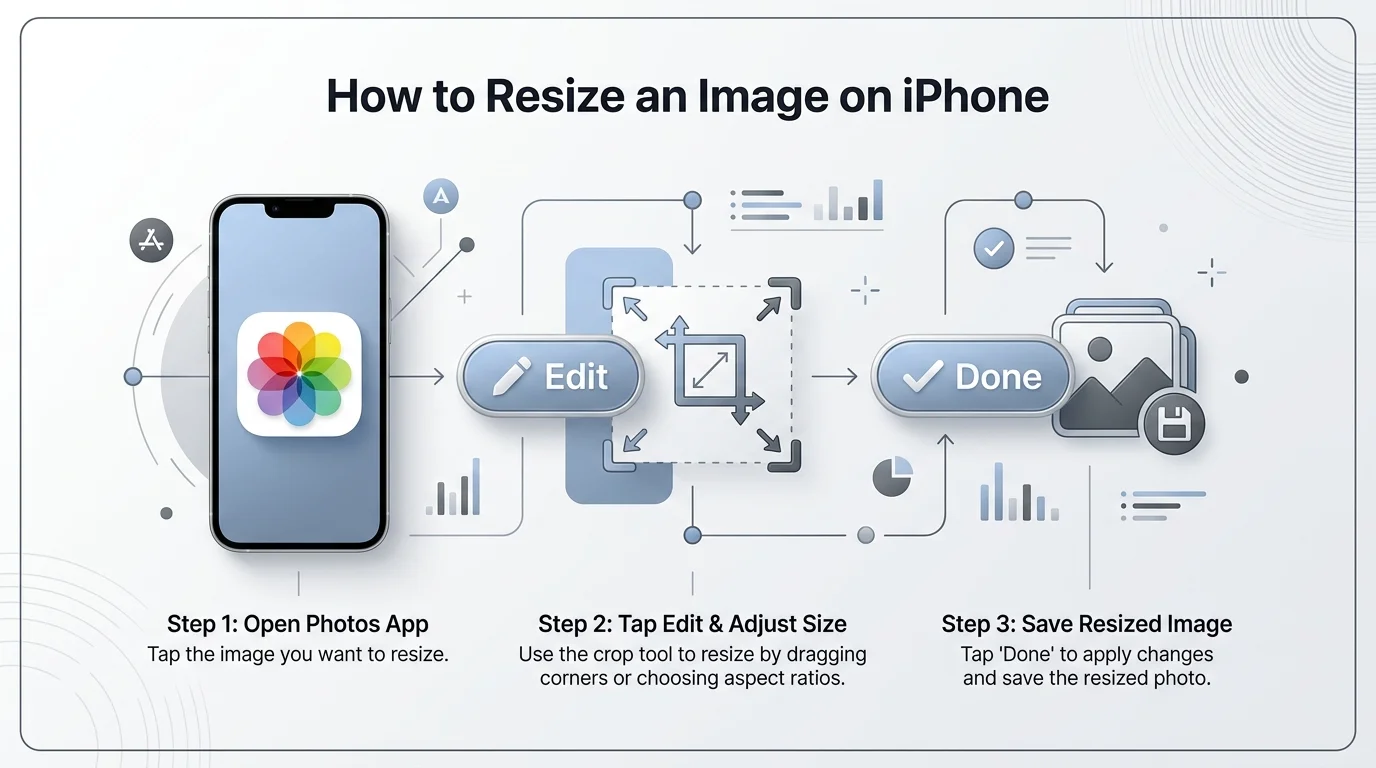
Open the Photos app and select your image
Tap Edit in the top right corner
Select the crop tool (it looks like two overlapping corners)
Tap the aspect ratio icon
Choose a preset, like Square, 9:16, or 4:5, or select Freeform for full manual control
Drag the corners until you're happy with the shape
Tap Done
Simple, right?
Now here's the catch. This method changes your image's aspect ratio, not its actual pixel dimensions. You're cropping, not truly resizing. If you need an exact width and height in pixels, keep reading.
Method 2: The Shortcuts App (Precise & Repeatable)
This is my favorite method. Why? Because once you set it up, you'll never have to think about it again.
The Shortcuts app lets you build a custom resize shortcut that gives you exact pixel control, and you can trigger it right from your Share Sheet.
I know "Shortcuts" sounds intimidating. It's really not. Stick with me here.
Step by Step: Building Your Resize Shortcut
Open the Shortcuts app
Tap the + icon in the top right corner
Tap Add Action
Search for "resize" and select Resize Image
Enter your desired width (leave height on "auto" to preserve the original aspect ratio automatically)
Tap the i icon at the bottom
Toggle on Show in Share Sheet
Tap Done, then name your shortcut
Now, anytime you want to resize a photo, just open the image in Photos, tap the Share icon, and scroll down to your new Resize Image shortcut. Your resized photo saves straight to your camera roll. No third party app required.
Bonus: Resizing Multiple Photos at Once
Here's something most guides skip: this same shortcut works on batches. Instead of opening one photo, go to your camera roll, select multiple images (tap Select, then tap each photo), hit Share, and choose your Resize Image shortcut. iOS will apply the same dimensions to every photo you selected. It's genuinely one of the most underrated iPhone tricks for bulk editing.
Method 3: Third Party Apps (Best for Power Users)
Now, if you want more control, more presets, and a smoother interface, this is where a dedicated app comes in.
I've tested a bunch of these, and apps like Instasize consistently come out on top for one simple reason: they don't just resize, they give you exact dimensions, platform specific presets, and built in editing tools all in one place.
How to Use It
Download Instasize from the App Store
Import your photo
Use the resize tool to enter your target dimensions
Save or share, and you're done
If you post content regularly, a tool like this saves you real time every week, and it helps your photos avoid an awkward auto crop when you upload them.
Exact Image Dimensions for Popular Platforms
If you're resizing for a specific platform, here are the pixel dimensions to aim for:
Platform | Recommended Size (px) | Aspect Ratio |
|---|---|---|
Instagram (Feed) | 1080 x 1080 | 1:1 |
Instagram (Story) | 1080 x 1920 | 9:16 |
LinkedIn (Post) | 1200 x 627 | 1.91:1 |
Facebook (Post) | 1200 x 630 | 1.91:1 |
Hinge / dating profiles | 640 x 800 (min) | 4:5 |
Email attachment (web friendly) | 1024 x 768 | 4:3 |
Use these as your target width/height in the Shortcuts method above, or plug them straight into Instasize's custom dimension field.
If you're posting carousels rather than single images, sizing gets a bit more specific. Check out our Instagram carousel dimensions guide and LinkedIn carousel size and dimensions guide for exact specs before you upload.
A Quick Word on File Format (Don't Skip This)
Your iPhone saves photos in HEIF format by default. It's efficient, keeping quality high while keeping file size low.
But here's the problem: HEIF isn't universally supported. Some websites, older devices, and platforms choke on it.
So if you're resizing a photo for a website or sharing it outside the Apple ecosystem, convert it to JPEG or PNG first. Most resizing apps (Instasize included) let you export directly in these formats.
How to Check Your Image's Current Size
Curious about your current image resolution before you resize? Open Photos, select your image, and tap the info icon (ⓘ). You'll instantly see the pixel dimensions and file size, a great habit to build before you resize anything. Planning to print? A standard 4x6 print needs at least 1200 x 1800 pixels, so check your 4x6 photo size in inches, cm and pixels before you order.
Which Method Should You Actually Use?
Method | Precision | Speed | Best For |
|---|---|---|---|
Photos app crop | Low (aspect ratio only) | Fastest (about 15 sec) | Quick crops, no exact size needed |
Shortcuts app | High (exact pixels) | Fast (about 30 sec after setup) | Repeatable resizing, batch photos |
Instasize (3rd party) | High (exact pixels + presets) | Fast (about 30 sec) | Social media, dating profiles, polish |
My honest recommendation? Set up the Shortcuts method for everyday quick resizing, and keep Instasize installed for anything that needs to look polished, like profile photos or social posts.
Frequently Asked Questions
Does resizing reduce image quality on iPhone?
Not if you resize down (making it smaller) using the Shortcuts app or a dedicated app like Instasize, since both use proper scaling algorithms. Quality loss mainly happens when you resize up (enlarging a small image) or over compress the file.
What's the best photo size for Instagram?
1080 x 1080px for feed posts (1:1 ratio), or 1080 x 1920px for Stories and Reels (9:16 ratio).
Can I resize multiple photos at once on iPhone?
Yes. Select multiple photos in your camera roll, tap Share, then choose your Shortcuts Resize Image action. It applies the same dimensions to every photo in the batch.
Why won't my resized HEIC photo open on my computer?
Your iPhone likely saved it in HEIF/HEIC format, which isn't supported everywhere. Convert it to JPEG or PNG when exporting from the Photos app, Shortcuts, or a third party editor.
Does cropping in Photos actually resize the image?
Not exactly. Cropping changes the aspect ratio and removes pixels from the edges, but it doesn't let you set an exact target size like 1080 x 1080px. For that, use Shortcuts or a resizing app.
Final Thoughts
Resizing images on your iPhone isn't complicated once you know where to look.
You've now got three solid methods, the Photos app, Shortcuts, and a third party app, plus exact platform dimensions, a format cheat sheet, and answers to the questions people ask most.
Pick the one that fits what you're doing right now, and you'll never be stuck fumbling with an oversized photo again.
About the Author

Laura Whitmore
Laura Whitmore is an Instagram content strategist and visual design writer at Postunreel, specializing in carousel post design, visual storytelling, and audience engagement tactics for Instagram and other image-first platforms. She brings four years of experience working with lifestyle brands, e-commerce businesses, and independent creators who want their social media content to look polished and perform consistently. Laura combines her passion for great design with a data-driven approach to content, regularly testing new carousel formats and visual styles to discover what drives the highest engagement rates for Postunreel users.
🔥 Limited Time Deal
NewGet lifetime access to Postunreel with a one-time payment. Never pay again!
Your Go-To Solution for Stunning Carousels using AI!
Postunreel is a free AI carousel generator tool that helps you design captivating carousel posts for LinkedIn, Instagram, and other platforms. It makes it easier to increase social media engagement and grow your audience.
Create Free Carousel Now 🚀Related Blogs
Yandex Reverse Image Search: How to Use It Step by Step (2026 Guide)
Learn how to use Yandex reverse image search step by step. Find image sources, landmarks and fakes fast, plus 2026 face search limits and privacy tips.
Best Video Editing Software in 2026: Top Picks, Prices and What to Buy
Compare the best video editing software of 2026: real prices, pros and cons, free picks, and which editor to buy for your YouTube channel and blog.
Unblocked Games for School: Are They Safe? Best Alternatives for 2026
Are unblocked games for school safe? Learn the real risks of proxy sites and VPNs, plus school approved games you can play on your Chromebook.