Free Photo Editing App for iPhone: 7 Picks 2026
Snapseed is the best free photo editing app for iPhone in 2026. Compare 7 free editors, see which have no watermarks, and edit like a pro.
The best free photo editing app for iPhone is Snapseed. It's made by Google, and it's 100% free, with no ads, no watermarks, and no subscription. Its May 2026 update added smart masking and batch editing. For quick edits without downloading anything, the Photos app that comes with your iPhone is your best bet.
You don't need to pay for a subscription to get great looking photos on your iPhone.
Seriously.
In this guide, I'll show you the seven best free photo editors, how they compare side by side, and exactly how to edit a photo in about five minutes. I'll also be upfront about which apps are truly free and which ones hide their best tools behind a paywall.
Let's dive right in.
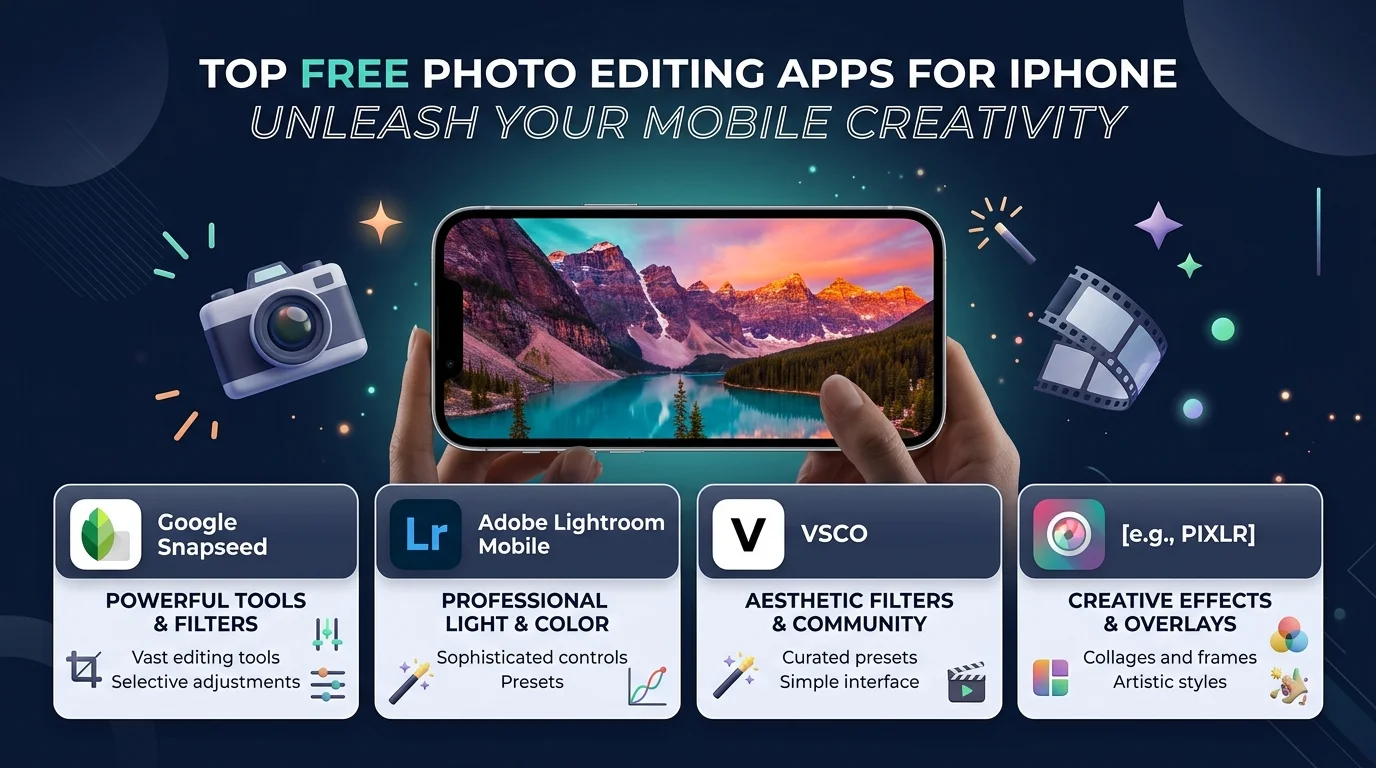
Quick Picks: The Best Free iPhone Photo Editors at a Glance
Short on time? No problem.
Here's the cheat sheet. I've matched each app to the job it does best, so you can pick the right one in about 30 seconds. The truth is, no single app wins every category. A portrait editor and a film filter app solve very different problems. So instead of hunting for one "perfect" app, pick the one that fits how you actually shoot and share. Then, if you want, pair it with a specialist app for the occasional creative project.
Best overall: Snapseed
Best option already on your iPhone: Apple Photos
Best for color grading: Adobe Lightroom Mobile
Best free AI cleanup: Google Photos
Best for quick automatic fixes: Photoshop Express
Best for film aesthetics: VSCO
Best for social media creators: Picsart
Free iPhone Photo Editing Apps Compared
Now let's get specific.
The table below compares all seven apps on the features that matter most: pricing, watermarks, RAW support, and AI tools. I built it around one question: what can you actually do without paying? That's important because many "free" apps look generous in the App Store listing, then lock the good stuff behind a subscription. Use this table to spot the catches before you download anything. App pricing changes often, so it's always smart to check the App Store listing before you commit.
App | Best For | Pricing Model | Watermark on Free Exports | RAW Editing (Free) | Free AI Tools |
|---|---|---|---|---|---|
Snapseed | Everyday editing | 100% free | No | Yes | Smart masking |
Apple Photos | Quick edits | Included with iOS | No | Yes (ProRAW) | Clean Up (supported models) |
Lightroom Mobile | Color grading | Freemium | No | No (Premium) | Limited |
Google Photos | AI cleanup | Freemium | No | Limited | Magic Eraser, Photo Unblur |
Photoshop Express | Quick fixes | Freemium | No | No (Premium) | Auto enhance |
VSCO | Film looks | Freemium | No | Yes | No (Pro only) |
Picsart | Social content | Freemium | Premium items only | Limited | Limited |
Free vs. Freemium: What "Free" Really Means
Here's the deal: "free" is a slippery word in the App Store.
In practice, it can mean three different things. Some apps are free forever, with every tool unlocked. Others are free with ads, which is annoying but workable. And some are free until you export, which means you spend 20 minutes on an edit and then hit a paywall or a watermark. Knowing the difference saves you time and frustration. In this list, only Snapseed and Apple Photos are completely free with no strings attached. Everything else is freemium, which is fine, as long as you know the limits upfront.
How I Chose These Apps
Before I recommend any app, it has to pass a simple test.
As a software reviewer, I use the same comparison framework for every tool I cover. Specifically, the free version must let you finish a real edit, save it at full quality, and share it without a watermark. If it can't do that, it doesn't make the list. I also compared each app's official feature and pricing pages, rather than relying on marketing claims, and prioritized apps that received meaningful updates in 2025 or 2026. Here's the exact checklist I used:
No watermark on export
Core adjustments (exposure, contrast, white balance) available free
Selective adjustments or masking
Support for RAW and Apple ProRAW files
Nondestructive editing, so you can undo changes later
The 7 Best Free Photo Editing Apps for iPhone
Now for the fun part.
Below, I break down each app: what it does well, what the free version includes, and where the catch is. My general advice is to pick one general editor plus one specialist app. That way, you cover 95% of your editing needs without cluttering your home screen. And remember, great editing always starts with a great shot, so take a second to frame your photo carefully before you even open an editor.
1. Snapseed: Best Free Photo Editor Overall
If you only install one app, make it Snapseed.
Google owns it, so you won't see ads, watermarks, or subscription prompts. Every tool is free.
And it's powerful. Snapseed offers over 30 editing tools, including curves, selective adjustments, a healing brush, perspective correction, and portrait retouching. Amateur Photographer names it their top pick, highlighting its flexibility and control.
In my opinion, that's hard to beat at any price.
What's New in Snapseed 4.0
Here's why Snapseed is having a real moment in 2026.
For years, it looked like Google had abandoned the app. Then, in June 2025, Snapseed 3.0 brought a complete iPhone redesign. Next, in May 2026, Snapseed 4.0 added smart masking, batch editing, nondestructive editing, and a camera with live film looks. On iPhone, it also introduced Halation and Bloom effects. Best of all, it's still completely free.
2. Apple Photos: Best Option Already on Your iPhone
Sometimes the best app is already on your phone.
The Apple Photos editor covers exposure, highlights, shadows, vibrance, warmth, sharpness, and noise reduction. Every change is nondestructive, so you can revert anytime.
Plus, newer iPhones get the Clean Up tool, which uses Apple Intelligence to erase distractions with a tap. Recent iOS versions also add Extend and Reframe tools.
One quick note: Clean Up requires an iPhone 15 Pro, 15 Pro Max, or iPhone 16 model or later. Check the full requirements before you try it.
3. Adobe Lightroom Mobile: Best for Color Grading
Is Lightroom Mobile free? Mostly, yes.
According to Adobe's official FAQ, you get capture, organization, sharing, and most editing tools for free.
However, masking, the healing brush, batch editing, and RAW editing require the paid plan.
So, Snapseed vs. Lightroom? Snapseed gives you more for free, while Lightroom has the best color controls and presets.
4. Google Photos: Best Free AI Cleanup
Want AI photo editing without paying?
Google Photos gives every user, including iPhone owners, free access to Magic Eraser, Photo Unblur, and Portrait Light.
There's one catch, though. Magic Editor, its generative AI tool, is limited to 10 saves per month unless you upgrade to a Google One plan with 2TB or more of storage.
Still, for rescuing a blurry photo or erasing background clutter, it's excellent. And if you'd rather add something than remove it, check out my guide on how to add someone to a photo with AI.
5. Photoshop Express: Best for Quick Automatic Fixes
Short on time? I get it.
Photoshop Express is built for speed. Its auto fix tools adjust exposure, contrast, and color instantly.
The free version also includes collages, blemish removal, and red eye correction.
Meanwhile, advanced features like AI background removal and RAW editing require a paid Adobe plan. If background removal is all you need, a dedicated AI background remover like Cutout.Pro may be a better fit. Even so, Photoshop Express is a great pick for beginners.
6. VSCO: Best for Film Aesthetics
Love that moody, analog vibe?
VSCO is the go to app for film style edits.
That said, the free tier is limited. According to VSCO's plans page, the free Starter plan includes 15 of its most popular presets, while the full library of 200+ presets requires a paid membership. On the bright side, you can still import and edit RAW photos for free.
My advice? Start with the free presets and upgrade only if you love the look.
7. Picsart: Best for Social Media Creators
Finally, let's talk about Picsart.
If you create content for Instagram or TikTok, this app is packed with stickers, collages, text overlays, and effects. Tom's Guide has ranked it among the best photo editing apps overall, across both free and paid options.
However, Picsart leans heavily on in app purchases, and some premium items add a watermark. Stick to the free tools, and you'll still create posts that stop the scroll. Just make sure you export at the right Instagram carousel dimensions so nothing gets cropped awkwardly.
Honorable Mentions
These apps didn't make the main list, but they're worth knowing about.
Each one does a specific job well, even though its free tier is more limited or its focus is narrower than the top seven. If none of the apps above feels quite right, one of these might be exactly what you need. For example, if you're making graphics rather than editing photos, a design app will serve you better than a traditional photo editor.
Darkroom: A sleek, fast editor with a free version and optional paid upgrades.
Canva: Great for adding text and graphics to photos on its free plan.
Adobe Express: A strong free option for social media templates.
Facetune: Popular for selfie retouching, though most advanced tools are paid.
How to Edit a Photo on iPhone with Snapseed (Step by Step)
Now let's put this into action.
Here's the simple workflow I use in Snapseed, and it takes about five minutes. It works for travel shots, food photos, portraits, and everyday snapshots. Follow the steps in order, because each one builds on the last. For instance, fixing your crop first means you won't waste time adjusting parts of the photo you'll cut out anyway. Small tweaks add up, and by the final step, your photo will look dramatically better.
Open your photo. Launch Snapseed, tap the + button, and choose an image.
Fix the crop. Open Tools, then use Crop and Perspective to straighten horizons and tilted buildings.
Adjust the light. Use Adjust to balance brightness, contrast, and shadows.
Fine tune color. Use White Balance to warm up or cool down the tones.
Target specific areas. Use Selective or smart masking to brighten a face or darken a sky.
Remove distractions. Brush over stray objects with the Healing tool.
Add a Look (optional). Apply a preset from the Looks tab at low strength.
Export. Tap Export in the top right corner and save a copy at full quality.
Pro tip: pin your favorite tools to the Faves tab for faster editing next time. And if your edited photo is too large to email or upload, here's exactly how to resize an image on iPhone without losing quality.
Frequently Asked Questions
Got questions? You're not alone.
Below are quick answers to the questions people ask most about free iPhone photo editors. I've kept each answer short and direct, so you can find what you need fast. If your question isn't covered here, the comparison table above is a great place to check first, since it summarizes the key limits for each app in one place.
What is the best free photo editing app for iPhone?
Snapseed is the best free photo editing app for iPhone. It's made by Google, has over 30 tools, supports RAW files, and has no ads, watermarks, or subscriptions.
Is Snapseed completely free?
Yes. Snapseed has no subscription, no in app purchases, no ads, and no watermarks. Every tool, including those added in Snapseed 4.0, is free.
Is Lightroom Mobile free on iPhone?
Partly. Most editing tools are free, but masking, healing, batch editing, RAW editing, and cloud sync require a paid Adobe subscription.
Which photo editing apps have no watermark?
Snapseed, Apple Photos, Lightroom Mobile, Google Photos, and VSCO don't add watermarks to free exports. Picsart may add one when you use premium items.
Can I remove objects from photos on iPhone for free?
Yes. You can use Snapseed's Healing tool, Google Photos' Magic Eraser, or the Clean Up tool in Apple Photos on supported iPhones.
Which iPhones support the Clean Up tool?
Clean Up works on the iPhone 15 Pro, iPhone 15 Pro Max, and iPhone 16 models or later, with Apple Intelligence enabled.
Can I edit photos on iPhone without downloading an app?
Yes. The Photos app that comes with your iPhone lets you adjust light, color, crop, and more, all without downloading anything.
Final Verdict: Download Snapseed Today
Bottom line?
Snapseed is the best free photo editing app for iPhone in 2026. It's powerful, freshly updated, and costs you absolutely nothing. Pair it with Apple Photos for quick fixes, or Lightroom Mobile if color grading matters most to you. Either way, you'll have a professional editing setup without spending a dime. And if you're ready to level up your videos next, take a look at the best video editing software in 2026.
So go ahead: download Snapseed, open your favorite photo, and follow the steps above.
Your camera roll will thank you.
About the Author

Nathan Cole
Nathan Cole is a SaaS writer and AI product reviewer at Postunreel with a sharp focus on evaluating AI-powered tools for content creators, marketers, and growing businesses. He holds a degree in Computer Science and brings over five years of experience writing about software products, productivity tools, and marketing technology. Nathan approaches every review with rigorous hands-on testing, clear comparison frameworks, and an honest perspective that cuts through marketing hype. His goal is to help Postunreel readers make smarter decisions about the tools they invest in so they can build better content workflows without wasting time or money.
🔥 Limited Time Deal
NewGet lifetime access to Postunreel with a one-time payment. Never pay again!
Your Go-To Solution for Stunning Carousels using AI!
Postunreel is a free AI carousel generator tool that helps you design captivating carousel posts for LinkedIn, Instagram, and other platforms. It makes it easier to increase social media engagement and grow your audience.
Create Free Carousel Now 🚀Related Blogs
How to Resize an Image on iPhone (2026 Guide)
Resize an Image on iPhone in seconds. Free built in methods, exact pixel dimensions & platform sizes for Instagram, LinkedIn & more.
How to Exit Incognito Mode on iPhone (2026 Guide)
Learn how to exit incognito mode on iPhone in seconds step-by-step for Safari and Chrome, plus fixes for common private browsing glitches.