Best Free Photo Editing Software in 2026
Find best free photo editing software in 2026. Compare Affinity, GIMP, darktable, Photopea and Paint.NET, with edit workflow for bloggers.
The best free photo editing software for most bloggers in 2026 is Affinity, because it gives you layers, masks and RAW editing at no cost. Choose GIMP if you want a fully open source editor, darktable for RAW files, Photopea for editing in your browser, and Paint.NET for simple Windows edits.
Here's the deal.
You don't need a monthly subscription to make your blog photos look sharp. Not anymore.
I went through the latest expert reviews and official announcements to find the best free photo editor options you can download today. Some of them now act as a real Photoshop alternative. Honestly? That surprised me.
So grab a coffee. By the end, you'll know exactly which free image editor fits your blog.
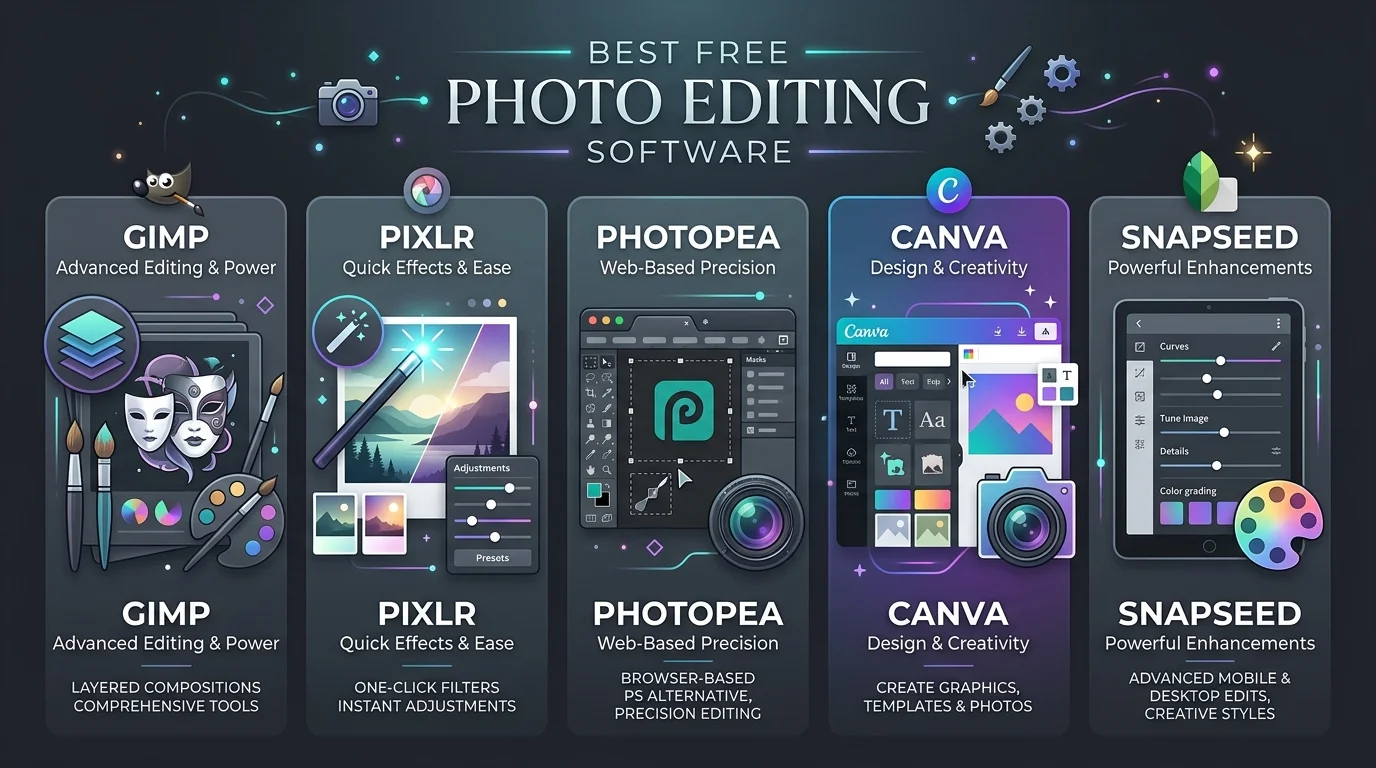
Best Free Photo Editors at a Glance
Short on time? This table gives you the essentials first. After that, I'll explain each pick in plain English.
Tool | Best for | Platforms | RAW editing | AI features | Skill level |
|---|---|---|---|---|---|
Affinity | Best overall | Windows, Mac | Yes | Paid Canva plan needed | Beginner to advanced |
GIMP | Open source fans | Windows, Mac, Linux | Via plugins | Limited | Intermediate to advanced |
darktable | RAW photographers | Windows, Mac, Linux | Yes | Limited | Advanced |
Photopea | Editing in a browser | Any browser | Yes | Paid tier | Beginner to intermediate |
Paint.NET | Quick, simple edits | Windows | Limited | No | Beginner |
Why Free Photo Editors Are Finally Worth Your Time
A few years ago, "free" meant watermarks, tiny exports and clunky menus. That has changed.
Today, several editors give you layers and masks, RAW editing and batch processing without asking for a credit card. In fact, the team at Digital Trends rebuilt its 2026 lineup because the available options shifted so much.
Here's what that means for you:
You keep more money for a better camera or lens.
You get professional color correction tools.
You stay in control of your files.
If you mostly edit on your phone, start with our guide to the best free photo editing app for iPhone. Then come back here for desktop options.
How I Picked These Tools
Picking a winner isn't about hype. It's about whether the tool helps you publish faster.
I compared several roundups, including Expert Photography, Toolradar and Zapier. Then I checked official pages wherever I could.
My filters were simple:
Truly free, with no paywall on core editing
No forced watermark on web ready export
Strong enough for everyday blog images
The 5 Best Free Photo Editing Software Options
Ready? Let's walk through them one by one. I'll tell you what each does well, and where it falls short.
1. Affinity: Best Overall Free Photo Editor
Affinity is the big story of the past year. Canva announced a new app that combines vector, photo and layout tools in one place, and the core app is free.
Canva also reported that more than one million people signed up in four days. That tells you how much demand there was.
Inside, you get adjustment layers, RAW development, retouching, HDR tools and macros. That's a lot for $0.
The catch? You need a free Canva account. Also, premium AI photo editing features like generative fill and background removal need an eligible paid Canva plan, according to iTechGuides. It runs on Windows and Mac.
2. GIMP: Best Open Source Option
GIMP has been a favorite free choice for decades, and it's still strong. It's a fully open source photo editor with curves, masks, clone tools and a big plugin ecosystem.
According to Toolradar, version 3.2 added vector layers and more non destructive editing filters. You can download it from gimp.org, and it runs on Windows, Mac and Linux.
Fair warning, though.
The interface feels dated, and the learning curve is real. Stick with it and you'll be rewarded.
3. darktable: Best for RAW Photographers
If you shoot RAW, this one's for you. darktable is a Lightroom alternative for photographers who want control over exposure, tone and color.
It works offline and costs nothing. Reviewers say it feels dense at first, so expect a few confusing hours.
But here's the thing.
Once it clicks, your blog images will look far more polished. If your photos are soft, my post on how to improve focus in photos pairs well with darktable's sharpening tools.
4. Photopea: Best Browser Based Editor
Need to edit on a borrowed laptop? Photopea runs right in your browser, so there's nothing to install.
It opens PSD files directly, and its layout mirrors Photoshop closely, as Photoshop Lady explains. The free version shows ads beside the canvas, but Toolradar notes there's no watermark on standard PNG or JPG exports.
It's a browser based photo editor that's perfect for quick fixes.
5. Paint.NET: Best for Simple Edits
Want something fast and simple? Paint.NET handles cropping, brightness, small object removal and a few layers without a giant manual.
Digital Trends lists version 5.1.12, released March 8, 2026. It's Windows only, and its RAW and masking tools are limited.
So it's not for heavy retouching.
For everyday blog graphics? It's brilliant.
Step by Step: Edit a Blog Photo in 10 Minutes
Let me show you a simple workflow. It works in any of the tools above, and it helps your page load fast.
Open a copy of your original. Never edit your only file.
Crop and straighten. Use your blog's exact image ratio.
Fix exposure and white balance. Nudge the sliders until whites look clean.
Boost contrast gently. Small moves beat dramatic ones.
Remove distractions. Use the healing or clone tool on stray objects.
Resize for the web. Around 1,200 pixels wide is usually plenty.
Export as JPG or WebP. Then compress it for speed.
Add alt text. It helps readers and search engines.
Need a hand with steps 6 and 7? Read our carousel design and image optimization tips for practical export and compression advice.
That's it. Ten minutes, tops.
Which Free Photo Editor Should You Download?
Still not sure? Let me make it easy for you.
Pick based on the job you do most:
Best all rounder: Affinity
Best for full control: GIMP
Best for RAW files: darktable
Best without installing: Photopea
Best for quick fixes: Paint.NET
My advice? Start with Affinity. It's free, it's powerful, and it grows with you. Then add darktable if you shoot RAW.
Once your photos are ready, you may also want to edit video for your blog. Our roundup of the best video editing software in 2026 is a good next step. And if you need images to edit, see this guide to free stock photos from Pexels.
Frequently Asked Questions
What is the best free photo editing software for beginners?
Paint.NET is the easiest starting point on Windows, and Photopea is easiest in a browser. Affinity is a strong pick if you want room to grow.
Is Affinity really free?
Yes, the core app is free, but you need a free Canva account. AI features such as generative fill need a paid Canva plan.
Which free editor is best for RAW photos?
darktable is built for RAW workflows. Affinity also includes RAW development.
Is there a free alternative to Photoshop?
Yes. GIMP, Affinity and Photopea are the most common free Photoshop alternatives.
Can I edit photos free without downloading anything?
Yes. Photopea works in your browser and opens PSD files.
Do free photo editors add watermarks?
The tools in this guide do not add a watermark on standard exports, based on the sources cited above. Some AI web editors do, so read the fine print.
Final Thoughts
Great images don't need a monthly bill.
You've got subscription free software that handles photo retouching, color grading and blog image optimization. The only thing missing is your first edit.
So install one today. Your next post will thank you.
🔥 Limited Time Deal
NewGet lifetime access to Postunreel with a one-time payment. Never pay again!
Your Go-To Solution for Stunning Carousels using AI!
Postunreel is a free AI carousel generator tool that helps you design captivating carousel posts for LinkedIn, Instagram, and other platforms. It makes it easier to increase social media engagement and grow your audience.
Create Free Carousel Now 🚀Related Blogs
How to Improve Focus in Photos: 11 Fixes
Blurry photos? Learn how to improve focus in photos with 11 proven fixes, from autofocus modes to focus stacking. Get sharper shots.
Generate Custom Infographic Illustrations for Complex Ideas
Learn how to create AI infographic illustrations with Dreamina. Turn complex ideas into clear, engaging visuals for presentations, reports, and blogs.