PDF to JPG Converter: How to Convert PDF Pages to Sharp Images (2026 Guide)
Convert PDF to JPG converter without blurry text. Learn best DPI, JPG vs PNG settings, 5 easy steps methods, and which tool to trust with private files.
A PDF to JPG converter renders each PDF page as a flat image. For the best quality, export at 150 DPI for screens or 300 DPI for print. Use Adobe Acrobat's Export feature for accuracy, or a free online tool for quick, nonsensitive files.
I've converted hundreds of documents. Some came out crisp. Others looked like they'd been run over by a truck.
So here's the plan: you'll learn how conversion works, which settings matter, and which tool I'd trust with your files.
What Happens When You Convert PDF to JPG?
Your PDF gets photographed by software. That's the short version.
A PDF stores text, vectors and embedded pictures as separate layers. A JPG is just a grid of pixels. The process is called rasterization, and as this converter explainer describes, the tool renders each page as a bitmap at a fixed resolution.
Here's the catch. Vector graphics scale infinitely, but once they become a JPG, they're locked in.
Your text also stops being selectable and searchable, as Coda One's FAQ confirms. Every word becomes pixels.
DPI, JPG vs PNG: The Settings That Decide Quality
Ever converted a PDF and wondered why it looked blurry? Nine times out of ten, it's DPI. Most free tools quietly default to a low image resolution, according to PDF.it.
Let me make it simple.
Which DPI Should You Choose?
Think of dots per inch as the detail packed into each inch of your page. More dots mean more detail and a bigger file.
DPI | Best for | Approx. pixels for an A4 page |
|---|---|---|
72 to 96 | Email, web previews | About 595 by 842 at 72 DPI |
150 | Everyday sharing on screen | About 1,240 by 1,754 |
300 | Print quality | About 2,480 by 3,508 |
MiniWebtool and PixConvert give the same guidance. When independent tools agree, I listen.
Planning to print your pages? Check how big a 4x6 photo is so you export at the right pixel size from the start.
JPG or PNG?
JPG uses lossy compression. That suits photos and scanned documents, because the files stay small.
For sharp text, PNG is safer. In one Adobe Community thread, a user showed JPG text visibly degrading while the PNG stayed clean.
My rule is photos get JPG and text heavy pages get PNG.
One more tip. Never convert at high DPI and then compress the JPG again. That double dips into quality loss.
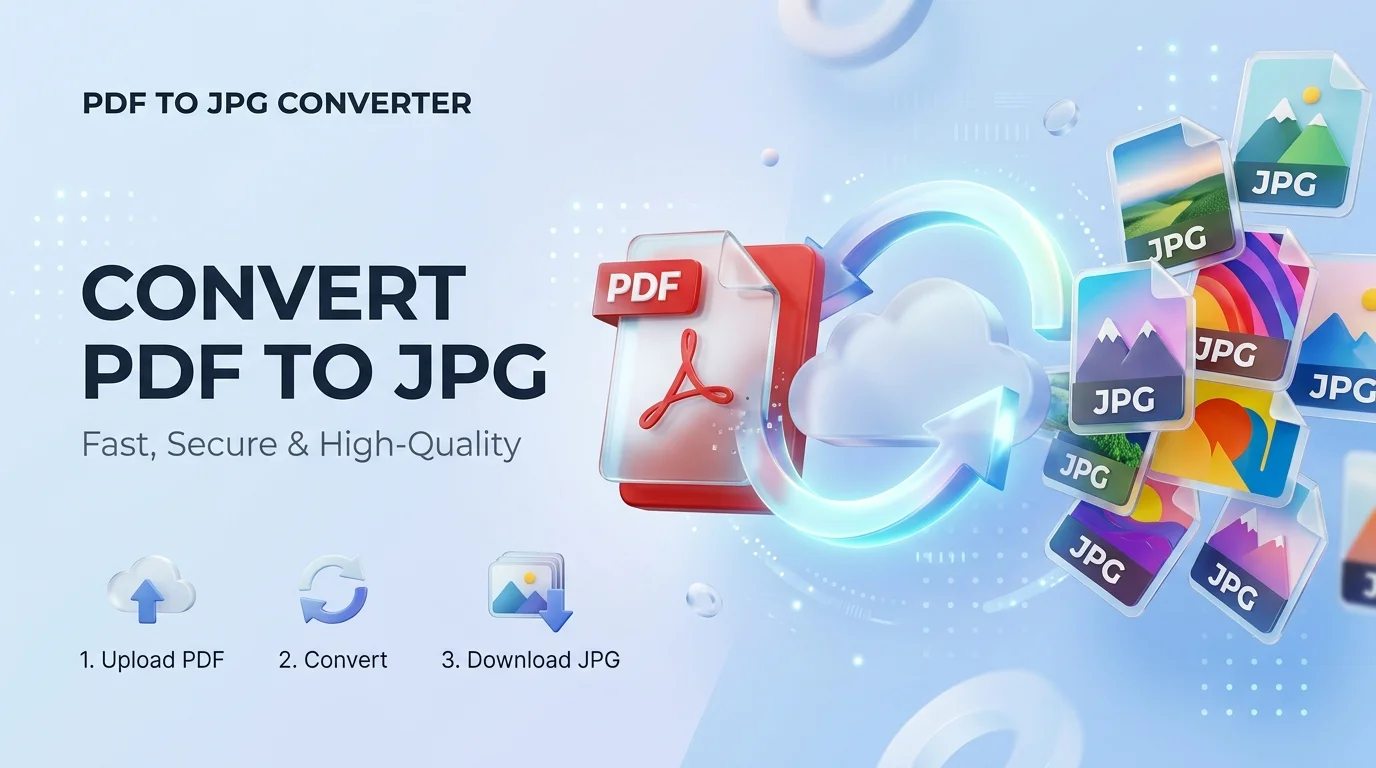
How to Convert PDF to JPG Step by Step
You've got a few routes, and the right one depends on the job. Each takes about two minutes.
Method 1: Adobe Acrobat Pro (Best Quality)
Acrobat gives you proper export settings and handles tricky color profiles well. Here's the flow from Adobe's help page:
Open your PDF in Acrobat.
Click the Export PDF tool in the right pane.
Choose Image, then JPEG.
Click Export and pick a folder.
Each page saves as its own JPEG file.
Method 2: A Free PDF to JPG Converter Online
Need it fast? Try Adobe's free online tool, Smallpdf or PDF24:
Drag your PDF onto the page.
Pick your format.
Click convert.
Download the images, usually as a ZIP.
Method 3: On a Mac
Mac users already have a built in option. IronPDF's roundup lists Preview as an offline method, which makes it a sensible pick for sensitive files.
Method 4: On Your Phone
Adobe says you can open the PDF in the Acrobat mobile app and convert from there. Once you have the image, you can resize an image on iPhone in a few taps before sharing it.
Method 5: Python for Developers
The open source pdf2image library wraps Poppler's pdftoppm tool. Install Poppler, run pip install pdf2image, and call convert_from_path() with your DPI. It's great for automation.
Which PDF to JPG Converter Is Best? A Quick Comparison
I pulled the key facts from each vendor's page and from SoftPicker's review. Limits change often, so check before you rely on them.
Tool | Where files are processed | Privacy note | Free tier notes |
|---|---|---|---|
Adobe Acrobat Pro | Your computer | Stays offline | Seven day free trial |
Adobe online tool | Adobe's servers | Cloud upload | Reported at about 1 file per day without sign in |
Smallpdf | Servers | Deleted after 1 hour | Daily limits, Pro reported at $12 per month |
PDF24 | Servers | Removed after about 1 hour | Free, ad supported |
BentoPDF | Your browser | Nothing uploaded | Free, fixed output of about 144 DPI |
Is It Safe to Convert PDF to JPG Online?
Be honest with yourself here. You're uploading a document to someone else's server. For a bank statement or signed contract, think twice.
The online tools above all publish deletion policies, so they're not shady. But "deleted after an hour" still means it sat there for an hour.
For confidential files, I use offline software or a browser based tool that never uploads anything.
Why I'd Buy Acrobat Pro Instead of Juggling Free Tools
Free converters are fine for one page.
But the moment you need batch conversion, consistent high quality JPG output and zero upload worries, free tools turn into a headache. You hit daily limits. You upload again and again. You squint at artifacts.
Adobe says Acrobat exports to JPG, PNG or TIFF, and can extract just the embedded images from a PDF. That's brilliant for catalogs and reports.
With Acrobat Pro, you get:
Offline conversion, so your files stay on your machine
Control over image quality and format
Multipage export in one click
PDF editing, merging and signing in the same tool
If you sign contracts often, it helps to understand what a digital signature is and why it matters before you flatten a signed PDF into an image.
If you convert documents even once a week, buy it. And you don't have to take my word for it, because Adobe offers a seven day free trial. Try it on your messiest PDF.
Quick Fixes for Common Problems
Something went sideways? Don't panic.
Blurry output: raise DPI to at least 150, or 300 for print.
Huge files: lower the JPG quality slider or the resolution. These image optimization tips cover compression without wrecking quality.
Poor source: a low quality scan stays low quality. No converter invents detail.
Need touch ups: open the JPG in one of the best free photo editing tools to crop, sharpen or fix colors.
Frequently Asked Questions
How do I convert a PDF to JPG for free?
Use a free online converter like Adobe's, Smallpdf or PDF24, or use Preview on a Mac. Upload the PDF, choose JPG, and download the images.
What DPI should I use for PDF to JPG?
Use 150 DPI for screens and 300 DPI for print. 72 DPI is fine for email and quick previews.
Does converting PDF to JPG reduce quality?
Yes, a little. JPG uses lossy compression, so some data is discarded. PNG avoids this and suits text heavy pages.
Can I convert only one page?
Yes. Most tools let you select pages, and Acrobat exports each page as a separate file.
Is it safe to convert PDFs online?
It depends on the tool and the file. Many services delete files after about an hour, but offline or in browser tools are safer for confidential documents.
Will the text still be searchable?
No. Once a page becomes a JPG, the text turns into pixels and can't be selected or searched.
Can I turn the JPGs back into a PDF?
Yes, with any JPG to PDF tool, though the layout may not match the original exactly.
Final Thoughts
Understand rasterization, set your DPI sensibly, and pick JPG or PNG based on content.
For quick, nonsensitive jobs, grab a free online tool. For everything else, start the Acrobat Pro free trial and enjoy clean, private, repeatable results.
Now go convert something. You've got this.
About the Author

Nathan Cole
Nathan Cole is a SaaS writer and AI product reviewer at Postunreel with a sharp focus on evaluating AI-powered tools for content creators, marketers, and growing businesses. He holds a degree in Computer Science and brings over five years of experience writing about software products, productivity tools, and marketing technology. Nathan approaches every review with rigorous hands-on testing, clear comparison frameworks, and an honest perspective that cuts through marketing hype. His goal is to help Postunreel readers make smarter decisions about the tools they invest in so they can build better content workflows without wasting time or money.
🔥 Limited Time Deal
NewGet lifetime access to Postunreel with a one-time payment. Never pay again!
Your Go-To Solution for Stunning Carousels using AI!
Postunreel is a free AI carousel generator tool that helps you design captivating carousel posts for LinkedIn, Instagram, and other platforms. It makes it easier to increase social media engagement and grow your audience.
Create Free Carousel Now 🚀Related Blogs
Windows 10 Media Creation Tool: How to Download, Install, and Fix It in 2026
Step by step: download the free Windows 10 Media Creation Tool, build a bootable USB, fix error 0x80042405, and stay secure after support ended in 2026.
How to Use Google Lens: Guide for Android, iPhone, and Desktop (2026)
Learn how to use Google Lens on Android, iPhone, and desktop. Follow simple steps to translate text, shop, and search with your camera in just minutes.