Windows 10 Media Creation Tool: How to Download, Install, and Fix It in 2026
Step by step: download the free Windows 10 Media Creation Tool, build a bootable USB, fix error 0x80042405, and stay secure after support ended in 2026.
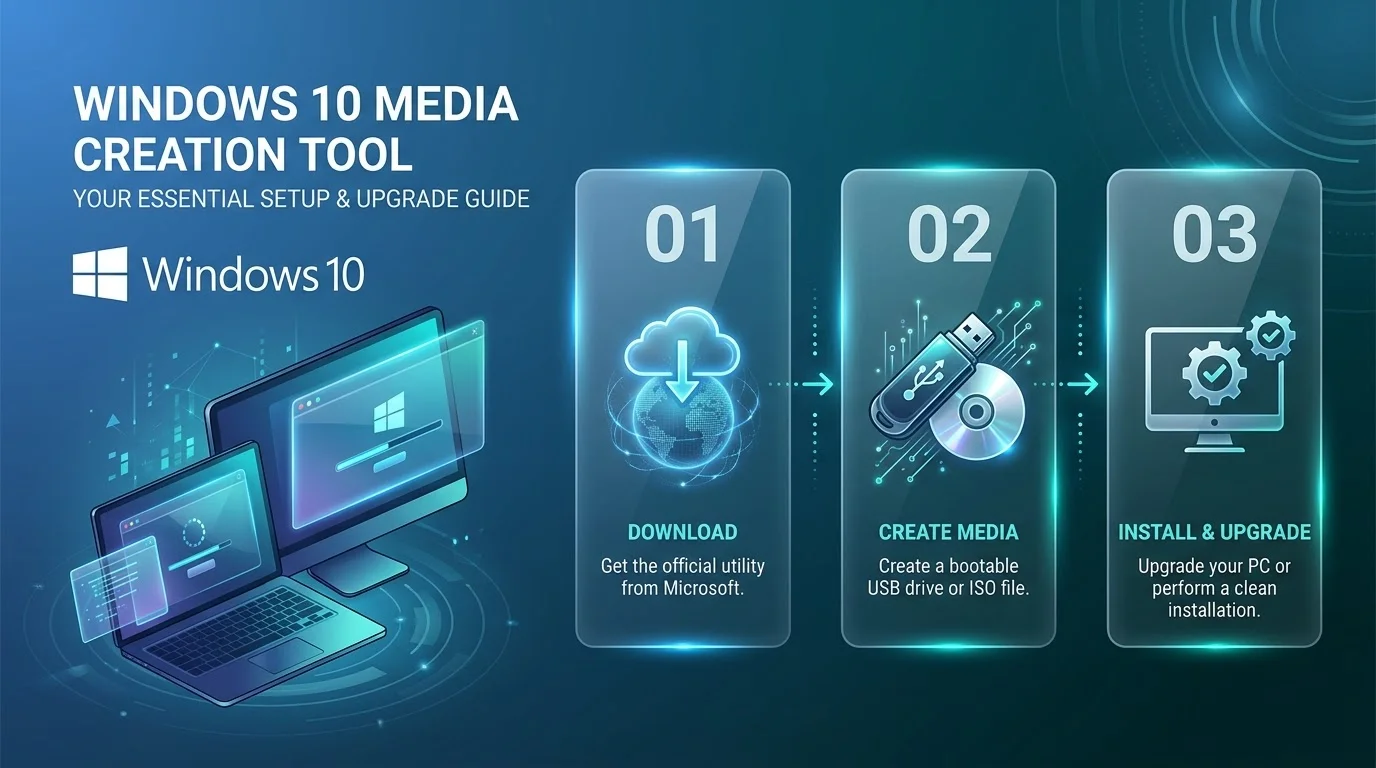
The Windows 10 Media Creation Tool is Microsoft's free utility for making a bootable USB, saving an ISO file, or upgrading your PC to Windows 10 22H2. It still works in 2026, but Windows 10 support ended on October 14, 2025. You'll need a genuine license and a security plan.
At a glance:
Tool size: about 20 MB, no installation needed
USB drive needed: 8 GB minimum
Version offered: 22H2 only
Consumer ESU window: ended October 13, 2026
Business ESU: up to October 2028
What Is the Windows 10 Media Creation Tool?
If you've ever had to reinstall Windows, you know the dread.
Let me keep this simple. It's a small program from Microsoft that pulls Windows 10 straight from Microsoft's servers. You skip sketchy third party sites entirely. That's the big win, because a tampered ISO is a nightmare you don't want.
You get three things from it:
An in place upgrade of your current PC
A bootable USB flash drive for a clean install
A saved ISO file for virtual machines or burning to a disc
Honestly, nothing else is this beginner friendly.
Does the Media Creation Tool Still Work in 2026?
Yes, it does. But the situation changed, so let me explain.
Microsoft still hosts the download, and Windows 10 22H2 media is still available. However, availability isn't the same as support. Your installed system won't get free security patches anymore.
Can't find the button? Scroll down to "Create Windows 10 installation media" on the official download page. Microsoft's Q&A forum has a thread on this exact problem, and the advice there is the same.
One warning. In October 2025, Microsoft admitted its Windows 11 media tool didn't work properly on Windows 10 devices. It's unclear whether that has been fixed, so make sure you grab the Windows 10 version of the tool.
Step by Step: Create a Windows 10 Bootable USB
You can do this in about 30 minutes, and most of that is waiting.
Here's how I'd walk a friend through it. Take your time, read each screen, and don't unplug anything midway. Interrupting the process is a classic mistake.
Before You Start
Grab an empty USB drive (8 GB or bigger) and back up your files first. The tool wipes the drive, so anything on it disappears. You also need a stable internet connection.
Not sure how storage sizes compare? Here's a quick explainer on how many gigabytes are in a terabyte.
The Steps
Open the official download page and click Download Now.
Run the file and accept the license terms.
Choose Create installation media (USB flash drive, DVD, or ISO file) for another PC.
Pick your language, edition, and architecture. Uncheck the recommended options if the target PC is different.
Select USB flash drive (or ISO file), then choose your drive.
Wait for the download and creating media stages to finish.
Here's a screenshot walkthrough if you like visuals. It also explains that the media is a multi edition image, so your license decides which edition installs.
Common Media Creation Tool Errors and Fixes
Okay, real talk.
This tool can throw cryptic errors that make you want to close your laptop forever. The famous one is error 0x80042405 (with the 0xA001A suffix). Don't panic, because most fixes are quick. Here's a cheat sheet:
Error code | When it happens | Fastest fix |
|---|---|---|
0x80042405 (0xA001A) | Creating a USB drive | Run as administrator, reformat the USB to FAT32, or save an ISO instead |
0x80004005 (0xA001A) | Near 50% in the "creating media" stage | Save an ISO, then use Rufus |
0x80072f76 (0x20017) | Tool fails to run | Download the tool again and retry |
Also, antivirus software often blocks the process, so pause it briefly. If your download keeps stalling, clear the cache in Chrome and try the official page again.
Finally, here's a reliable trick: choose the ISO file option, then burn it with Rufus.
Media Creation Tool vs. Alternatives
Sometimes you need a plan B.
The good news? You have solid options, and the table below shows where each one shines. I'd still start beginners with Microsoft's tool, because it's official and simple.
Tool | Best for | Trade off |
|---|---|---|
Media Creation Tool | Beginners, official source | Cryptic errors |
Rufus | Speed and more control | You supply the ISO |
Ventoy | Keeping several ISOs on one drive | Extra setup |
Update Assistant | Upgrading without making media | No installer created |
Why You Should Buy a Genuine License
Here's where I'll be blunt.
The tool is free. A genuine Windows license isn't, and activation still needs a valid license or key. Don't cut corners here. Pirated copies mean malware risk, missing updates, and zero peace of mind.
Security matters even more now. Microsoft's ESU program delivers critical updates after end of support. It's paid, and it only covers security fixes. The sources I found put the consumer window ending October 13, 2026. I couldn't confirm any extension, so check Microsoft's ESU page before you decide.
So what should you do? If your PC qualifies, buy a licensed Windows 11 upgrade. If it doesn't, pair a genuine Windows 10 license with a clear update plan. Managing a whole office? An IT managed service provider can handle the migration for you. A small purchase now beats a ransomware cleanup later.
Frequently Asked Questions
Quick answers, no fluff.
Is the Windows 10 Media Creation Tool free?
Yes. The tool is free, but Windows itself needs a valid license to activate.
How big a USB drive do I need?
You need at least 8 GB. Use an empty drive, because the process erases everything on it.
Can I download older versions like 21H2?
No. The current consumer tool only offers 22H2.
Is Windows 10 still safe to use?
It runs, but free security updates ended on October 14, 2025. Use ESU or upgrade to Windows 11.
What if the tool keeps failing?
Save an ISO file, then write it to USB with Rufus. It fixes most stubborn errors.
Final Thoughts
So, here's the deal.
You now know what the Windows 10 Media Creation Tool does, how to build a bootable USB, and how to fix its quirks. You also know why a genuine license and a security plan matter.
Don't wait for a crash to force your hand. Download the tool, build your installer today, and tuck it in a drawer. Future you will say thanks.
About the Author

Nathan Cole
Nathan Cole is a SaaS writer and AI product reviewer at Postunreel with a sharp focus on evaluating AI-powered tools for content creators, marketers, and growing businesses. He holds a degree in Computer Science and brings over five years of experience writing about software products, productivity tools, and marketing technology. Nathan approaches every review with rigorous hands-on testing, clear comparison frameworks, and an honest perspective that cuts through marketing hype. His goal is to help Postunreel readers make smarter decisions about the tools they invest in so they can build better content workflows without wasting time or money.
🔥 Limited Time Deal
NewGet lifetime access to Postunreel with a one-time payment. Never pay again!
Your Go-To Solution for Stunning Carousels using AI!
Postunreel is a free AI carousel generator tool that helps you design captivating carousel posts for LinkedIn, Instagram, and other platforms. It makes it easier to increase social media engagement and grow your audience.
Create Free Carousel Now 🚀Related Blogs
How to Use Google Lens: Guide for Android, iPhone, and Desktop (2026)
Learn how to use Google Lens on Android, iPhone, and desktop. Follow simple steps to translate text, shop, and search with your camera in just minutes.
Report a Problem Apple: How to Request a Refund (2026 Guide)
Use Report a Problem Apple to request a refund in minutes. Follow the simple steps, track your status, and avoid fake support scams. Updated 2026.