Report a Problem Apple: How to Request a Refund (2026 Guide)
Use Report a Problem Apple to request a refund in minutes. Follow the simple steps, track your status, and avoid fake support scams. Updated 2026.
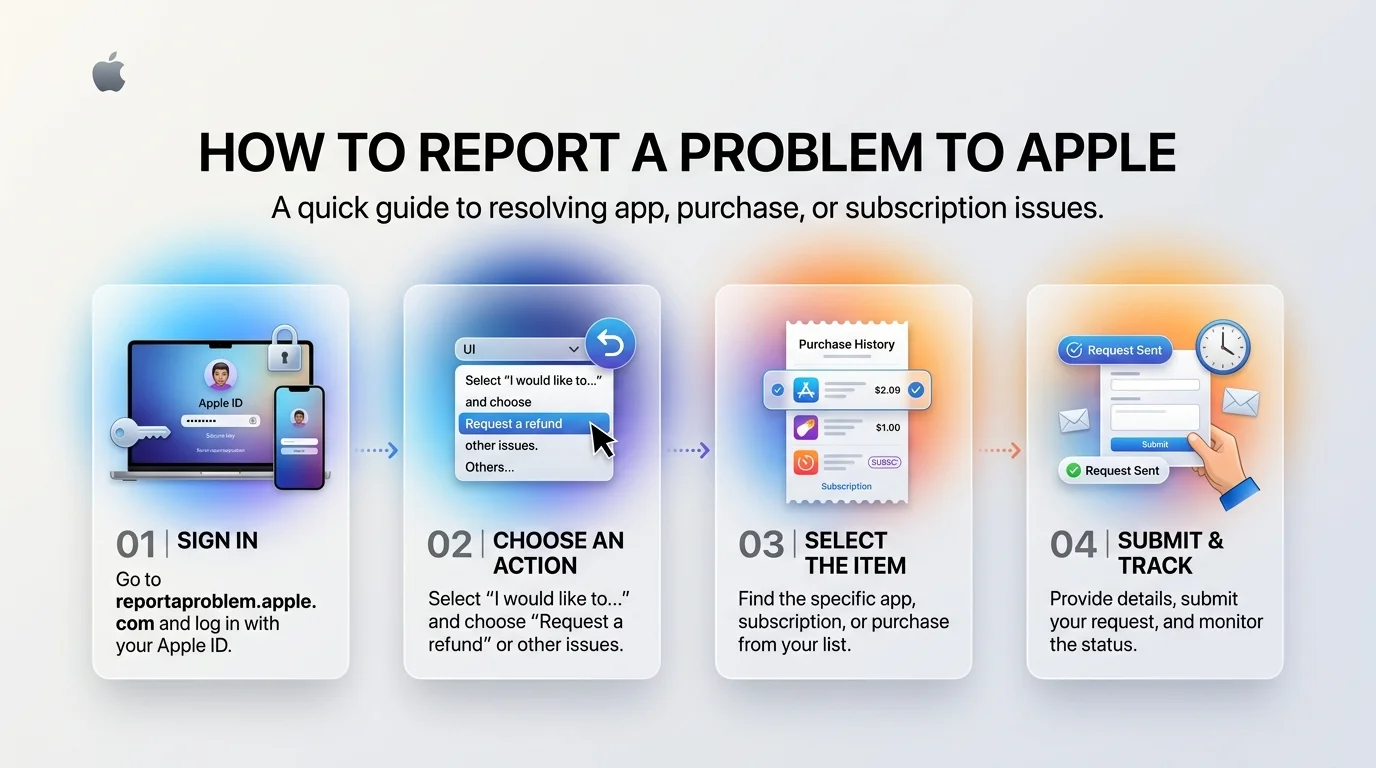
Report a Problem is Apple's official tool for refund requests and purchase issues. To Report a Problem Apple Go to reportaproblem.apple.com, sign in with your Apple Account, choose "Request a refund," select the purchase, and submit. Apple reviews each request and emails you the decision.
Everyone has tapped the wrong "Buy" button at some point.
Maybe you have too.
Here's the thing: you don't have to just eat the cost. Let me show you the whole process, plus the traps to avoid.
What Is Apple's Report a Problem Feature?
Think of it as the front desk for your Apple purchases. It covers refund requests, billing issues, and trouble with apps, music, movies and games. No phone queue required.
Apple's own guides confirm the flow. On a Mac, you go to reportaproblem.apple.com, sign in, and click "I'd like to". The Apple Games guide describes the same steps.
Simple enough. Now let's get practical.
What You Can Report
You'll typically see options for:
a mistaken purchase ("I didn't mean to buy this")
an app that doesn't work as described
a charge you don't recognize
a problem that isn't listed
Pick the closest match. If nothing fits, choose the "not listed" option and explain it yourself.
Ways to Report a Problem to Apple (Comparison)
You've got more than one door. This table shows which one to use.
Method | Where to start | Best for |
|---|---|---|
Website | reportaproblem.apple.com | Refunds, checking refund status |
Receipt email | "Report a Problem" link in Apple's email | Fast access when you have the email |
App Store app | App page, then Report a Problem | Starting from your phone; it hands you off to the website |
Report a Concern | App Store listing | Apps that break the rules |
Apple Support | Apple's support contact page | When a report fails or you need a person |
Honestly? Bookmark the website. It's the one you'll use.
How to Request a Refund Step by Step
This takes about two minutes. Ready?
The Web Method
Open Apple's Report a Problem page.
Sign in with the Apple Account used for the purchase.
Under "I'd like to," choose "Request a refund."
Tap the circle beside the item you want back.
Select a reason.
Hit Submit.
Techlicious shows the same flow with screenshots if you're a visual learner.
What Happens Next
Now you wait, but not long.
Techlicious reports Apple typically takes a day or two, and you can check your refund status on the same page. Other support sites say a few days. Apple emails you the decision either way.
Tips to Improve Your Odds
Apple makes the final call, and nobody can promise approval. But you can help your case:
Act fast. Apple considers your reason and how recently you bought.
Be specific. Say exactly what went wrong.
Use it honestly. It's meant for occasional mistakes, not for erasing every regret. (That Engadget piece is from 2014, so check Apple's current page for rules.)
What If Your Refund Is Denied?
It happens. Don't give up yet.
First, reread the reason you gave. Was it clear? Second, if a report doesn't go through, Apple community moderators suggest contacting Apple through its support page. For in-app purchases, you can also try the app developer.
Also, if the charge came from a recurring plan you forgot about, stop the bleeding first. Our guide on how to cancel an AI app subscription walks through the same logic of finding and ending a subscription before it bills you again.
Last, always use Apple's real channels. That brings us to the scary part.
How to Handle Charges You Don't Recognize
Sometimes the problem isn't your mistake. It's a mystery line on your bank statement.
Most have boring explanations. Follow this order:
Read Apple's guide to seeing "apple.com/bill" on your statement.
Remember that grouped charges can look unfamiliar.
Ask your Family Sharing members.
Still stuck? Report it through Apple.
Beware of Fake Apple Support Scams
I'll be blunt. Scammers love people hunting for refunds.
A Real Case
A University of Illinois student wanted to cancel a subscription. She searched for Apple's number and called the top result. The "agent" demanded gift cards. She bought several before spotting the scam.
Your Safety Checklist
Never pay a refund "fee" in gift cards.
Hang up on unexpected "Apple" calls. Apple advises contacting them directly.
Know that caller ID spoofing can fake Apple's number and logo.
Don't Google a support number. Community experts say use Apple's own site.
Never share your password or verification codes.
If you've been targeted, the FBI points victims to ic3.gov. Then lock things down: learn how to change your email password so a scammer can't use your inbox to reset your accounts.
Frequently Asked Questions
What is Report a Problem on Apple?
It's Apple's official page at reportaproblem.apple.com for requesting refunds and reporting issues with purchases. You sign in with your Apple Account and choose what went wrong.
How do I request a refund from Apple?
Sign in, choose "Request a refund," select the purchase, pick a reason and submit. Apple emails you the outcome.
How long does a refund take?
Sources report a day or two, sometimes a few days. Check Apple's page for current timing.
Will Apple approve every request?
No. Apple reviews each one individually and decides.
Is a call about my "refund" really from Apple?
Probably not. Unsolicited callers claiming to be Apple are commonly scammers. Hang up and contact Apple yourself.
Your Next Move
You now know the tool, the steps and the traps.
So buy the app you've been eyeing. Try the subscription. You've got a safety net, and you know exactly how to use it.
Bookmark reportaproblem.apple.com right now, and explore more practical software guides on Postunreel.
You'll thank yourself later.
About the Author

Nathan Cole
Nathan Cole is a SaaS writer and AI product reviewer at Postunreel with a sharp focus on evaluating AI-powered tools for content creators, marketers, and growing businesses. He holds a degree in Computer Science and brings over five years of experience writing about software products, productivity tools, and marketing technology. Nathan approaches every review with rigorous hands-on testing, clear comparison frameworks, and an honest perspective that cuts through marketing hype. His goal is to help Postunreel readers make smarter decisions about the tools they invest in so they can build better content workflows without wasting time or money.
🔥 Limited Time Deal
NewGet lifetime access to Postunreel with a one-time payment. Never pay again!
Your Go-To Solution for Stunning Carousels using AI!
Postunreel is a free AI carousel generator tool that helps you design captivating carousel posts for LinkedIn, Instagram, and other platforms. It makes it easier to increase social media engagement and grow your audience.
Create Free Carousel Now 🚀Related Blogs
Internet Options by Address: How to Find the Best Provider at Your Door
Find internet options by address in 3 simple steps. Check fiber, cable and 5G providers, spot map errors, and pick the right plan for your home today.
How to Clear Cache in Chrome: Step by Step Guide
Learn how to clear cache in Chrome on desktop, Android and iPhone. Follow our simple steps, try a hard reload, and fix stale pages in under a minute.