How to Change Your Email Password 2026
Learn how to change your email password safely in 2 minutes — Gmail, Outlook, iCloud & more, plus tips to make it hacker-proof.
To change your email password, log into your account, go to Settings → Security → Password, enter your current password, then set a new one. If you're locked out, use the "Forgot Password" recovery flow instead — you'll verify your identity via SMS or a backup email.
I'll be honest with you — changing your email password sounds simple until you're staring at a settings menu with fifteen tabs and no idea which one you need.
I've been there.
So today, I'm going to walk you through exactly how to do it, no matter which provider you use. And by the end of this, you'll also know how to make your new password something a hacker can't crack in five seconds.
Let's get into it.
Why Changing Your Email Password Actually Matters
Your inbox is basically the master key to your entire digital life. Think about it — your bank, your social media, your Amazon account… they all use your email for password resets.
That means if someone gets into your email, they can get into everything else, too.
Here's a stat that should worry you: according to Morgan Stanley's security research, more than two in three people still reuse the same password across multiple accounts. That's a massive open door for hackers.
This is why account security isn't optional anymore. Whether you're updating an old password, reacting to a data breach, or just being proactive, this guide has you covered.
Related reading: if you've ever hit send too fast, check out our guide on how to unsend an email. And if you handle sensitive files at work, don't miss how online professionals protect sensitive work data.
Step 1: Figure Out If You Can Log In
Before anything else, ask yourself: do you still have access to your account?
This matters a lot, because the process is completely different depending on your answer.
If yes — you'll go through your account's security settings and change it manually.
If no — you'll need to go through account recovery, which usually involves a code sent to your phone or a backup email.
Either way, don't panic. I'll walk you through both.
Step 2: Changing Your Password (When You Have Access)
Okay, so you can log in. Great — this is the easy path.
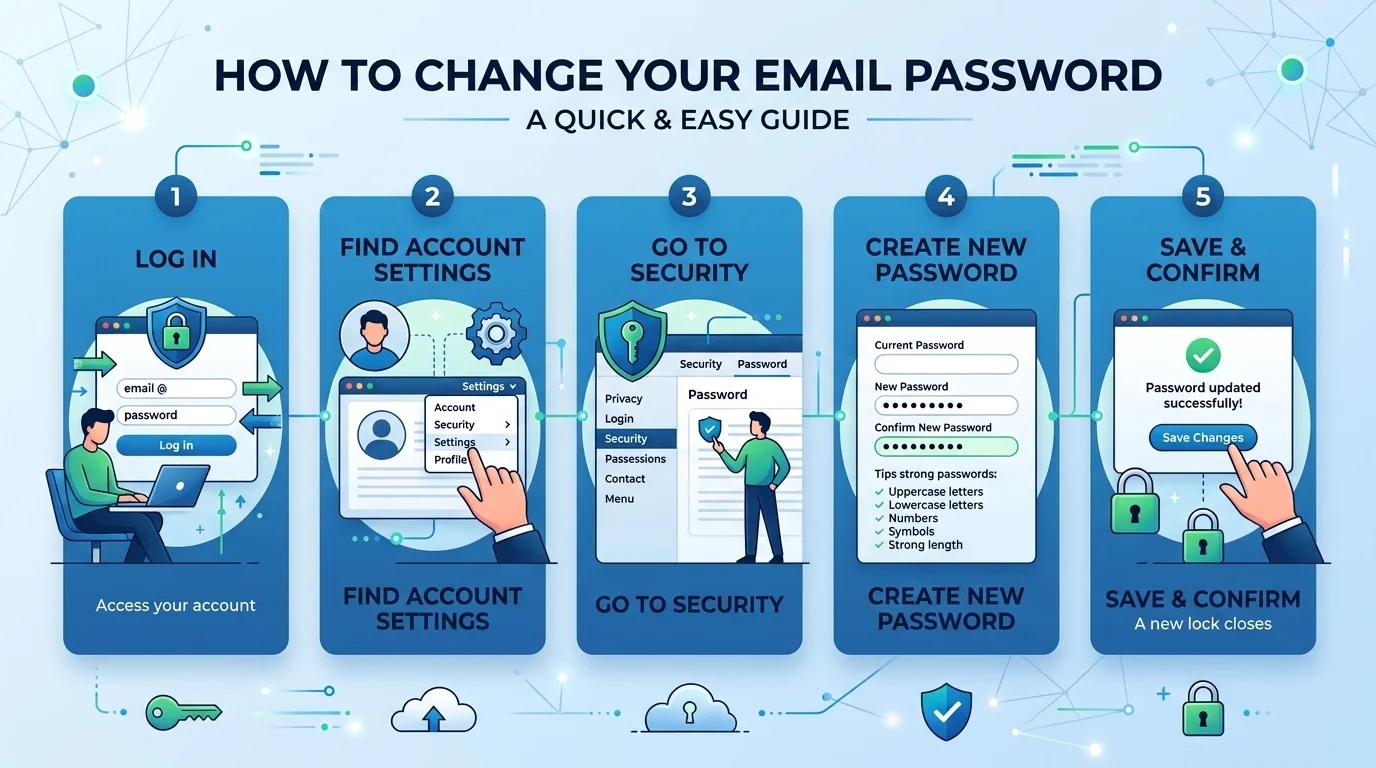
Here's the general flow, and yes, it works almost identically across Gmail, Outlook, Yahoo, and iCloud:
Log into your account through the web browser.
Head to Settings or Account Security.
Look for something labeled "Password" or "Change Password."
Enter your current password.
Type in your shiny new one (twice, to confirm).
Hit save.
That's it. Seriously.
Password Change Steps by Provider
Here's a quick side-by-side so you don't have to hunt through each section:
Provider | Menu Path | Recovery Option | Typical Time |
|---|---|---|---|
Gmail | Manage Google Account → Security → Password | Google Account Recovery | ~2 minutes |
Outlook | Redirects to Microsoft Account → Security | Microsoft Password Reset | ~3 minutes |
iCloud | Settings → [Name] → Sign-In & Security | Apple ID recovery via trusted device | ~2 minutes |
Yahoo Mail | Account Info → Account Security | Yahoo Sign-in Helper | ~3 minutes |
Proton Mail | Settings → Account → Password | Proton Recovery | ~2 minutes |
Gmail Password Change
If you're a Gmail user, go to myaccount.google.com, click your profile picture, then Manage your Google Account → Security → Password.
You'll punch in your current password, then your new one. Done.
Outlook Password Reset
For Outlook password reset, it's a little different — you actually need to change your password at the source. According to Microsoft's own support documentation, Outlook doesn't store the password itself. Instead, you're redirected to whichever provider owns the account — Microsoft 365, Yahoo, iCloud, or your workplace's Exchange server.
So if your email ends in @outlook.com or @hotmail.com, you'll be sent to the Microsoft account portal to make the change.
iCloud & Apple ID Password
For iPhone or Mac users, you'll go to Settings → your name → Sign-In & Security → Change Password.
Simple, right?
Yahoo Mail Password Change
Yahoo works similarly — head to Account Info, click Account Security, then select Change Password. You'll be asked to verify via your recovery phone number first, which is a nice extra layer of protection baked into the flow.
Step 3: Recovering Your Password (When You're Locked Out)
Now here's where things get a little more stressful. You've forgotten your password. Or worse — someone else changed it.
Don't worry, this happens to literally everyone at some point.
Most providers, as explained by Proton's security team, let you recover access through:
A verification code sent via SMS
A backup email address
Security questions
Follow the "Forgot Password" link on the sign-in page, verify your identity, and you'll be prompted to set a fresh password.
One quick tip — check your spam or junk folder. Recovery emails love to hide there.
Step 4: Resetting a Business or Workplace Email Password
If your email is managed by your employer, you probably can't just reset it yourself — and that's normal.
For Google Workspace accounts, an admin needs to reset your password from the Admin Console, unless your organization has self-service recovery enabled.
For Microsoft 365 business accounts, it's the same story — your IT admin resets it through the Microsoft 365 Admin Center, or you use self-service password reset (SSPR) if your company has it turned on.
If you're locked out of a work email, your fastest move is simply contacting your IT help desk directly instead of trying every recovery link yourself.
Step 5: Making Your New Password Actually Strong
Alright, here's the part most people skip. And honestly? It's the most important part.
Changing your password to something just as weak defeats the entire purpose.
According to CISA's official guidance, a genuinely strong password checks all three of these boxes:
Length — at least 16 characters (yes, really)
Randomness — a mix of upper/lowercase letters, numbers, and symbols
Uniqueness — never reused across other accounts
Not into memorizing random strings? Try a passphrase instead — something like "purple-lantern-coffee-marathon." It's long, it's random enough, and it's actually memorable.
Why You Shouldn't Reuse Passwords
Here's a sobering fact from the FTC's consumer advice page: reusing passwords across sites is one of the riskiest habits you can have.
If one site gets breached — and let's face it, breaches happen constantly — hackers will try that same password on your email, your bank, everywhere. It's called credential stuffing, and it's terrifyingly effective.
So please, for your own sake: one password, one account.
Step 6: Turn On Two-Factor Authentication
I'm not going to sugarcoat this — even a great password isn't bulletproof on its own.
That's why two-factor authentication (MFA) exists. It adds a second layer, so even if someone steals your password, they still can't get in without your phone or authenticator app.
The FTC recommends using an authenticator app or security key over SMS codes when possible, since text messages can be intercepted.
Go turn this on right now. I'll wait.
Should You Use a Password Manager?
Honestly? Yes.
I get it — remembering a unique, 16-character password for every single account you own sounds impossible. Because it is.
That's exactly why password managers exist. They generate, store, and auto-fill strong, unique passwords for every account — so you only need to remember one master password.
Security researchers at BeyondTrust point out that this single habit dramatically cuts down your exposure to breaches, because a leak on one site no longer cascades into every other account you own.
If you're serious about protecting your inbox (and you should be), a password manager isn't a luxury. It's basically the seatbelt of your digital life. For more on keeping your work accounts locked down, our guide on how online professionals protect sensitive work data goes deeper into this.
Frequently Asked Questions
Can I change my email password without the old one?
Yes — use the "Forgot Password" or account recovery option instead of the standard change-password flow. You'll verify your identity via SMS, backup email, or security questions.
How often should I change my email password?
Modern guidance from NIST-aligned sources says you don't need to change it on a fixed schedule if it's already long, unique, and random. Change it only when there's a reason — like a suspected breach.
What happens to my other devices after I change my password?
You'll typically get logged out everywhere and need to sign back in with the new password on each device, including phones, tablets, and connected apps.
Is it safe to reuse an old password?
No. Reusing any previous password — even one from years ago — defeats the purpose of the change, especially if that password was ever exposed in a breach.
What's the difference between resetting and changing a password?
"Changing" means you're logged in and updating it yourself. "Resetting" means you've lost access and are verifying your identity through a recovery process to set a new one. Read Also: My Saved Passwords on This Device: Where to Find.
Final Thoughts
Changing your email password takes maybe two minutes. Making it actually secure takes a little more thought — but now you know exactly how to do both.
Here's your quick recap:
Log in and update your password through Settings → Security
Use account recovery if you're locked out
Contact IT directly for work/business email resets
Make your new password long, random, and unique
Turn on MFA
Seriously consider a password manager
Your inbox is the front door to your entire online life. Lock it properly.
Read Also: How to Change WiFi Password Fast, Any Router
About the Author

Nathan Cole
Nathan Cole is a SaaS writer and AI product reviewer at Postunreel with a sharp focus on evaluating AI-powered tools for content creators, marketers, and growing businesses. He holds a degree in Computer Science and brings over five years of experience writing about software products, productivity tools, and marketing technology. Nathan approaches every review with rigorous hands-on testing, clear comparison frameworks, and an honest perspective that cuts through marketing hype. His goal is to help Postunreel readers make smarter decisions about the tools they invest in so they can build better content workflows without wasting time or money.
🔥 Limited Time Deal
NewGet lifetime access to Postunreel with a one-time payment. Never pay again!
Your Go-To Solution for Stunning Carousels using AI!
Postunreel is a free AI carousel generator tool that helps you design captivating carousel posts for LinkedIn, Instagram, and other platforms. It makes it easier to increase social media engagement and grow your audience.
Create Free Carousel Now 🚀Related Blogs
How to Change Instagram Story Background Color
See how to change Instagram story background color on iPhone and Android. Try 4 easy, free methods: solid fills, gradients and color tints.
How Big Is 4x6 Photo? Size in Inches, CM & Pixels
How Big Is 4x6 Photo inches (10.16 x 15.24 cm), or 1200 x 1800 pixels at 300 DPI. Get size chart, crop tips and a simple 5 step print guide.
How to Invert Colors on iPhone (2026 Guide)
Learn how to invert colors on iPhone in seconds. Compare Smart vs Classic Invert, set a triple click shortcut, and fix common glitches.