How to Change WiFi Password Fast, Any Router
Change WiFi password in 5 minutes. Step-by-step guide for any router or ISP gateway, plus the WPA3 setting most people miss.
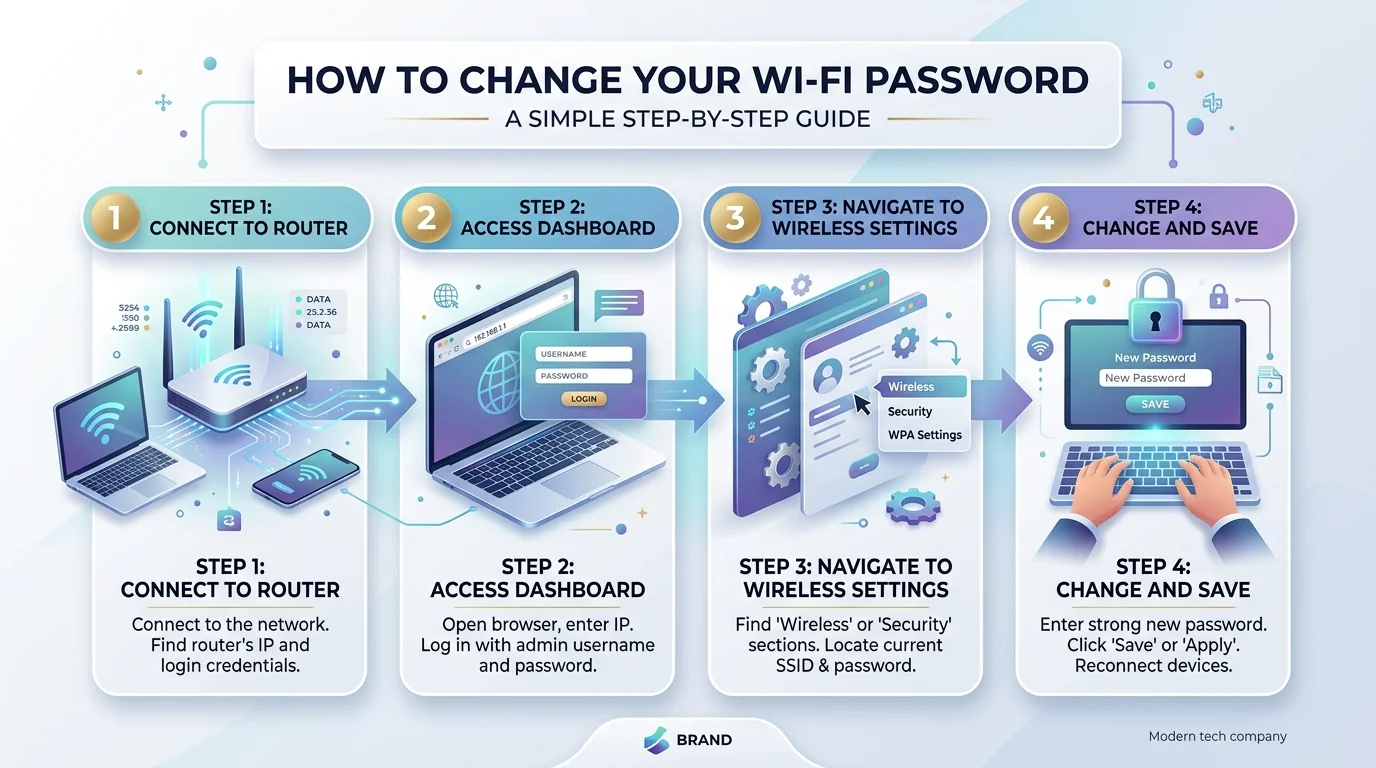
To change WiFi password connect to your network, type your router IP address (usually 192.168.1.1 or 192.168.0.1) into a browser, log in with your admin username and password, open Wireless Settings, enter a new passphrase of at least 16 characters, and click Save. If your internet provider supplied the box, use their mobile app instead.
That's the whole thing in one paragraph.
Now let me show you the details that actually matter — including the part where your router locks you out, and the security upgrade you should make while you're already in there.
Key Takeaways
Most routers are reached at
192.168.1.1or192.168.0.1Your admin password and your WiFi password are two different things
CISA recommends a passphrase of 5–7 unrelated words, 16 characters minimum
ISP gateways (Xfinity, Fios) increasingly require an app, not a browser
Switch to WPA3 or WPA2/WPA3 mixed mode while you're in the settings
Every device on your network will need reconnecting afterward
Why You Should Change Your WiFi Password Right Now
Look, I get it. Changing your wireless network key feels like a chore you can put off forever. But your router password is the single lock on your entire digital home — your banking sessions, your smart cameras, your work laptop. If that password has circulated among houseguests, contractors, and your neighbor's kid for four years, it isn't a secret anymore. Sluggish speeds are usually the first symptom of unauthorized network access, and by then someone's been on your network for months.
So when should you do it?
You inherited a router when you moved in
You're still using the default password on the sticker
Your internet feels slow with no explanation
You've shared it with more than a handful of people
It's been over a year since the last change
CISA warns that default credentials are easily available online and offer only marginal protection. Honestly? That label on the back of your router is a liability, not a convenience.
How Often Should You Change It?
Twice a year is a sensible baseline for most households. Change it immediately, though, if you've had contractors in the house, ended a roommate arrangement, or noticed devices you don't recognize on your network. If you set up a guest network for visitors — and you should — you can rotate that one far more aggressively without disrupting your own devices.
Rather than reading the new passphrase aloud every time someone visits, learn how to share your WiFi password using a QR code or your phone's built-in sharing feature. It's faster, and it stops your passphrase from ending up in a group chat.
Admin Password vs WiFi Password: Know the Difference
This trips up almost everyone, so let's clear it up before you go further. Your router has two completely separate passwords, and confusing them is the number one reason people stall halfway through. The admin password logs you into the router's settings page. The WiFi password — also called the network key, passphrase, or pre-shared key (PSK) — is what your phone requests when joining. TP-Link's support documentation opens by making exactly this distinction, which tells you how often people get it wrong.
Got it? Good.
You're changing the second one. But you need the first one to get in the door.
What You'll Need Before Starting
A device connected to your network (an Ethernet cable works perfectly)
Your router IP address or default gateway
Your router admin credentials
A new passphrase you've already chosen
Five minutes of nobody streaming anything
Step 1: Find Your Router's IP Address
Every router sits at a numeric address on your home network called the default gateway, and that's what you type into a browser to reach the router admin page. Most use 192.168.1.1 or 192.168.0.1, but plenty of brands differ — D-Link notes that 192.168.2.1 and 10.0.1.1 are also in circulation. Rather than guessing, just look it up on whatever device is in your hand. Fifteen seconds, tops.
Windows: Open Command Prompt, type ipconfig, find "Default Gateway."
Mac: System Settings → Network → WiFi → Details → TCP/IP → "Router."
iPhone: Settings → WiFi → tap the (i) → "Router."
Android: Settings → Network & internet → WiFi → tap your network → "Gateway."
Some brands skip the numbers entirely. Netgear uses routerlogin.net, TP-Link uses tplinkwifi.net, and D-Link uses dlinkrouter.local.
Step 2: Log Into the Router Admin Panel
Open any browser and type that address into the address bar — not the search bar. I see people slip here constantly; typing an IP into Google gets you a page of unrelated results and a lot of frustration. Press Enter and a router login page will ask for credentials. If you've never changed them, check the label on the bottom or back of the unit. Common factory defaults are admin/admin, admin/password, or a blank password field.
Can't get in?
Don't panic. Two options below.
If You're Locked Out of WiFi
If you don't know the current password and can't connect wirelessly, plug a laptop directly into the router with an Ethernet cable. As D-Link points out, this bypasses the wireless handshake entirely and gets you straight into the admin panel — no password required.
If You Forgot the Admin Password
You'll need a factory reset. Hold the recessed reset button for about 30 seconds until the lights cycle. Fair warning, though: this erases your existing configuration, including port forwarding, parental controls, and any custom DNS. You'll be rebuilding from defaults. Treat it as a last resort, not a first move.
Before you nuke everything, check your browser's credential vault. Plenty of people have saved the admin login without realizing it — here's how to find saved passwords on your device in Chrome, Safari, and Windows. A two-minute look could save you an hour of reconfiguration.
Step 3: Change the Password in Wireless Settings
You're in. Now locate the section labeled Wireless, Wireless Settings, Wireless Security, or Basic WLAN Settings — the wording shifts by brand, but it's always in the same neighborhood of the menu. Netgear instructs you to select Wireless or Settings → Wireless Setup, then complete the Name (SSID) and Password fields. Enter your new passphrase, then click Apply or Save.
Here's the part most guides skip: if your router broadcasts separate 2.4 GHz and 5 GHz bands, you may need to update both independently.
Then wait. D-Link notes the router can take roughly 80 seconds to save and reboot. Let it finish before you touch anything.
Router Settings Paths by Brand
Brand | Login Address | Menu Path |
|---|---|---|
Netgear | routerlogin.net | Wireless → Password (Network Key) → Apply |
TP-Link | tplinkwifi.net | Wireless → Wireless Settings → Save |
D-Link | dlinkrouter.local | Settings → Wireless → Save |
Asus | router.asus.com | Wireless → General → WPA Pre-Shared Key |
Linksys | 192.168.1.1 | Wireless → WiFi Settings → Apply |
What If You Have an ISP Gateway Instead?
This is the biggest change in home networking over the past few years, and most articles online haven't caught up. If your internet provider supplied the box, the classic browser admin panel may be partially or completely disabled. Comcast confirms that once WiFi Intelligence is enabled on an Xfinity Gateway, the network name and password can no longer be managed in the Admin Tool at all. Everything moves to the mobile app.
So if you hit a wall, that's usually why.
Xfinity: Xfinity app → WiFi tab → WiFi Details → Edit WiFi Settings → Save.
Verizon Fios: My Fios app or the Fios router admin page.
TP-Link Deco: Tether app → More → System.
Google Nest WiFi: Google Home app → WiFi → Settings.
Spectrum: My Spectrum app → Services → Internet → your router.
Choose a Password That Actually Holds Up
Let's talk about what you type into that box, because a weak wifi passphrase undoes everything you just did. Forget the old advice about cramming in symbols and capital letters — it produces passwords humans can't remember and computers crack anyway. CISA recommends building a memorable passphrase from five to seven unrelated words totaling at least 16 characters. Something like copper-lantern-tuesday-marble-fog is stronger and easier to type on a TV remote.
That's the whole trick, really.
Length beats complexity. Every single time.
What to Avoid
Your address, surname, or phone number
Anything under 12 characters
The same password you use anywhere else
Dictionary words on their own
Upgrade to WPA3 While You're In There
You're already in the settings, so spend thirty more seconds on the encryption protocol dropdown — it's the highest-leverage change available to you. TP-Link explains that WPA3 uses Simultaneous Authentication of Equals (SAE) to resist brute-force attacks, adds forward secrecy so previously captured traffic can't be decrypted later, and encrypts sessions even on open networks.
Here's how the options compare:
Protocol | Year | Security Level | Use It? |
|---|---|---|---|
WEP | 1997 | Broken | Never |
WPA | 2003 | Broken | Never |
WPA2-TKIP | 2004 | Weak | No |
WPA2-AES | 2004 | Strong | Acceptable fallback |
WPA2/WPA3 mixed | 2018 | Strong | Best for most homes |
WPA3 Personal | 2018 | Strongest | If all devices support it |
The practical guidance: choose WPA3 if every device supports it, WPA2/WPA3 transition mode if you have a mix of old and new hardware, and WPA2-AES if your router doesn't offer WPA3 at all. Never leave it on WEP, original WPA, WPA2-TKIP, or Open.
While you're there, CISA also recommends disabling WPS (Wi-Fi Protected Setup), turning off remote management, and keeping your router firmware updated.
Reconnect Your Devices: The Checklist Nobody Gives You
Here's the aftermath nobody warns you about. Netgear notes that devices disconnect the moment you save, and you'll need to browse available networks and reconnect with the new key. That's fine for your phone. It's considerably less fun when you realize your garage door opener is offline and you can't remember how you paired it in 2021.
Work through this list:
Phones, tablets, laptops
Smart TVs and streaming sticks
Printers (often the most painful)
Smart speakers and displays
Security cameras and video doorbells
Thermostats
Robot vacuums
Smart plugs, bulbs, and switches
Game consoles
Anything else with a WiFi logo on the box
Do it in one sitting. Trust me on this.
Frequently Asked Questions
How do I change my WiFi password without the admin password?
You'll need to factory reset the router by holding the reset button for about 30 seconds, then set everything up fresh from defaults. This erases your existing configuration.
Can I change my WiFi password from my phone?
Yes. Either open your router's IP address in a mobile browser, or use your manufacturer's app — Netgear Nighthawk, TP-Link Tether, Asus Router — or your ISP's app.
Will changing my WiFi password kick everyone off?
Yes, immediately. Every connected device disconnects and must rejoin with the new passphrase.
Does changing my WiFi password change my admin password?
No. They're separate settings, and you should change both if either is still at factory default.
How long should a WiFi password be?
At least 16 characters, per CISA guidance. A multi-word passphrase is easier to remember than a random string of equal strength.
Do I need to change my WiFi name too?
Not required, but useful. If your SSID still reveals your router model or your family name, change it — it hands attackers free reconnaissance.
The Bottom Line
Changing your WiFi password takes under five minutes, and the reconnection cleanup takes maybe twenty more. Compared to the alternative — an unknown device sitting quietly on your network, watching — that's a bargain.
So do it today.
Then set a calendar reminder for six months from now.
About the Author

Nathan Cole
Nathan Cole is a SaaS writer and AI product reviewer at Postunreel with a sharp focus on evaluating AI-powered tools for content creators, marketers, and growing businesses. He holds a degree in Computer Science and brings over five years of experience writing about software products, productivity tools, and marketing technology. Nathan approaches every review with rigorous hands-on testing, clear comparison frameworks, and an honest perspective that cuts through marketing hype. His goal is to help Postunreel readers make smarter decisions about the tools they invest in so they can build better content workflows without wasting time or money.
🔥 Limited Time Deal
NewGet lifetime access to Postunreel with a one-time payment. Never pay again!
Your Go-To Solution for Stunning Carousels using AI!
Postunreel is a free AI carousel generator tool that helps you design captivating carousel posts for LinkedIn, Instagram, and other platforms. It makes it easier to increase social media engagement and grow your audience.
Create Free Carousel Now 🚀Related Blogs
Free AI Art Generator: 5 Best Tools Compared (2026)
Find the best free AI art generator in 2026. Compare Leonardo, Ideogram, Gemini and Firefly on limits, licensing and quality, then start creating now.
How to Use Google Slides: The Complete Step by Step Guide (2026)
Learn how to use Google Slides in minutes: create decks, add themes, share, present, and try Gemini AI. Free step by step guide for beginners and teams.
How to Remove Background in GIMP: Step by Step Guide for 2026
Learn how to remove background in GIMP with 3 methods: Fuzzy Select, Foreground Select, and Paths. Get a clean transparent PNG in minutes for free.