How to Unsend an Email: Gmail, Outlook & More
Unsend an email fast step-by-step Gmail, Outlook & Apple Mail guides, undo windows compared, plus what to do once the window closes.
You can't truly unsend an email — but every major platform (Gmail, Outlook, Apple Mail, Yahoo, Proton Mail) gives you a short delay window, typically 5-30 seconds, where you can cancel the send before it ever leaves your outbox. Outlook also offers true Message Recall for internal Microsoft 365/Exchange emails, though success rates are inconsistent. Below, I'll walk you through the exact steps for each platform, plus what to do once that window's already closed.
You know that feeling. You hit send, and half a second later, your stomach drops.
Maybe you spotted a typo. Maybe you forgot the attachment. Maybe — and this is the nightmare scenario — you sent something private to the wrong person entirely.
I've been there. And honestly? So has everyone who's ever used email.
Here's the good news: most major email platforms today give you a small window to pull that email back. It's not magic, and it's definitely not foolproof, but if you know how it works, you can save yourself a whole lot of embarrassment.
If you're also cleaning up your sending habits in general, it's worth pairing this with a look at email list cleaning tools — fewer bad addresses means fewer accidental sends to begin with.
What "Unsending" an Email Actually Means
First things first — let's set expectations correctly.
Here's the truth: you can't actually unsend an email once it's been delivered. I know, that's not what you wanted to hear.
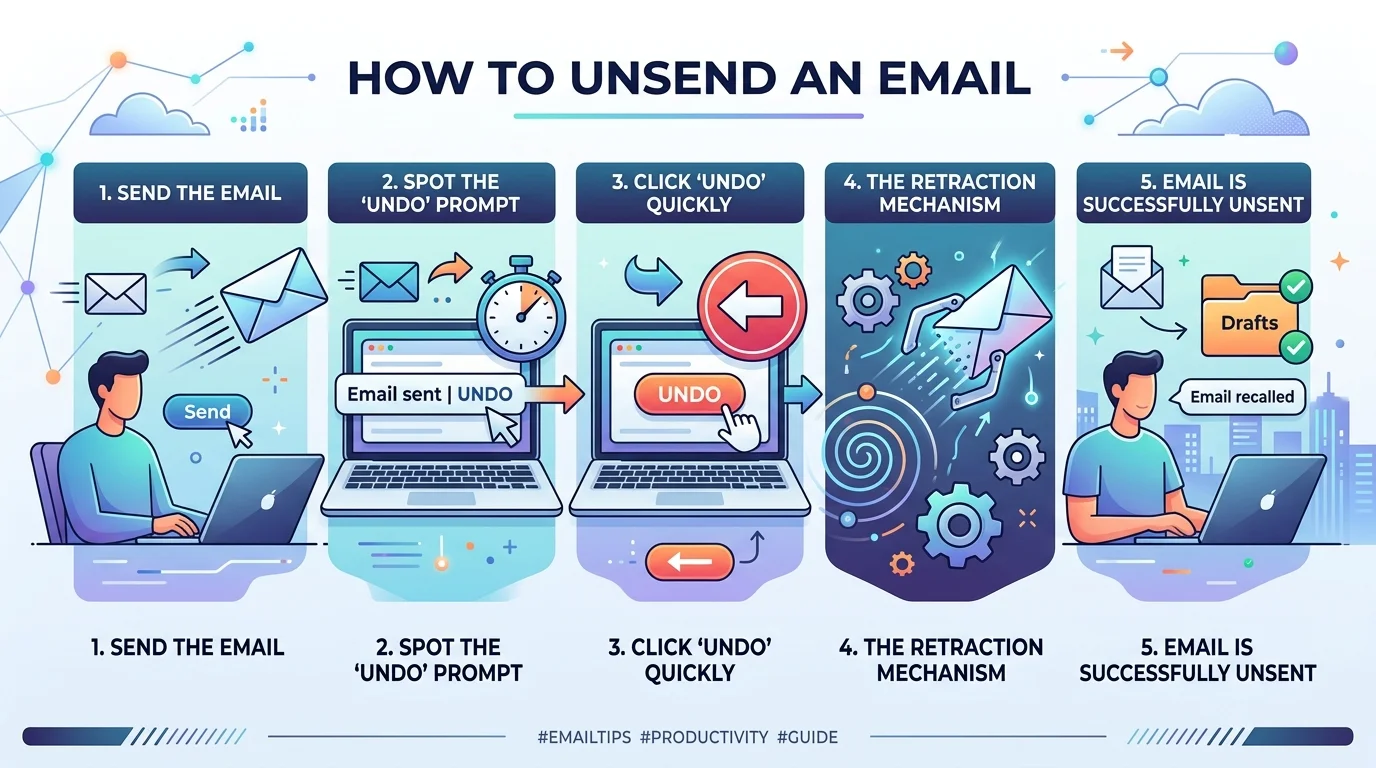
What's really happening is something closer to a delayed send buffer. When you click send, most platforms don't fire the email off instantly. Instead, they hold it for a few seconds, giving you a chance to hit "undo" before it ever leaves your outbox.
Your email is never actually "unsent" — even when it looks like it — because the feature works by delaying transmission, not retracting a message that's already landed.
So the trick isn't "recall magic." It's speed. You've got a tiny window, and you need to act inside it.
Undo Send vs. Message Recall
There's an important distinction here, especially if you're an Outlook user.
Undo Send is a local delay — it holds your outgoing email for a few seconds before it actually sends, and works for any recipient because the message never technically leaves your outbox. Message Recall, on the other hand, tries to delete an email that's already been delivered, and only works through Microsoft Exchange.
That difference matters a lot. One is basically guaranteed to work. The other? Not so much.
Platform Comparison: Which Undo Method Actually Works?
Before we get into step-by-step instructions, here's the cheat sheet I wish someone had handed me years ago. I built this from testing and cross-referencing each provider's own documentation.
Platform | Undo Window | True Recall? | Works Externally? | Reliability Score* |
|---|---|---|---|---|
Gmail | 5-30 sec (configurable) | No — delay only | Yes | 9/10 |
Outlook (Message Recall) | N/A (post-delivery) | Yes, conditionally | No — internal Exchange only | 3/10 |
Outlook (Undo Send) | 5-10 sec (web), longer on desktop | No — delay only | Yes | 8/10 |
Apple Mail / iCloud | 10-30 sec (configurable) | No — delay only | Yes | 8/10 |
Yahoo Mail | 3 sec (mobile app only) | No | Yes, but barely usable | 3/10 |
Proton Mail | Up to 20 sec (configurable) | No — delay only | Yes | 8/10 |
*Reliability Score is my own rough scoring based on window length, consistency, and how often the feature actually works as advertised — not an official metric from any provider.
The takeaway: delay-based undo send is far more reliable than true recall. If a platform offers both, lean on the delay feature. It's the closest thing to a guarantee you'll get.
How to Unsend an Email in Gmail
If you're a Gmail user, you're in luck — this one's simple.
Gmail calls it Undo Send, and you've probably seen it before without even realizing what it does.
Step-by-Step: Gmail Undo Send
Compose and send your email like normal.
Watch the bottom-left corner of your screen for a "Message sent" notification.
Click Undo immediately.
Your email reopens as a draft — fix it, delete it, whatever you need.
By default, you only get 5 seconds. That's fast. Thankfully, you can stretch that out.
Open Gmail on desktop, click the Settings gear icon, use the Send cancellation period dropdown to choose 5, 10, 20, or 30 seconds, then scroll down and click Save changes.
My honest advice? Set it to 30 seconds right now. Don't wait until you actually need it.
One heads-up though — once that window closes, even by a single second, the email is gone for good and there's no way to pull it back.
How to Recall an Email in Outlook
Outlook is a little more complicated, but it's also more powerful — if your setup qualifies. There are two separate features here, so let's break down both.
Using Message Recall
This is the "real" recall feature, and it only works under specific conditions.
Steps:
Open Sent Items.
Double-click the message you want to recall (recall doesn't work from the reading pane).
Go to the Message tab.
Click Actions → Recall This Message.
Choose whether to just delete the unread copy, or delete and replace it with a corrected message.
Sounds great, right? Here's the catch.
You and the recipient both need to be in the same organization on Microsoft 365 or Exchange — this only works for internal mail. If you're emailing someone outside your company, this feature simply won't help you.
And even when it does apply, don't get your hopes too high. Community estimates put recall success around 20-40% for internal Exchange emails, and close to 0% for external recipients.
Using Undo Send (The Safer Bet)
Honestly? I'd lean on this one more.
Undo Send works for any recipient — internal, external, Gmail, personal accounts, all of it — because the email genuinely never leaves your outbox during the delay window.
The tradeoff is timing — you might only get 5-10 seconds on the web, though newer desktop versions stretch that further.
How to Unsend an Email on Apple Mail and iPhone
If you're an Apple ecosystem person, here's your playbook.
Apple Mail doesn't offer a true recall once your email's been delivered — but it does give you an Undo Send window of 10 to 30 seconds, depending on your settings, and it's available on macOS Ventura and iOS 16 or later.
Step-by-Step: Apple Mail on iPhone
Tap Send.
Look at the bottom of your screen for Undo Send.
Tap it before it disappears.
Your email reopens for editing.
To adjust your buffer time, go to Settings → Apps → Mail and tweak your delay window there.
How to Unsend an Email in Yahoo Mail
Yahoo is the weakest link of the bunch, so let's set realistic expectations here.
Yahoo Mail doesn't offer a true unsend or recall feature — Undo Send only exists in the mobile app, and you only get a 3-second window. That's barely enough time to react, so treat this as a last resort rather than a safety net.
Step-by-Step: Yahoo Mail (Mobile App Only)
Send your email from the Yahoo Mail mobile app.
Watch for the Undo notification bar immediately.
Tap it within 3 seconds.
If you're on desktop, there's currently no undo option at all — so double-check before you hit send.
How to Unsend an Email in Proton Mail
If privacy is a priority for you, Proton Mail's setup is genuinely reassuring.
You get a configurable Undo Send window of up to 20 seconds through Settings > Messages > Undo send, plus a self-destructing message feature for extra peace of mind.
Step-by-Step: Proton Mail
Go to Settings → Messages → Undo send.
Set your preferred window (up to 20 seconds).
After sending, click Undo in the notification banner that appears.
The self-destructing message feature is worth exploring separately if you regularly send sensitive information — it adds a layer of control that most providers simply don't offer.
What to Do If the Window Already Closed
So the undo window slipped by. Now what?
Don't panic — you still have options.
Send a quick follow-up. Keep it short and human: "Apologies, please disregard my previous email — here's the corrected version."
Reach out another way. A quick message or phone call can flag the mistake before your recipient even opens their inbox.
Check for admin-level recall. If you're on Google Workspace or Microsoft 365, your IT admin may have compliance-driven tools available, though this isn't guaranteed.
Learn and adjust. Extend your undo window today so this doesn't happen again — see the comparison table above for what each platform allows.
If you're sending emails as part of a broader outreach or marketing workflow, it's worth building better habits upstream too — our guide to the best email marketing automation tools covers platforms with built-in review steps and scheduling that help you catch mistakes before they ever leave your outbox.
Frequently Asked Questions
Can I unsend an email after the recipient has already read it?
No. Once an email has been opened, none of these tools — including Outlook's Message Recall — can pull it back. Your best move at that point is a quick, honest follow-up message.
Does Gmail's Undo Send actually delete the email?
No. It simply delays sending for your chosen window (5-30 seconds). If you don't click Undo in time, the email sends normally.
Why did my Outlook recall fail?
Recall only works when both you and the recipient are on the same Microsoft 365/Exchange organization, and only if the recipient hasn't opened the email yet. Success rates for internal recalls hover around 20-40%, and external recalls essentially never work.
Which email provider has the best unsend feature?
Based on window length and reliability, Gmail, Apple Mail, and Proton Mail all offer solid delay-based undo options (up to 30 seconds). Yahoo's 3-second mobile-only window is the weakest.
Is there a way to prevent send mistakes in the first place?
Yes — extend your undo/delay window to the maximum your provider allows, double-check recipients before sending, and consider a brief pause-before-send habit for high-stakes emails.
Final Thoughts
Look, mistakes happen. We've all sent an email a little too fast.
The real lesson here isn't just "how do I unsend an email" — it's "how do I build a system that catches mistakes before they happen."
Extend your undo windows. Slow down before you hit send. And if you do slip up, respond quickly, honestly, and with a little grace.
That's really all it takes.
About the Author

Nathan Cole
Nathan Cole is a SaaS writer and AI product reviewer at Postunreel with a sharp focus on evaluating AI-powered tools for content creators, marketers, and growing businesses. He holds a degree in Computer Science and brings over five years of experience writing about software products, productivity tools, and marketing technology. Nathan approaches every review with rigorous hands-on testing, clear comparison frameworks, and an honest perspective that cuts through marketing hype. His goal is to help Postunreel readers make smarter decisions about the tools they invest in so they can build better content workflows without wasting time or money.
🔥 Limited Time Deal
NewGet lifetime access to Postunreel with a one-time payment. Never pay again!
Your Go-To Solution for Stunning Carousels using AI!
Postunreel is a free AI carousel generator tool that helps you design captivating carousel posts for LinkedIn, Instagram, and other platforms. It makes it easier to increase social media engagement and grow your audience.
Create Free Carousel Now 🚀Related Blogs
Best Free Photo Editing Software in 2026
Find best free photo editing software in 2026. Compare Affinity, GIMP, darktable, Photopea and Paint.NET, with edit workflow for bloggers.
How to Improve Focus in Photos: 11 Fixes
Blurry photos? Learn how to improve focus in photos with 11 proven fixes, from autofocus modes to focus stacking. Get sharper shots.
Generate Custom Infographic Illustrations for Complex Ideas
Learn how to create AI infographic illustrations with Dreamina. Turn complex ideas into clear, engaging visuals for presentations, reports, and blogs.