How to Use Google Lens: Guide for Android, iPhone, and Desktop (2026)
Learn how to use Google Lens on Android, iPhone, and desktop. Follow simple steps to translate text, shop, and search with your camera in just minutes.
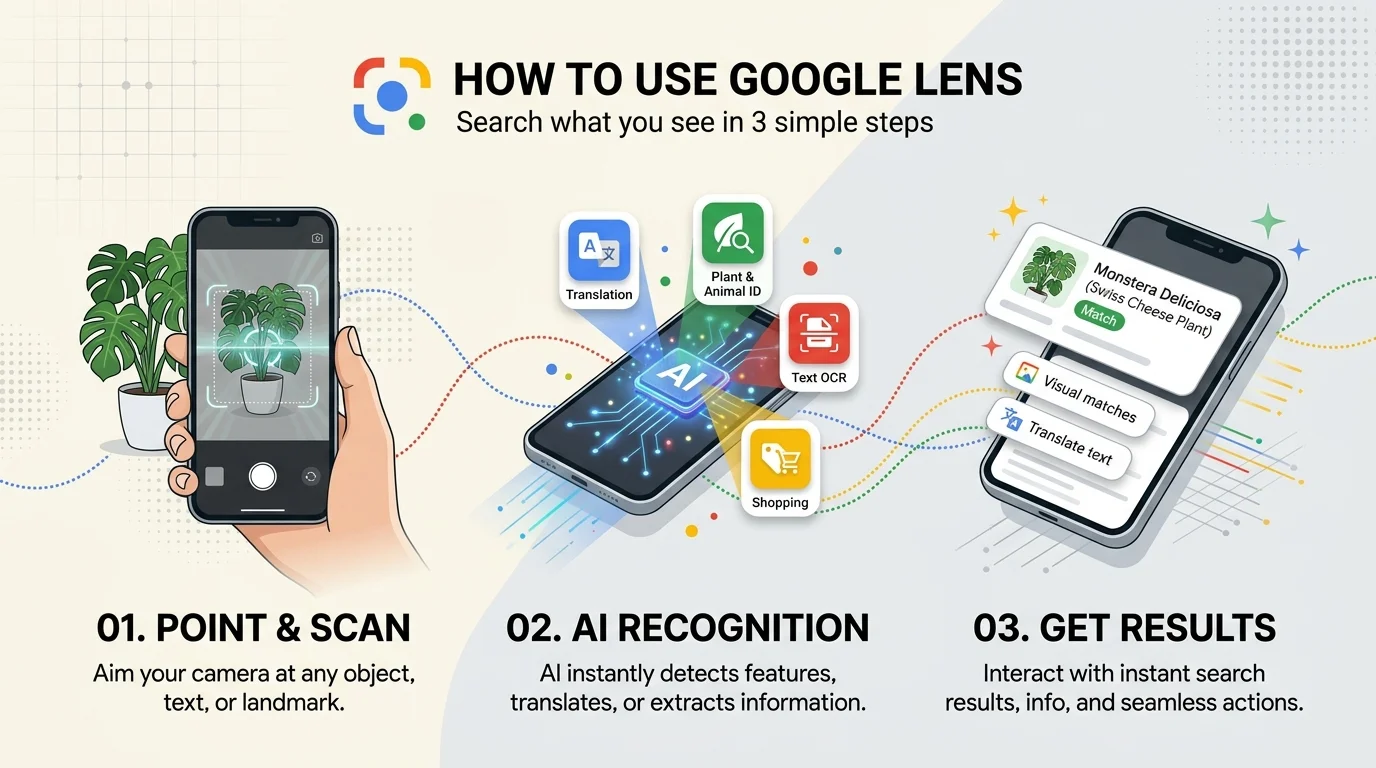
To use Google Lens, open the Google app and tap the camera icon in the search bar. Point at something, or pick a photo, then tap Search. On a computer, right click any image in Chrome and choose the Lens option. It's free on Android, iPhone, and desktop.
Here's the thing.
You're carrying a camera that can identify plants, translate menus, and find products. Most people just never press the button.
I'll fix that in the next few minutes. Every step below is based on Google's own help pages and product announcements, and I've linked each source as we go. Let's go.
What Is Google Lens?
Google Lens is a visual search tool. You show it something, and it tells you about it. Google describes it as a set of vision based tools that copy or translate text, identify plants and animals, and discover products. In plain English? It's search with your camera.
Why does it matter? Well, Google reported more than 20 billion visual searches a month on Lens as of February 2025. That's a lot of people already doing it.
Behind the scenes, image recognition compares your photo with other images and ranks the closest matches.
How to Use Google Lens: Step by Step
This is the part you came for. The steps differ slightly by device, so I've split them up. Each walkthrough takes about two minutes. First, here's a quick comparison so you can find your route fast.
Device | Where to find Lens | Best for |
|---|---|---|
Android | Google app, Google Photos, Chrome, some camera apps | Live camera search, screenshots |
iPhone | Google app, Google Photos, Chrome | Live camera search, searching your screen |
Desktop | Chrome right click menu | Reverse image search while browsing |
Sources: Google Help, Digital Citizen, SlashGear.
How to Use Google Lens on Android
Android is the smoothest experience. Lens is built into the Google app and Google Photos. Some phones even put it inside the camera. So you're usually only a few taps away.
Open the Google app.
Tap the camera icon in the search bar.
Point at an object and tap Search. Or tap the gallery icon for an existing photo.
Drag the box corners to select part of the image.
Tap add to your search and type keywords to refine it, as this library guide explains.
Got a photo already saved? Open it in Photos and tap Lens, per Google's help page.
How to Use Google Lens on iPhone
Quick heads up: there's no standalone Google Lens app on iOS. Instead, Lens lives inside the Google app, Photos, and Chrome. The Google app gives you the most complete real time camera search on iPhone.
Install and open the Google app.
Tap the camera icon in the search bar.
Allow camera access.
Aim, tap, and read the results.
Browsing instead? In Chrome, tap the three dot menu and choose Search Screen with Google Lens. In the Google app, pick Search this Screen, as Google announced.
How to Use Google Lens on Desktop
You don't need your phone at all. Lens works in Chrome, and it's great for a quick reverse image search. Moreover, you never leave your current tab.
Right click an image in Chrome.
Choose the Google Lens option.
Drag the edges to crop the area you want.
Missing the option? Update Chrome first. Also, Google must be your default search engine, otherwise the menu item won't show.
What Can You Do With Google Lens?
Knowing where the button is only gets you halfway. The fun starts when you use it. These five features save me real time, and each takes seconds. Try one today.
Translate text instantly. Lens supports over 100 languages, which makes real time translation of menus and signs painless.
Copy text from the real world. Using optical character recognition, Lens lifts words off posters and pages. Then tap Select Text, the three dots, and Copy to Computer, as MakeUseOf shows.
Get homework help. Lens finds explainers and videos for math, history, chemistry, and more.
Shop what you see. Look up who makes an item, what it costs, and where to buy it. Note that Google lists specific countries where shopping results are available, so yours may differ.
Identify plants and animals. Snap a leaf or a dog breed and get a name.
How to Get Better Results From Google Lens
Same tool, better answers. A few habits make a big difference, and they cost nothing. I follow these every time, so you can steal them.
Use good lighting and hold your phone steady.
Crop tightly around one object.
Add words to your search, since multisearch blends text and images.
Use the Shopping tab when scanning a barcode, as TechRadar advises.
Is Google Lens Safe? Privacy and Visual Search History
Fair question. You're pointing a camera at things, after all. Luckily, you control what's saved. Google says you can find and delete your Lens activity on the My Activity page. Besides that, the Visual Search History setting is off by default, which means your searched images aren't saved to Web & App Activity unless you turn it on.
Troubleshooting: What to Do When Google Lens Isn't Working
Sometimes it hiccups. Usually the cause is boring, like permissions or an old app. So before you give up, run through this short list.
Update the Google app, Chrome, or Photos.
Restart your phone.
Check camera and photo permissions in Settings.
Try better lighting.
Why Google Lens Matters for Your Website
Running a blog or store? Pay attention. On September 24, 2026, Google added a multimodal filter to Search Console. It covers Lens, Circle to Search on Android, image uploads, and Chrome's Search this image option. Reports show pages, countries, and devices, but no query data.
So make your images findable. Write clear alt text, use standard HTML image elements, and follow Google's image SEO best practices. If you want a practical walkthrough, these image optimization tips for SEO show how to name, compress, and describe your images so they get found.
Google Lens FAQ
Is Google Lens free?
Yes. It's free through Google's apps on Android and iPhone, and in Chrome on desktop.
Is there a Google Lens app for iPhone?
Not a separate one. On iPhone, Lens works inside the Google app, Google Photos, and Chrome.
Can Google Lens translate text?
Yes. It translates text in over 100 languages and can overlay the translation on your camera view.
Can I use Google Lens on my computer?
Yes. In Chrome, right click an image and pick the Lens option. Update Chrome if it's missing.
Does Google Lens save my photos?
Your Lens activity can appear in My Activity, where you can delete it. Visual Search History is off by default.
Start Using Google Lens Today
I'll be blunt. You already own everything you need: a phone, and a free tool that works on Android, iPhone, and desktop. Each day you skip Google Lens, you're typing clumsy descriptions when one tap would do.
So don't wait.
Open the Google app right now. Point it at something nearby. Then see what happens.
About the Author

Rachel Hammond
Rachel Hammond is an AI tools writer and content automation specialist at Postunreel, where she covers everything from AI carousel generators to social media scheduling workflows. She has spent five years helping digital creators and marketing teams understand how to use AI tools practically — not just theoretically. Rachel personally tests every tool she writes about, documents real results, and breaks down complicated AI features into simple, step-by-step guides that anyone can follow regardless of their technical background. Her work focuses on saving creators time while helping them produce content that genuinely performs.
🔥 Limited Time Deal
NewGet lifetime access to Postunreel with a one-time payment. Never pay again!
Your Go-To Solution for Stunning Carousels using AI!
Postunreel is a free AI carousel generator tool that helps you design captivating carousel posts for LinkedIn, Instagram, and other platforms. It makes it easier to increase social media engagement and grow your audience.
Create Free Carousel Now 🚀Related Blogs
Report a Problem Apple: How to Request a Refund (2026 Guide)
Use Report a Problem Apple to request a refund in minutes. Follow the simple steps, track your status, and avoid fake support scams. Updated 2026.
Internet Options by Address: How to Find the Best Provider at Your Door
Find internet options by address in 3 simple steps. Check fiber, cable and 5G providers, spot map errors, and pick the right plan for your home today.