How to Exit Incognito Mode on iPhone (2026 Guide)
Learn how to exit incognito mode on iPhone in seconds step-by-step for Safari and Chrome, plus fixes for common private browsing glitches.
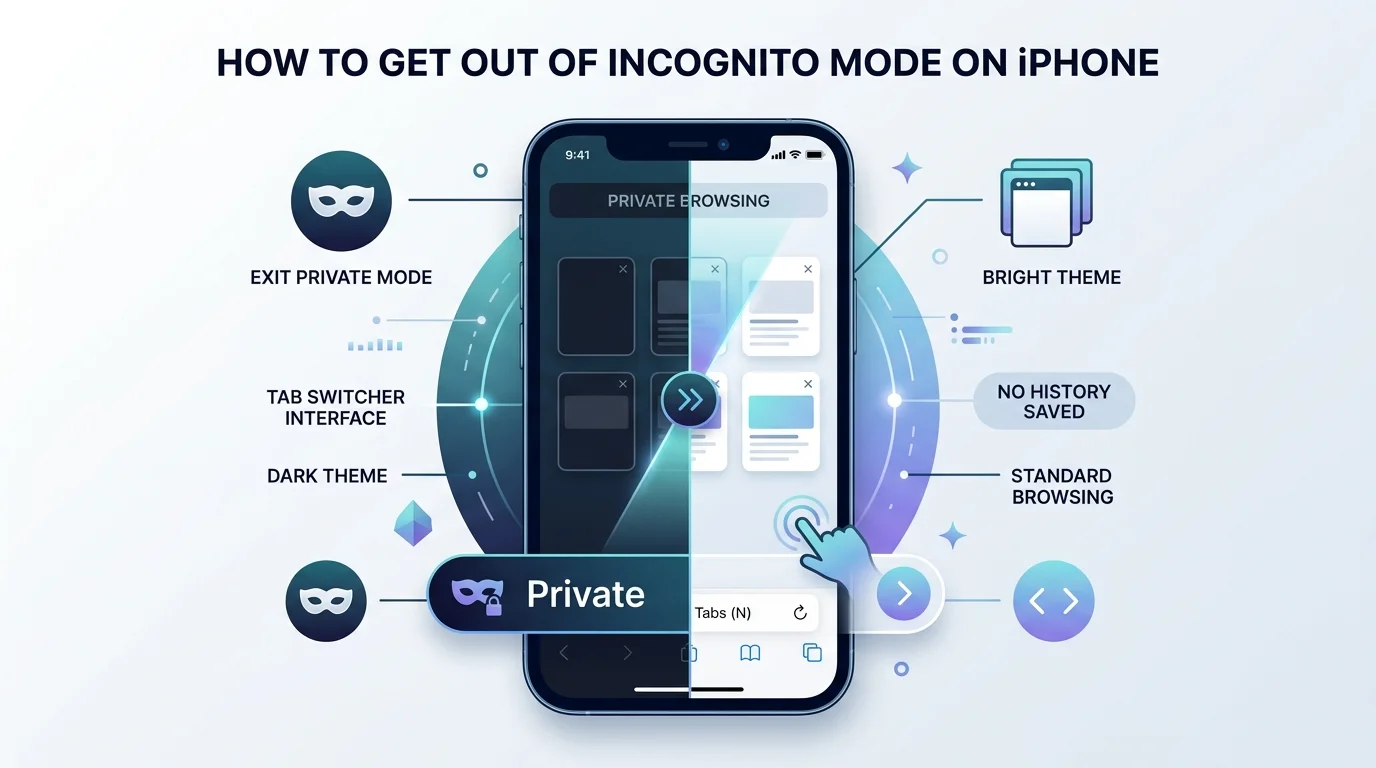
To exit Private Browsing (Apple's version of incognito mode) on iPhone, open Safari, tap the Tabs button, tap All Tabs, then swipe left to select a regular Tab Group instead of "Private." Your address bar will switch from black back to white, confirming you're back in normal mode. In Chrome, tap "Switch tabs," then tap the Incognito icon, and close your Incognito tabs to fully exit.
That's the short version. Now let's actually walk through it together, because I know Apple's interface has shifted around enough times to make anyone second-guess themselves.
What Is Incognito Mode on iPhone, Really?
Before we get into the how-to, let's quickly clear up what this feature actually does. It matters, because a lot of people confuse "exiting" private mode with "erasing everything I did" — and that mix-up causes more confusion than the actual steps do.
On iPhone, Private Browsing is Safari's version of incognito mode. According to Apple's own support documentation, with Private Browsing, Safari won't remember the pages you visit, your search history, or your AutoFill information. It also blocks known trackers and adds protection against advanced fingerprinting techniques.
So basically? Safari puts on a pair of sunglasses and pretends it never saw you.
One visual cue you can always rely on: while Private Browsing is turned on, the Safari address bar appears black or dark, instead of white or grey. That's your instant tell — no digging through menus required.
Why You Might Want to Turn Off Private Browsing
You might be wondering — why would I even want to exit incognito mode? Fair question.
Turns out, there are a handful of really practical reasons:
Your saved passwords and autofill data won't work in private mode — if you've ever wondered where those go on your device, check out our guide on managing your saved passwords
Certain services literally break — for example, Proton's support team notes that Private Browsing mode in Safari blocks cookies, which means apps like Proton Mail won't function properly
You lose your browsing history, which some people actually want to keep for later
Extensions get disabled — any Safari extensions you have installed that have access to browsing data are automatically turned off in Private Browsing
So yeah, incognito's great for gift-shopping or logging into a second account. But for everyday use? You'll probably want your regular tabs back.
Step-by-Step: How to Exit Private Browsing in Safari (iOS 17 and Later)
Here's the part you actually came for. Let's go through it step by step.
Open Safari on your iPhone.
Tap the Tabs button in the bottom-right corner (two overlapping squares).
Tap "All Tabs." If your tab layout is set to Bottom or Top, just tap the Tabs icon directly.
Swipe left on the tab bar until you land on a regular Tab Group instead of "Private." Per Apple's official guide, to exit Private Browsing, tap the Tabs button, tap All Tabs, then swipe left to open a Tab Group from the menu at the bottom of your screen.
Your address bar should flip back to white or grey, confirming you're back in normal mode.
Read Also: How to Resize an Image on iPhone (2026 Guide)
If Your Private Tabs Are Locked
Here's something a lot of guides skip over. If you've turned on extra security, Safari might lock your private tabs when your phone locks. To get back in, swipe right on the tab bar at the bottom of the screen until Private Browsing opens, then tap Unlock.
You can toggle this lock feature yourself by heading to Settings > Apps > Safari, then enabling Require Passcode, Require Face ID, or Require Touch ID to unlock Private Browsing.
Pretty slick, honestly — it adds a real layer of device security on top of your browsing privacy. If protecting your data on shared or work devices is a bigger concern for you, our guide on how professionals protect sensitive work data covers this in more depth.
Step-by-Step: How to Exit Private Browsing in Safari (iOS 16 and Earlier)
If you haven't updated your phone in a while, the older method still works, and it's arguably even simpler.
Open Safari.
Tap the Tabs button.
Tap "Private" at the bottom of your screen to open the Tab Groups list.
Select a numbered tab group (like "3 Tabs") or "Start Page" to jump back to normal browsing.
Tap Done.
Simple as that.
What About Chrome? (Because Not Everyone Uses Safari)
If Google Chrome is your go-to browser on iPhone, the process looks a little different — but it's just as fast.
Open Chrome, tap "Switch tabs," then tap the Incognito icon at the top of the screen. To exit completely, close all your Incognito tabs — Google's own help documentation confirms Chrome doesn't let you "switch off" incognito the way Safari does; you close out instead.
One thing worth knowing: while Incognito can help keep your browsing private on your device, it doesn't make you invisible. Websites, your school or employer's network, and your internet service provider may still be able to observe your activity. That's an important distinction most people miss.
Safari vs. Chrome: Private Browsing Comparison
Since you might use both browsers, here's how they stack up side by side:
Feature | Safari Private Browsing | Chrome Incognito |
|---|---|---|
How to exit | Switch to a regular Tab Group | Close all Incognito tabs |
Can be locked with Face ID/Touch ID | Yes | Depends on device settings |
Blocks trackers automatically | Yes | Limited |
Hides activity from network/ISP | No (needs Private Relay) | No |
Extensions disabled | Yes, automatically | Varies by extension |
Visual indicator | Black/dark address bar | Incognito icon at top |
A Quick Myth to Bust: Exiting Isn't the Same as Deleting
I want to be really clear about this one, because I see it misunderstood constantly.
Exiting Private Browsing does not erase any data that was already collected while you were in that mode. So if a website logged something, or a tracker slipped through, closing the tab doesn't undo that. Private Browsing protects what Safari remembers locally — not necessarily what happens on the other end.
If maximum privacy is your goal, pairing Private Browsing with something like iCloud Private Relay adds another layer, since it encrypts your traffic and routes it through two separate internet relays, hiding your IP address and location from websites.
Troubleshooting: When Things Don't Go as Planned
"I don't see the 'Private' option at all." This usually means your Safari tab layout has changed. Check Settings > Safari > Tabs, and make sure your layout is set to Tab Bar or the layout matching the steps above. Restarting Safari (or your iPhone) also resolves this in most cases.
"Incognito mode won't turn off, no matter what I tap." Force-close Safari or Chrome completely (swipe up from the app switcher), then reopen it. If it's still stuck, a quick iPhone restart almost always clears it.
"My private tabs disappeared." That's expected behavior — Safari can auto-close Private tabs after a period of inactivity for extra security. This isn't a bug; it's a privacy feature.
Frequently Asked Questions
How do I turn off incognito mode on iPhone?
Open Safari, tap the Tabs button, tap All Tabs, then swipe left to a regular Tab Group. In Chrome, tap Switch Tabs and close all Incognito tabs.
Does exiting private browsing delete my history?
No. Exiting simply stops new activity from being tracked going forward — it doesn't erase anything that already happened during that session.
Why is my Safari address bar black?
That's Safari's visual signal that Private Browsing is currently active.
Can someone see what I did in incognito mode?
Your device won't store it, but your network provider, employer, or the websites themselves may still see your activity, even in Incognito or Private Browsing.
Is Private Browsing the same on every iPhone?
Mostly, yes, though the exact tap sequence differs slightly between iOS 17+ and iOS 16 and earlier, as covered above.
Final Thoughts
Getting out of incognito mode on your iPhone really isn't complicated — Apple's just shuffled the UI enough times to make you second-guess yourself. Now that you've got the steps for iOS 17+, iOS 16 and earlier, and Chrome, plus a troubleshooting cheat sheet, you should be able to switch between private and normal browsing without breaking a sweat.
My honest advice? Bookmark this page — and if you're already thinking about tightening up privacy elsewhere on your phone, take a look at how professionals keep sensitive work data protected next.
About the Author

Nathan Cole
Nathan Cole is a SaaS writer and AI product reviewer at Postunreel with a sharp focus on evaluating AI-powered tools for content creators, marketers, and growing businesses. He holds a degree in Computer Science and brings over five years of experience writing about software products, productivity tools, and marketing technology. Nathan approaches every review with rigorous hands-on testing, clear comparison frameworks, and an honest perspective that cuts through marketing hype. His goal is to help Postunreel readers make smarter decisions about the tools they invest in so they can build better content workflows without wasting time or money.
🔥 Limited Time Deal
NewGet lifetime access to Postunreel with a one-time payment. Never pay again!
Your Go-To Solution for Stunning Carousels using AI!
Postunreel is a free AI carousel generator tool that helps you design captivating carousel posts for LinkedIn, Instagram, and other platforms. It makes it easier to increase social media engagement and grow your audience.
Create Free Carousel Now 🚀Related Blogs
PDF to JPG Converter: How to Convert PDF Pages to Sharp Images (2026 Guide)
Convert PDF to JPG converter without blurry text. Learn best DPI, JPG vs PNG settings, 5 easy steps methods, and which tool to trust with private files.
Windows 10 Media Creation Tool: How to Download, Install, and Fix It in 2026
Step by step: download the free Windows 10 Media Creation Tool, build a bootable USB, fix error 0x80042405, and stay secure after support ended in 2026.
How to Use Google Lens: Guide for Android, iPhone, and Desktop (2026)
Learn how to use Google Lens on Android, iPhone, and desktop. Follow simple steps to translate text, shop, and search with your camera in just minutes.