How to Use Google Keep for Your Blog Post: A 5 Step Workflow (2026)
Learn how to use Google Keep for blogging. Capture ideas, build outlines, set reminders and send drafts to Docs in five simple steps.

How to Use Google keep: Google Keep is a free note taking app you can use to capture blog post ideas, organize them with labels, outline posts with checklists, and send drafts to Google Docs. The workflow below takes about ten minutes to set up.
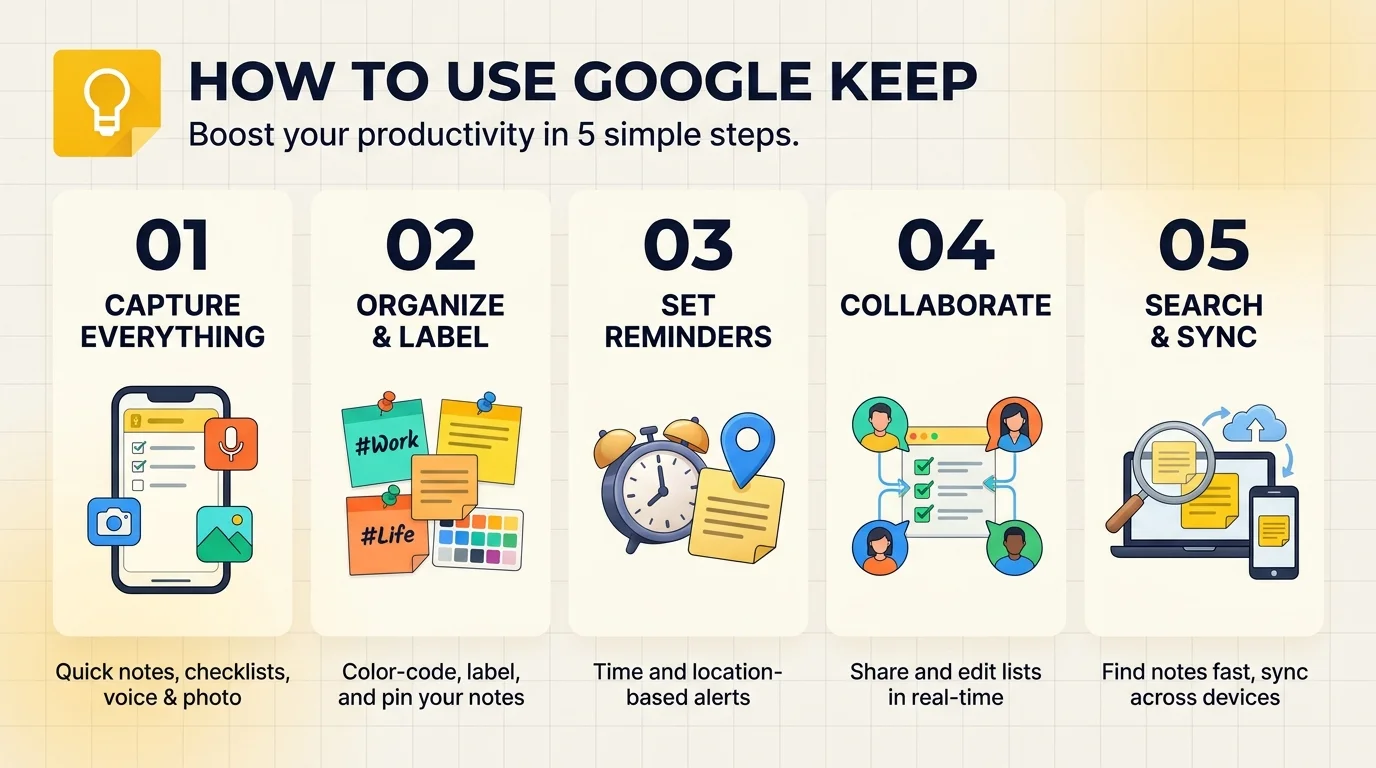
The 5 steps at a glance:
Create labels for your content pipeline.
Capture every idea in seconds.
Turn ideas into outlines with checklists.
Set reminders for deadlines.
Send the draft to Google Docs.
Here is the deal.
Your best ideas show up at the worst times. In the shower. On the bus. Halfway through dinner.
If you do not catch them fast, they are gone. So let me show you how to turn Google Keep into a lightweight content creation hub.
Why Google Keep Works for Bloggers
Most bloggers overbuild their setup. Fancy dashboards feel productive, but they slow you down when an idea lands. Speed beats structure at the capture stage, and that is where Keep wins. Google says you can save notes, lists, photos, drawings and audio, then work offline and sync later.
Here is what matters for you:
Labels to sort ideas by stage
Color coding and pinned notes to spot priorities
Voice notes and photos for capture on the go
Offline access for flights and bad WiFi
Step by Step: Build Your Blog Workflow in Google Keep
Ready? Grab your phone and open Keep. Each step takes minutes, and together they take you from scattered thoughts to a clean blog post draft without juggling ten apps. Please do not skip the labels step. Everything else depends on it.
Step 1: Create Labels for Your Content Pipeline
Labels are your filing cabinet. Without them, Keep becomes a pile of colorful squares. You can add up to 50 labels, so build a few that mirror your editorial workflow.
Start with Ideas, Outlining, Drafting and Ready to Publish.
Then type a hashtag inside any note to attach a label fast, as Android Central explains. Two minutes, done.
Step 2: Capture Every Idea in Seconds
Speed is everything here. Open Keep, tap, type. Or tap the mic and just talk.
Snap a photo of a whiteboard or a book page. Save content while you browse, too, so your research notes stay in one place.
Then tag it Ideas and move on.
Do not polish anything. A rough line like "why most keyword research fails" is plenty.
Step 3: Turn Ideas Into an Outline With Checklists
Now pick one idea and promote it. Create a new note and use a checklist as your outline: headline options, hook, H2 headings, examples, call to action.
Checking items off feels oddly satisfying.
Put your primary keyword and a few LSI keywords at the top so you do not forget them mid draft. If you want a refresher on placing them well, read our guide to on page SEO basics. Then color code the note so it stands out.
Step 4: Set Reminders to Hit Publishing Deadlines
Deadlines keep a blog alive. Keep lets you set reminders by time or place, and they also appear in Google Calendar. That means your blog content calendar nearly builds itself.
Set one reminder for finish draft and another for proofread.
Want a bigger planning view? Use our social media content calendar template alongside Keep. You can also pair Keep with Google Tasks. One creator focused breakdown recommends capturing in Keep and planning in Tasks.
Step 5: Send Your Draft to Google Docs
Keep is for capturing, not long form writing. So when your outline is ready, hand it off.
On a note, tap the three dot menu and choose Copy to Google Docs, as VentureBeat documented. Or open the Keep notepad inside Docs and drag notes straight into your document on the web.
Then write, edit and publish from there.
Turning the same notes into a presentation? Our guide on how to use Google Slides covers the next move.
Google Keep vs Other Blogging Tools
Which tool should do which job? It is a fair question, and the honest answer is more than one. Each tool below covers a different stage of your blogging workflow, so use this table to decide where each piece of your process belongs. Keep handles the first stage, and the others take over from there.
Tool | Best for | What the sources say |
|---|---|---|
Google Keep | Fast idea capture | Labels, colors, pins, reminders |
Google Docs | Drafting and editing | |
Google Tasks | Turning ideas into deadlines | Breaks content into steps |
Notion | Structured systems and databases | Integrates with Slack, GitHub, Zapier |
Where Google Keep Falls Short (and How to Handle It)
Let me be straight with you. Keep is not perfect. Critics say collaboration is basic and organization gets messy at scale. One Notion comparison concludes Keep suits quick capture while Notion suits structured systems.
So use Keep for the first stage only: capture, label, outline, hand off.
If you outgrow it, you can move your notes. Google Takeout produces JSON exports, and open source tools like keep exporter convert notes to Markdown.
The AI Upgrade: Voice Notes With Keep Live
Voice is where things get interesting. At I/O 2026, Google announced voice features across Workspace, and Keep Live reportedly lets you edit or add to notes by speaking. It is available to people on Google AI Plus, Pro or Ultra plans.
That is the one place you might spend money.
If you dictate blog ideas on commutes, it is worth testing. If you do not, the free version still does the job.
Google Keep Blogging FAQ
Quick answers to the questions readers ask most. Each one is short on purpose, so you can scan it, or an AI assistant can lift it directly.
Is Google Keep free?
Yes. Google Keep is a free note taking app you can use with a Google account. Paid Google AI plans only matter if you want newer voice features like Keep Live.
Can I use Google Keep to write a full blog post?
You can, but I would not. Keep works best for ideas, outlines and research notes. For long drafts, copy the note into Google Docs and write there.
How many labels can I add in Google Keep?
You can organize notes and lists with up to 50 labels, such as project names or content stages.
Can I export Google Keep notes to Google Docs?
Yes. Use the three dot menu and choose Copy to Google Docs, or drag notes in through the Keep notepad inside Docs.
Is Google Keep better than Notion for bloggers?
It depends on the job. Keep is faster for capture. Notion is stronger for databases and structured workflows. Many bloggers use both.
Start Your Google Keep Blog System Today
Here is the bottom line.
You have a free tool, five simple steps and zero good excuses. Every day you wait, another great idea slips away.
So open Google Keep right now. Create your four labels. Capture the first idea that comes to mind.
Then build your outline tomorrow, set a reminder and ship that post.
Your future readers are waiting. Go give them something worth reading.
About the Author

Rachel Hammond
Rachel Hammond is an AI tools writer and content automation specialist at Postunreel, where she covers everything from AI carousel generators to social media scheduling workflows. She has spent five years helping digital creators and marketing teams understand how to use AI tools practically — not just theoretically. Rachel personally tests every tool she writes about, documents real results, and breaks down complicated AI features into simple, step-by-step guides that anyone can follow regardless of their technical background. Her work focuses on saving creators time while helping them produce content that genuinely performs.
🔥 Limited Time Deal
NewGet lifetime access to Postunreel with a one-time payment. Never pay again!
Your Go-To Solution for Stunning Carousels using AI!
Postunreel is a free AI carousel generator tool that helps you design captivating carousel posts for LinkedIn, Instagram, and other platforms. It makes it easier to increase social media engagement and grow your audience.
Create Free Carousel Now 🚀Related Blogs
How to Compress a PDF: 4 Tested Methods That Keep Pages Sharp
Learn how to compress a PDF in minutes. Four tested methods for Mac, Windows and online, plus the exact settings that shrink files without blurry pages.
Downloads on This Device: Where to Find, Open and Manage Them (2026 Guide)
Find downloads on this device fast. Step by step paths for Android, iPhone, Windows and Mac, plus browser history tips and a quick cleanup routine.