How to Compress a PDF: 4 Tested Methods That Keep Pages Sharp
Learn how to compress a PDF in minutes. Four tested methods for Mac, Windows and online, plus the exact settings that shrink files without blurry pages.
How to compress a PDF: To compress a PDF, open it in a tool such as Adobe Acrobat, Mac Preview or a free online compressor, lower the image quality or resolution, and save the result as a new copy. Image heavy files often shrink by half or more, while text only files shrink far less.
You know that sinking feeling when your email bounces because the attachment is too big? I have been there, and it is annoying. The good news is that once you know where the buttons are, compressing a PDF takes about two minutes. In this guide, I will walk you through four methods, show you real test numbers, and explain which settings protect your quality.
Why Is Your PDF So Big in the First Place?
Before you squeeze anything, you need to know what is eating the space. Otherwise, you are just guessing. Think of it like cleaning a garage: you cannot tidy up until you spot the junk. Most oversized files share the same three culprits, and once you spot them, fixing them gets much easier. Here is what I look for first.
High resolution images. These are the biggest offenders, especially in scanned PDFs.
Embedded fonts. Some files carry whole typefaces instead of only the characters you used. Font subsetting fixes that.
Hidden extras. Think metadata, layers, annotations and leftover editing data.
Now, here is what you can expect. Adobe says a typical image heavy file can often shrink by 50 to 80 percent, and that mostly text files compress less because text is already compact. That is a vendor claim, so treat it as a rough guide. My own test results are further down.
Also, if you build PDFs from photos, the source images matter. Our guide on how to convert JPG to PDF shows how to assemble pages cleanly, and our tip on resizing an image on iPhone helps you shrink photos before they ever reach the PDF.
How to Compress a PDF Step by Step
Ready to get your hands dirty? Good. Below, I have ordered four methods from fastest to most controlled. Each one takes a few clicks, and none needs technical skills. Pick the one that matches your device and your deadline. Then, if the result is still too big, simply move down the list. Let us start with the quickest option.
Method 1: Use a Free Online PDF Compressor
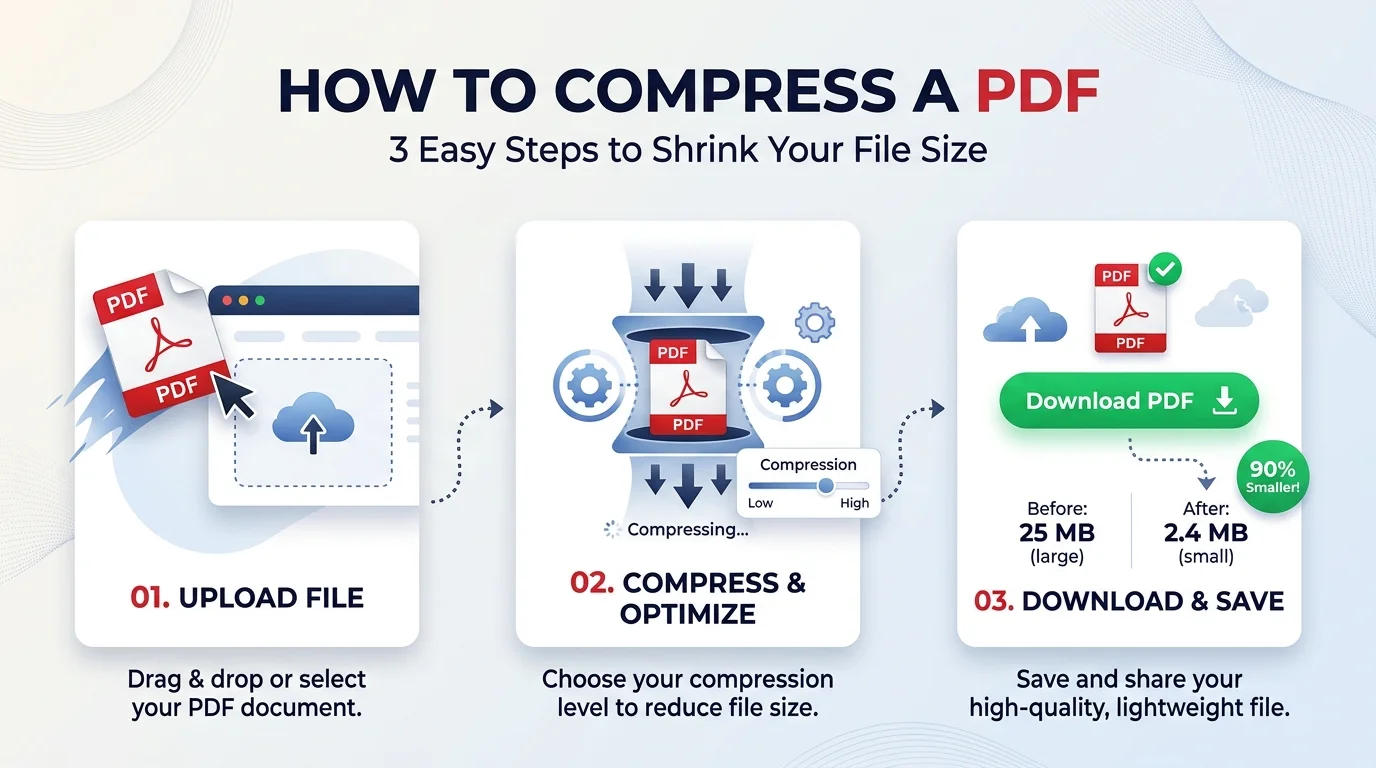
This is the speed option. You upload, choose a level, and download. Adobe's online compressor accepts files up to 2 GB and offers High, Medium and Low levels. It works best when you are in a rush and the document is not sensitive. Remember that the file travels to a server, so think twice before uploading contracts, IDs or financial records. Here is how it works.
Open the compressor and drag in your file.
Pick High, Medium or Low compression. Adobe's help page does not spell out what each level changes, so start with Medium and compare.
Download the compressed file. Adobe adds "_compressed" to the name.
Method 2: Use Acrobat's Optimized PDF Tool
Want real control? This is where the magic happens. The desktop app lets you decide what gets trimmed, and your file stays on your computer. According to Adobe's help centre, the tool lives under the Save as Other menu. Better still, it can show you exactly what is taking up space. Follow these steps.
Open your file in Acrobat.
Go to Save as Other, then Optimized PDF.
Click Audit Space Usage to see which images, fonts or objects are heavy.
Lower the image resolution, remove what you do not need, and save a copy.
Method 3: Use Preview on Your Mac
Mac user? You already own a decent compressor. Apple's Preview guide covers the whole process, and it costs nothing. However, be careful. Apple warns the result may look worse than the original, so always check your pages before you send the file. Here is the quick version for compressing a PDF on Mac.
Open the PDF in Preview.
Choose File, then Export. Do not choose Export as PDF.
Set Quartz Filter to Reduce File Size.
Save under a new name.
Method 4: Shrink It Before You Export From Word
Honestly, this one is underrated. If you still have the original document, fix the problem at the source. As this university guide explains, you compress the pictures first and then export with Minimum size. That option suits screen viewing, so skip it for print jobs.
Click an image and choose Compress Pictures.
Pick a web or email resolution.
Go to Save As and choose PDF.
Set Optimize for to Minimum size.
Which Method Should You Use? A Quick Comparison
Still not sure? Here is a side by side view so you can decide in ten seconds. I have focused on the things that actually change your choice: cost, control and privacy. Use it as a cheat sheet, and bookmark it for the next time a client asks for a smaller file.
Method | Cost | Control | Privacy | Best for |
|---|---|---|---|---|
Acrobat online | Free to try | Low, three levels | File is uploaded | Quick one off jobs |
Acrobat desktop | Paid plan | Very high | Stays on your device | Regular work, sensitive files |
Mac Preview | Free | Low | Stays on your device | Fast shrink of image heavy files |
Word export | Included with Word | Medium | Stays on your device | When you have the source file |
Ghostscript or qpdf | Free | High | Stays on your device | Batches and scripts |
What My Test Showed
Claims are cheap, so I ran a small test. I built a 10 page PDF with large photo style images embedded as JPEG, at roughly 420 pixels per inch at print size. The file weighed 17.8 MB. Then I tried four approaches. I used qpdf 11.9.0 and PyMuPDF (MuPDF 1.28.5), tested on October 28, 2026. This is a synthetic file, and I did not test Acrobat or Preview, so your numbers will differ.
Approach | Result size | Change |
|---|---|---|
Original file | 17.79 MB | None |
qpdf lossless (maximum Flate, object streams) | 17.79 MB | 0 percent |
qpdf with image optimization | 17.79 MB | 0 percent |
Downsample to 150 ppi, JPEG quality 75 | 1.62 MB | About 91 percent smaller |
Downsample to 96 ppi, JPEG quality 60 | 0.47 MB | About 97 percent smaller |
Here is the lesson. Lossless tricks did almost nothing, because the images were already JPEG and the text was tiny. Image downsampling did all the work. So if your PDF is full of photos, you need lossy settings. If it is mostly text, expect a smaller win, and look at fonts and structure instead.
The Best Settings for Quality and Size
Here is the thing: the right setting depends on where the file ends up. A PDF for your inbox does not need print shop detail. Likewise, a brochure for the printer should not be squashed. So let me give you a simple rule of thumb that avoids the blurry text trap and still saves megabytes. These are common guidelines, not hard rules, so always preview the result.
Screens and email: aim for about 150 ppi. One PDF software vendor reports large drops on photo heavy files at this setting.
Print: stay near 300 ppi.
Black and white scans: JBIG2 compression works only for black and white images, but it is very efficient there.
Developers and power users: Ghostscript and qpdf support command line PDF compression and batch jobs.
One more thing: always save a copy. Repeated lossy compression stacks the quality loss, so never overwrite your original. If you want to know why, the difference between lossless and lossy compression comes down to whether any image detail is thrown away.
How to Compress a PDF to 1 MB, 200 KB or Another Target Size
Upload portals love strict limits. So you may need a specific number, not just a smaller file. Adobe says a target like 200 KB is usually reachable when the original is under about 1 MB and mostly text, while image heavy files may not get that far. For a 1 MB goal, Adobe suggests running the tool a second time if the first pass lands above the target.
Start with High compression and check the size.
Lower image resolution before you touch anything else.
Split long documents into parts if one file cannot reach the limit.
Stop when text becomes hard to read. A tiny file nobody can read helps no one.
How to Compress a Scanned PDF
Scans are the heaviest files you will meet, because every page is a picture. First, check whether the scan is black and white or color. Black and white pages suit JBIG2 or CCITT. Color and grayscale scans suit JPEG or JPEG 2000. Next, lower the resolution to what you actually need, since a screen does not need 600 ppi. Finally, consider running text recognition so the file is searchable. Google has said it can index text it can copy out of a PDF, and may process text embedded as images.
Is It Safe, and Does It Help Your Website?
Two fair questions come up all the time. First, is it safe to upload files? Second, will compressing help your site? Let me answer both honestly, because there is a lot of hype out there. The short version: privacy depends on the tool you choose, and the SEO story is more nuanced than most blogs claim.
On privacy, Adobe says desktop compression keeps files on your device, while its online tool processes them on servers and deletes them afterward. For confidential files, I stay local.
On SEO, Google says Googlebot crawls the first 64 MB of a PDF, so content beyond that may go unindexed. I did not find a Google statement calling PDF file size a ranking factor. Still, smaller files download faster, and your visitors will thank you. This matters for creators too. If you share documents or carousels as PDFs, our LinkedIn carousel size and dimensions guide explains how to keep them crisp without bloating them.
Why I Would Pay for Acrobat Pro
Free tools are great, and I use them too. But if you handle PDFs every week, they start to feel limiting. You get fixed levels, no preview of what is changing, and an upload step you may not trust. That is where Acrobat Pro earns its price. It gives you control and privacy in one package, so you stop gambling with every file.
Audit Space Usage shows exactly which images, fonts or objects are bloating the file.
Detailed optimization lets you tune image downsampling, fonts and metadata yourself.
Local processing keeps sensitive documents on your computer.
Flexible buying options. Adobe sells subscription plans, and Acrobat Pro 2024 is a one time purchase with a three year term for desktop use.
Think about the time you will save. One failed upload, one bounced email or one blurry client report costs more than you expect. So treat it as an investment. Adobe offers a 7 day free trial, which means you can run the Audit Space Usage report on your own file before you pay anything. Check current prices on Adobe's plans page, since they vary by region and change over time.
Frequently Asked Questions About Compressing PDFs
Does compressing a PDF reduce quality?
Lossless methods do not change what you see. Lossy methods, such as lowering image resolution, can soften images. Choose a moderate setting, preview the result, and keep your original.
Why did my PDF get bigger after compression?
Some tools rewrite files in ways that can increase size, especially when the file was already well optimized. The Ghostscript documentation warns that processing may not reduce size and can sometimes increase it.
How do I compress a PDF to under 1 MB?
Use High compression, lower image resolution to about 150 ppi or less, and run the tool again if needed. Split the file if it still does not fit.
Is it safe to compress a PDF online?
It is fine for public documents. For contracts, IDs or financial files, use a desktop tool so the file never leaves your device.
Can I compress a PDF for free?
Yes. Online tools, Mac Preview, Word export, Ghostscript and qpdf are all free options.
What is the difference between lossless and lossy PDF compression?
Lossless compression rewrites data more efficiently without losing detail. Lossy compression discards some image detail to save more space.
Can I turn pages into images instead?
Sometimes that works for a single page. Our guide to the PDF to JPG converter shows how, though you lose selectable text.
Conclusion: Your Next Step
You have everything you need now. Seriously, you do. Start with a free option for a quick win, and use my settings to protect quality. Then, when you want precision and privacy, move to the desktop route. Do not let a bloated file hold you back any longer. Pick a method, compress your PDF today, and send it with confidence. If you want the smoothest workflow, try Acrobat Pro and let it do the heavy lifting.
About the Author

Rachel Hammond
Rachel Hammond is an AI tools writer and content automation specialist at Postunreel, where she covers everything from AI carousel generators to social media scheduling workflows. She has spent five years helping digital creators and marketing teams understand how to use AI tools practically — not just theoretically. Rachel personally tests every tool she writes about, documents real results, and breaks down complicated AI features into simple, step-by-step guides that anyone can follow regardless of their technical background. Her work focuses on saving creators time while helping them produce content that genuinely performs.
🔥 Limited Time Deal
NewGet lifetime access to Postunreel with a one-time payment. Never pay again!
Your Go-To Solution for Stunning Carousels using AI!
Postunreel is a free AI carousel generator tool that helps you design captivating carousel posts for LinkedIn, Instagram, and other platforms. It makes it easier to increase social media engagement and grow your audience.
Create Free Carousel Now 🚀Related Blogs
Downloads on This Device: Where to Find, Open and Manage Them (2026 Guide)
Find downloads on this device fast. Step by step paths for Android, iPhone, Windows and Mac, plus browser history tips and a quick cleanup routine.
Windows 11 Update Assistant: How to Upgrade Your PC Step by Step (2026)
Learn how to use the free Windows 11 Update Assistant to upgrade your Windows 10 PC safely. Get step by step setup, requirements, fixes, and FAQs.