How to Update NVIDIA Drivers on Windows and Ubuntu: Step by Step Guide for 2026
Learn how to update NVIDIA drivers using the NVIDIA App, a manual download, or Ubuntu. Includes rollback fixes and a method comparison table for 2026.
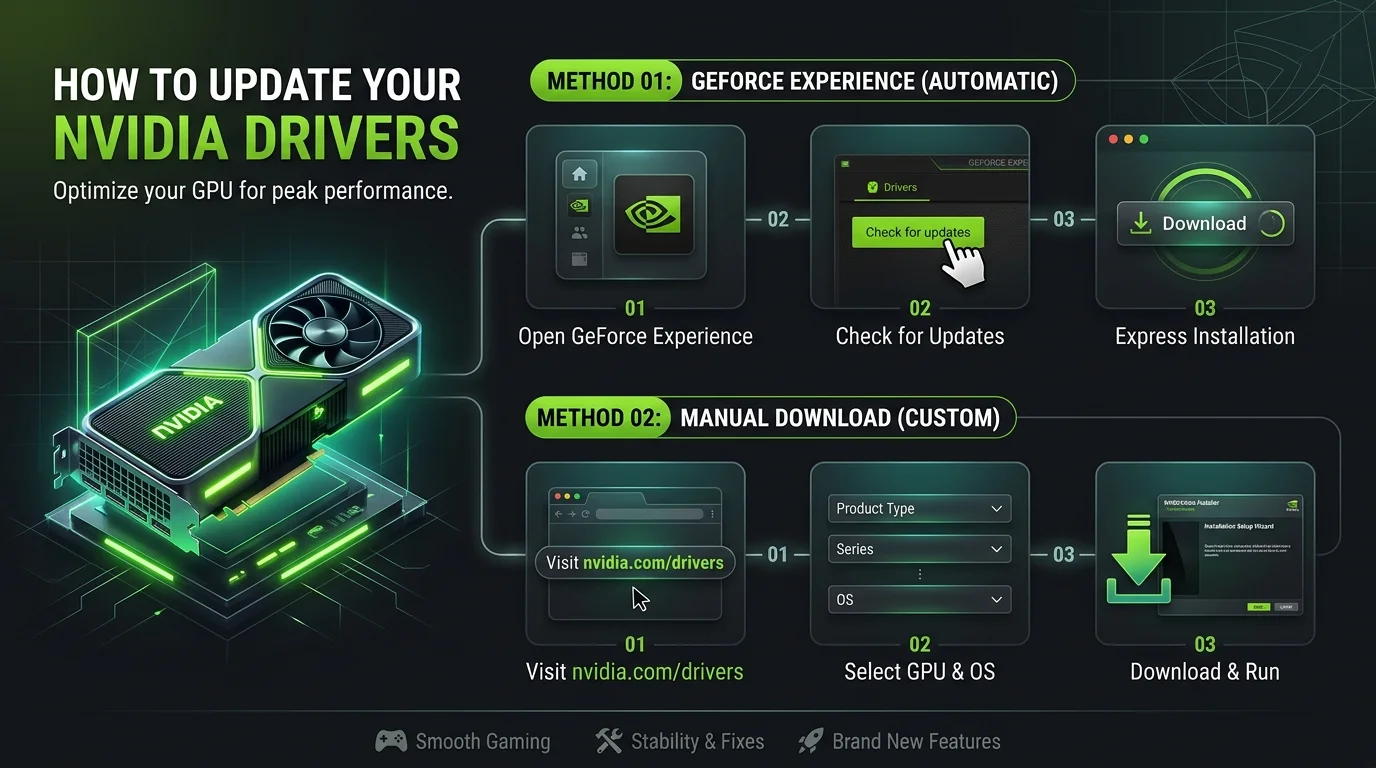
To update NVIDIA drivers, open the NVIDIA App, click Drivers, then click Download and Install. Restart your PC afterward. No app? Use NVIDIA's official driver page and pick your GPU model. On Ubuntu, run sudo ubuntu-drivers install and reboot.
As of this writing, the newest Game Ready Driver I found is version 621.01 WHQL, released October 21, 2026. Always check NVIDIA's site for anything newer.
Why Should You Update Your NVIDIA Graphics Driver?
Your graphics driver is the software that lets Windows or Linux talk to your GPU. If it's stale, things break. Games crash. Editors freeze. New releases won't launch. I update mine every time a game I care about gets a launch day patch, and you should too. Here's what you get:
Game specific optimizations for new titles
Bug fixes and better driver stability
Security patches
Support for new features like DLSS
One heads up for Windows 10 users. Reports say NVIDIA's new feature drivers require Windows 11 starting November 2026. If you're still on Windows 10, our Windows 11 Update Assistant guide shows you how to upgrade.
Which NVIDIA Driver Update Method Is Best?
There are four common ways to update, and each fits a different person. Some are fast. Some give you total control. I've put them side by side so you can choose in ten seconds. Not sure? Start with the NVIDIA App.
Method | Difficulty | Best for | Risk |
|---|---|---|---|
NVIDIA App | Easy | Most Windows users | Low |
Manual download | Medium | Specific versions and clean installs | Low |
Device Manager | Easy | Quick fixes and rollback | Medium |
ubuntu-drivers (Linux) | Medium | Ubuntu desktop and server | Low |
How to Update NVIDIA Drivers With the NVIDIA App
The NVIDIA App is the official tool now. It left beta in November 2024, and NVIDIA said it would stop supporting GeForce Experience from that point. So if you still run the old one, switch. The new app detects your GPU for you. No guessing.
Step by Step
Download the NVIDIA App.
Install it and open it.
Click Drivers in the left menu.
Click Download if an update shows up.
Choose Express or Custom installation.
Restart your PC.
You can set the app to download updates automatically. But you still install them yourself. I like that. You decide when your screen goes black for a moment.
How to Manually Download and Install an NVIDIA Driver
Sometimes the app fails. Or you need one specific driver version. That's when a manual driver download wins. It takes a minute longer, but you control everything. Not sure of your card? Press Win + R, type dxdiag, and check the Display tab.
Step by Step
Go to the NVIDIA driver download page.
Choose your product type, series, GPU model, and operating system.
Pick your driver type.
Click Search, then Download.
Can't find the installer afterward? Here is how to find your downloads on this device.
Run the installer and choose Custom (Advanced).
Tick Perform a clean installation.
Reboot.
That clean installation box matters. It wipes old settings. Use it when you're chasing weird bugs.
Game Ready vs Studio Driver: Which One Do You Need?
NVIDIA offers two driver branches, and its own page explains both. The core code is essentially the same. The difference is testing and timing. Game Ready targets new releases. The NVIDIA Studio Driver is validated for creative apps like Blender and DaVinci Resolve.
Pick Game Ready if you:
Play new games on day one
Both game and create
Pick Studio if you:
Edit video or render 3D all day
Want a driver tested for stability first
You can switch later, so don't sweat it.
How to Update NVIDIA Drivers on Ubuntu
Linux works differently, but it's not scary. Ubuntu's own documentation recommends the ubuntu-drivers tool. It also warns that drivers from outside sources can overwrite its packages and break Secure Boot. So I stick with the repository route.
Step by Step
Update your system and reboot.
Run
sudo ubuntu-drivers listto see what's available.Run
sudo ubuntu-drivers installfor the best match.Or pick one yourself, like
sudo ubuntu-drivers install nvidia:535.Reboot.
Run
cat /proc/driver/nvidia/versionto confirm.
If you see a version number, you're done.
What If the Update Goes Wrong?
Even good updates misbehave sometimes. Don't panic. First, create a system restore point before you start. Then try these fixes in order.
Roll Back in Device Manager
NVIDIA publishes official rollback instructions. The short version: open Device Manager, expand Display adapters, double click your GPU, open the Driver tab, and click Roll Back Driver.
Button greyed out? That usually means no previous driver is stored. Download an older version and install it with a clean install. Digital Trends has screenshots.
Use DDU as a Last Resort
Display Driver Uninstaller (DDU) removes every trace of a driver. Download it only from its official source, run it in Safe Mode, then reinstall. If you use BitLocker, keep your recovery key handy first.
Still Broken? Consider a Fresh Windows Install
If drivers keep failing on every attempt, Windows itself may be damaged. As a true last resort, a clean reinstall can fix it. Our Windows 10 Media Creation Tool guide walks you through making install media. Back up your files first.
Avoid Fake Driver Sites
Stick to nvidia.com and the NVIDIA App. Skip driver booster tools. They're not worth the risk.
Frequently Asked Questions
How often should I update my NVIDIA drivers?
Update when a new game you play needs it, or when you hit crashes. Checking monthly is plenty for most people. If everything runs fine, you don't have to chase every release.
Do NVIDIA drivers update automatically?
Not fully. The NVIDIA App can download drivers automatically, but you still start the install yourself. That keeps updates from interrupting your work or game session.
Is GeForce Experience still supported?
No. NVIDIA said it stopped supporting GeForce Experience when NVIDIA App 1.0 launched. You can still run it, but it gets no new features or bug fixes. Switch to the NVIDIA App.
Should I choose Game Ready or Studio?
Choose Game Ready if you game, or if you do both. Choose Studio if creative work is your priority and you want extra validation. You can switch between them anytime.
How do I check my current driver version?
Open the NVIDIA App's Drivers tab, or use Device Manager's Driver tab. On Ubuntu, run cat /proc/driver/nvidia/version.
Is it safe to update to the newest driver right away?
Usually, yes. Still, create a restore point first, and read the release notes. If problems appear, roll back.
Final Thoughts
You now have every reliable method for updating NVIDIA drivers. Use the NVIDIA App for speed. Go manual for control. Use ubuntu-drivers on Linux. And keep a rollback plan ready.
Still crashing on current drivers? Your hardware might be the limit. Browse NVIDIA's current GeForce drivers and supported cards to see what your GPU supports. When you're ready to upgrade, a newer GeForce RTX card lets you use the latest driver features.
About the Author

Nathan Cole
Nathan Cole is a SaaS writer and AI product reviewer at Postunreel with a sharp focus on evaluating AI-powered tools for content creators, marketers, and growing businesses. He holds a degree in Computer Science and brings over five years of experience writing about software products, productivity tools, and marketing technology. Nathan approaches every review with rigorous hands-on testing, clear comparison frameworks, and an honest perspective that cuts through marketing hype. His goal is to help Postunreel readers make smarter decisions about the tools they invest in so they can build better content workflows without wasting time or money.
🔥 Limited Time Deal
NewGet lifetime access to Postunreel with a one-time payment. Never pay again!
Your Go-To Solution for Stunning Carousels using AI!
Postunreel is a free AI carousel generator tool that helps you design captivating carousel posts for LinkedIn, Instagram, and other platforms. It makes it easier to increase social media engagement and grow your audience.
Create Free Carousel Now 🚀Related Blogs
iOS 26 New Features: The Complete Guide (2026)
Discover every iOS 26 new feature, from Liquid Glass to Live Translation and Call Screening. See compatible iPhones and if you should upgrade today.
How to Clear Browser Cache in Chrome, Firefox, Edge and Safari (2026 Guide)
Learn how to clear browser cache in Chrome, Firefox, Edge and Safari in minutes. Follow easy steps, shortcuts and fixes for slow or broken pages fast.