SQL Server Management Studio (SSMS): The 2026 Guide
Learn what SQL Server Management Studio is, what's new in SSMS 22, and how to install it step by step. Free download, system requirements, and FAQs.
SQL Server Management Studio (SSMS) is Microsoft's free Windows tool for managing SQL Server and Azure SQL. You use it to write T-SQL, browse databases, run backups, and control security. The current version is SSMS 22, and I'll show you how to install it step by step.
What Is SQL Server Management Studio?
Let me start with the basics. I remember opening SSMS for the first time and having no clue where anything lived. Menus everywhere. Panels I couldn't name. A week later, I couldn't work without it. So let's make your first week easier than mine was.
SSMS is an integrated environment for managing any SQL infrastructure. It connects to SQL Server, Azure SQL Database, Azure SQL Managed Instance, and Azure Synapse Analytics. It's a client tool, so it doesn't install the database engine for you.
Working with huge datasets beyond SQL Server? Check our guide to big data analytics tools to see what fits alongside SSMS.
What's New in SQL Server Management Studio 22?
Why does version 22 matter? Because Microsoft ships updates constantly. According to the official release notes, the newest build is 22.10.2, released September 28, 2026. That pace means fast bug fixes and a steady stream of new features. Here are the upgrades I think matter most to you.
GitHub Copilot in SSMS
This is the headline feature. GitHub Copilot in SSMS helps you write Transact-SQL faster and more accurately. You need a GitHub account with Copilot access.
Here's the timeline:
Autocompletions in the query editor arrived in SSMS 22.2.
Agent mode (preview) arrived in SSMS 22.7. You give Copilot a goal, and it works through it on its own.
It supports SQL Server 2014 through 2025, Azure SQL Database, Azure SQL Managed Instance, and SQL database in Microsoft Fabric.
Object Explorer and Query Editor
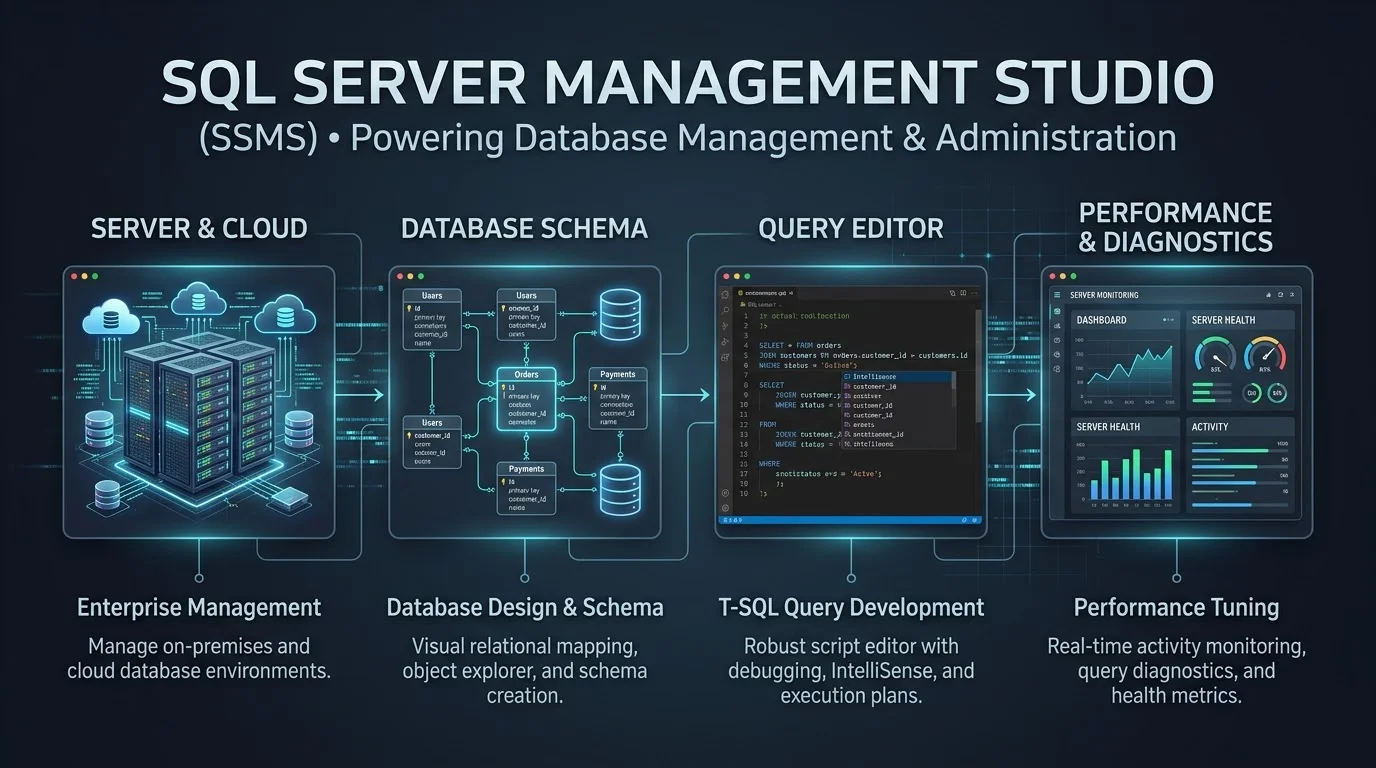
These two are the heart of the tool. Object Explorer shows servers, databases, tables, and permissions in one tree. The Query Editor is where you write queries, view execution plans, and read results. Together, they replace a pile of scripts and guesswork.
Unified Settings and Database DevOps
Microsoft is moving options from the old Tools > Options dialog into Unified Settings. In version 22.6, IntelliSense and keyboard query shortcuts moved over. That release also let you create a SQL project from an existing database, then check it into source control. It's still in preview, so test it before trusting it.
SSMS 20 vs 21 vs 22 at a Glance
Comparing versions helps you decide whether to upgrade. The table below sums up the three most recent major releases, using the release tracker at versio.io for dates. Microsoft doesn't publish fixed end of life dates. Only the latest version counts as current.
Version | First release | Latest build | Status |
|---|---|---|---|
SSMS 22 | Nov 11, 2025 | 22.10.2 (Sep 28, 2026) | Current |
SSMS 21 | May 19, 2025 | 21.6.17 | Superseded |
SSMS 20 | Mar 19, 2024 | 20.2.37.0 | Superseded |
Notice something? SSMS 22 added initial Windows Arm64 support for core scenarios, like connecting and querying. That's a big deal if you use Arm based laptops.
SSMS vs Azure Data Studio
You've probably wondered about Azure Data Studio. Here's the short answer: it's gone. Microsoft retired it, and support ended on February 28, 2026. The recommended replacement is the MSSQL extension for Visual Studio Code.
So which should you pick?
Choose SSMS if you're on Windows and need full database administration. DevClass reports that managing SQL Server Agent jobs and profiling still need SSMS.
Choose the VS Code extension if you're on macOS or Linux and mainly write queries.
Honestly, if you manage SQL Server professionally, SSMS is the safer bet.
SSMS System Requirements
Before you install anything, check your machine. Microsoft's system requirements say SSMS 22 runs only on 64-bit operating systems. It doesn't support 32-bit or Arm32 systems. Running it inside a virtual machine requires a full Windows operating system.
Also, each OS has its own lifecycle. If your Windows version reaches end of support, SSMS stops supporting it too. So keep Windows updated.
How to Install SQL Server Management Studio Step by Step
Ready to install? Good. It takes just a few minutes. The process is different from older versions, because SSMS 22 uses the Visual Studio Installer. There's no standalone MSI anymore. Follow the steps in order, and you'll be querying data fast.
Step 1: Download the Installer
According to Microsoft's install guide, you download a small bootstrapper named vs_SSMS.exe.
Confirm your PC meets the system requirements.
Download the SSMS 22 installer from Microsoft.
Run vs_SSMS.exe. The Visual Studio Installer opens.
Pick your workloads and click Install.
Launch SSMS from the Start menu.
Pro tip: you can install SSMS 22 alongside SSMS 21, 20, 19, 18, 17, and 16. That's perfect for reproducing a bug on an older build.
Step 2: Connect to Your First Server
When SSMS opens, the Connect to Server dialog appears.
Choose Database Engine as the server type.
Enter your server name or Azure server address.
Select Windows Authentication, SQL Server Authentication, or Microsoft Entra sign in.
Click Connect.
Right click a database in Object Explorer and choose New Query.
That's it. You're in.
Common SSMS Problems and Quick Fixes
Something went wrong? Don't worry. Most issues are easy to solve, and I've hit every one of them myself.
Login failed: Recheck your server name and authentication method first.
Can't connect to Azure: Make sure you've installed the latest SSMS. Microsoft says the latest version is needed for Microsoft Entra multifactor authentication.
Installer won't run: Confirm you're on a 64-bit Windows version that's still supported.
Features look missing: Update to the newest build. Microsoft's release notes list every change.
SSMS Frequently Asked Questions
Is SQL Server Management Studio free?
Yes. SSMS is free to download from Microsoft. You pay only for the SQL Server edition or Azure services you connect to.
Does SSMS work on Mac or Linux?
No. SSMS runs on Windows only. On macOS or Linux, use the MSSQL extension for Visual Studio Code or a third party client, then connect to your server remotely.
What is the latest version of SSMS?
SSMS 22 is the current release. The newest build listed in Microsoft's release notes is 22.10.2, dated September 28, 2026.
Can I run SSMS 22 next to an older version?
Yes. SSMS 22 installs alongside SSMS 21.x, 20.x, 19.x, 18.x, 17.x, and 16.x.
Does SSMS include the SQL Server engine?
No. SSMS only manages databases. You need SQL Server or an Azure SQL service running somewhere.
Which databases does SSMS support?
It supports SQL Server 2014 and later, Azure SQL Database, Azure SQL Managed Instance, Azure Synapse Analytics, and SQL Server on Azure virtual machines.
Why You Should Download SSMS 22 Today
So, is SQL Server Management Studio worth it? Absolutely. You get performance tuning, backup and restore wizards, security management, query optimization tools, and now AI assisted coding, all free.
Running databases in the cloud? Pair SSMS with a cloud security assessment so your Azure SQL data stays protected.
Stop juggling scripts across random tools. Stop guessing what your database is doing. Download SSMS 22 now, connect to your first server, and run your first query today. I promise you'll wonder why you waited.
About the Author

Nathan Cole
Nathan Cole is a SaaS writer and AI product reviewer at Postunreel with a sharp focus on evaluating AI-powered tools for content creators, marketers, and growing businesses. He holds a degree in Computer Science and brings over five years of experience writing about software products, productivity tools, and marketing technology. Nathan approaches every review with rigorous hands-on testing, clear comparison frameworks, and an honest perspective that cuts through marketing hype. His goal is to help Postunreel readers make smarter decisions about the tools they invest in so they can build better content workflows without wasting time or money.
🔥 Limited Time Deal
NewGet lifetime access to Postunreel with a one-time payment. Never pay again!
Your Go-To Solution for Stunning Carousels using AI!
Postunreel is a free AI carousel generator tool that helps you design captivating carousel posts for LinkedIn, Instagram, and other platforms. It makes it easier to increase social media engagement and grow your audience.
Create Free Carousel Now 🚀Related Blogs
GBP/JPY Forecast: What Recent Yen Gains Mean for the Market
Explore the latest GBP/JPY forecast as yen strength, Bank of Japan policy expectations, UK economic conditions, interest rates, and global market confidence shape the currency pair’s outlook.
Best Social Media Management Tools in 2026
Compare the best social media management tools in 2026 for multiple profiles, scheduling, analytics, approvals, engagement, and agency workflows.