Black and White Filter: Color to Use & Why (2026)
Flat B&W photos? A black and white filter fixes that. See which color to buy first, how to use it, and how to get the look in Lightroom.
A black and white filter controls how colors convert to shades of gray. It can be colored glass on your lens or a digital adjustment in an editing app. Yellow is the best first choice for most photographers because it darkens blue skies and keeps skin tones natural. Orange and red add drama, and green suits foliage.
Want black and white photos that actually pop?
Most people drain the color and hope for the best. The result is usually flat, muddy, forgettable images.
The good news is that the right black and white filter fixes this fast. I'm going to show you exactly how each filter works, which one you should buy first, and how to get the same look in Photoshop, Lightroom, and even on your phone. You'll also learn how a grayscale filter can cut your screen time.
Let's get started.
What Is a Black and White Filter?
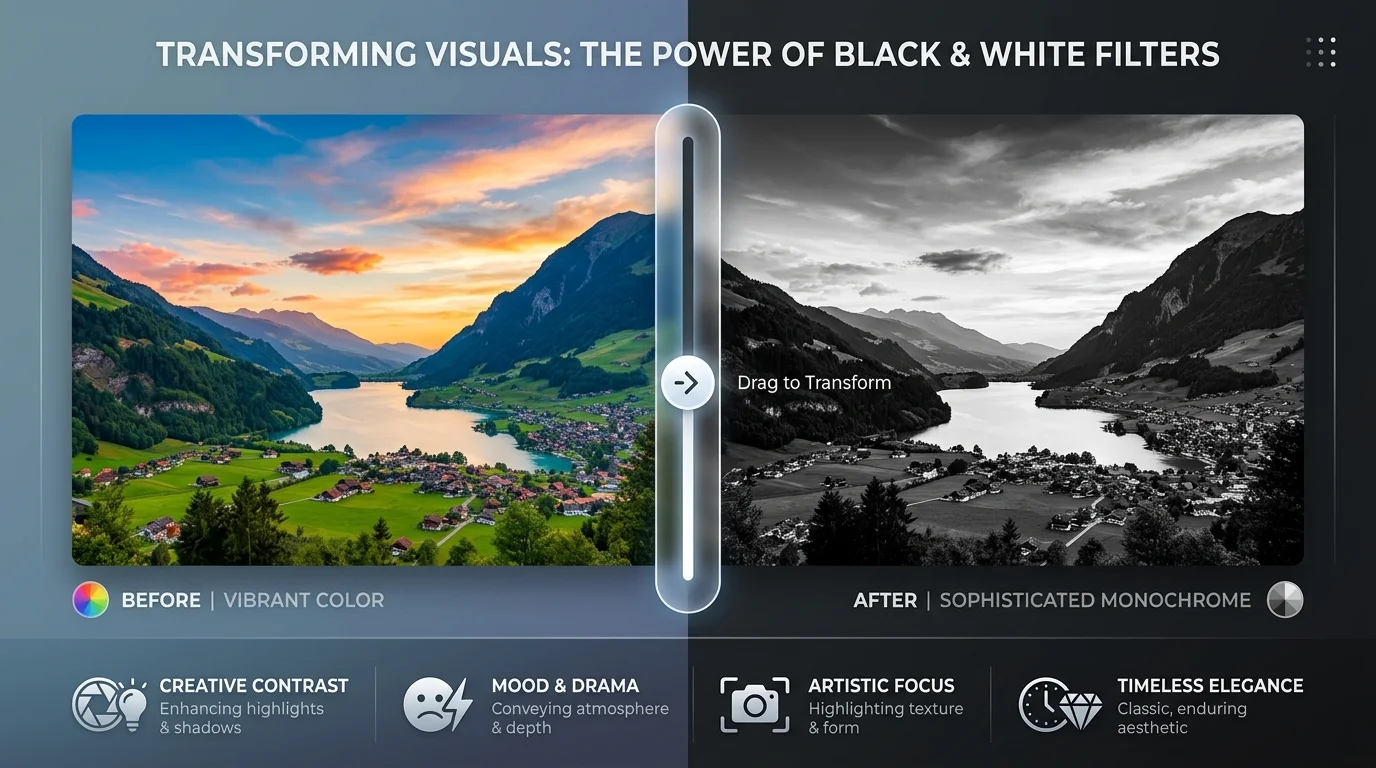
A black and white filter is any tool that decides how colors turn into shades of gray in a photo.
It comes in two forms. The first is a colored glass filter you screw onto your lens. The second is a digital monochrome filter you apply in editing software or an app.
Both do the same core job. They choose which colors become light gray and which become deep, rich black.
That choice can make or break your image. Here's the one rule to remember: a colored filter lightens its own color and darkens its opposite color, as Lomography explains.
Show Image
Why Your Photos Look Flat Without One
Black and white photos look flat when different colors convert to nearly the same shade of gray.
Red, green, and blue look completely different to your eye. In a plain grayscale image, though, they can land on almost identical tones. When that happens, objects blend together and your subject disappears into the background. The whole shot loses its tonal contrast and tonal range.
That's exactly why photographers have relied on color filters for black and white photography for decades. The filters pull apart tones that would otherwise merge into one muddy gray.
The 5 Filters You Need to Know
The five filter colors used in black and white photography are yellow, orange, red, green, and blue.
Each one also carries a Wratten number, which is Kodak's standard naming system. For example, #8 is yellow and #25 is red.
You don't need all five on day one. You do need to know what each does before you spend any money. Here's a quick cheat sheet with typical exposure increases. Exact values vary by film and manufacturer, so always check the number printed on your filter.
Filter | Wratten No. | Best For | What It Does | Typical Exposure Increase |
|---|---|---|---|---|
Yellow | #8 (K2) | Everyday shooting | Gently darkens blue sky so clouds pop | About 1 stop (factor 2) |
Deep yellow / orange | #15 (G) | Landscapes | Gives stronger sky contrast and cuts haze | About 1⅔ to 2 stops |
Red | #25 (A) | Drama | Turns blue sky nearly black | About 3 stops |
Yellow green | #11 (X1) | Portraits and foliage | Separates greens and adds contrast to skin tones | About 2 stops |
Blue | #47 | Mood and fog | Adds haze and atmosphere | About 3 stops |
Yellow Filter: The Smartest First Buy
A yellow filter is the best first black and white filter for most photographers, because it improves almost any scene without overdoing it.
Ilford explains that yellow darkens blue sky, which separates white clouds from the sky in your final print. It also renders greens, oranges, and reds in lighter tones, so foliage shows more variety and skin looks natural.
On panchromatic film (the standard black and white film that responds to all visible colors), a yellow filter brings the sky closer to how your eye actually sees it. Its filter factor is usually around 2, so you only need about one extra stop of light. Not surprisingly, Lomography recommends it as the first choice for beginners.
Orange and Red Filters: Instant Drama
Orange and red filters create strong, dramatic skies by darkening blue much more than yellow does.
An orange filter sits between yellow and red. It darkens blue skies strongly and cuts through haze without going over the top. Ilford lists a typical filter factor of 4 for orange.
A red filter is the bold choice. It can turn a blue sky almost black and create a stormy, cinematic mood.
Be careful, though. Heavy red filtration can hide fine detail in the shadows, so bracket your exposures when you first try it.
Green and Blue Filters: The Specialists
Green and blue filters are specialist tools: green for foliage, blue for mood.
A green filter works beautifully for landscapes full of trees, because it separates the different shades of foliage. In portraits, however, it has the opposite effect of red and makes skin blemishes more visible, as Lomography notes.
A blue filter adds atmosphere by increasing haze and fog. PetaPixel points out that it smooths color gradients rather than sharpening textures. Use it sparingly and on purpose.
Physical Filter vs Digital Filter: Which Should You Use?
A physical filter is best for film and for getting the look in camera, while a digital filter is best when you want flexibility after the shot.
Here's the key difference. Glass changes the light before it reaches your film or sensor. Software only reinterprets data you already captured.
If you shoot film, there's no slider to fix things later, so a physical filter is essential. If you shoot RAW on a digital camera, software gets you most of the way there. Many photographers still prefer to see the final look through the viewfinder. Here's how the two compare:
Factor | Physical Filter | Digital Filter |
|---|---|---|
Cost | Single purchase per lens size | Often free or included in your editor |
Control after shooting | None; the effect is baked in | Full; adjust any color at any time |
Works with film | Yes, and it's essential | No |
Haze cutting | Real optical haze reduction | Limited; simulated only |
Best for | Film shooters, landscapes, JPEGs straight from the camera | RAW shooters, quick edits, social media |
How to Use a Black and White Filter: Step by Step
To use a black and white filter, you match it to your lens size, screw it on, set your camera for monochrome, and compensate for the light it blocks.
The process is easy. However, exposure is where most beginners slip up, because a colored filter always blocks some light. Follow these six steps and you'll get it right on your very first outing:
Check your lens thread size. Look at the front ring of the lens or the lens cap for a number such as 52mm or 62mm.
Buy the matching filter. Start with yellow, then add orange or red later.
Screw it onto your lens. Tighten it gently by hand; there's no need to force it.
Set your camera to monochrome, or load black and white film. On a digital camera, shoot RAW too, so you keep the full color data.
Compensate for the filter factor. If you meter manually or with a handheld meter, add the full stop count: a factor of 2 means +1 stop and a factor of 4 means +2 stops. If your camera meters through the lens, it corrects most of this automatically. Orange and red filters may still need about +1 extra stop, which Ilford recommends for orange.
Shoot, compare, and repeat. Take the same frame with and without the filter so you can see the difference for yourself.
Best Black and White Filters to Buy in 2026
The best black and white filter to buy is a quality glass yellow #8 in your exact lens size. After that, add a red #25 or a full kit as your style grows.
Glass filters are generally more durable and optically cleaner than cheap resin ones. Threaded filters are compact and quick to use. Square systems, such as Cokin, let you share one set of filters across several lenses by using an adapter ring. Here are the options I'd shortlist:
Tiffen #8 Yellow (glass). This is the classic starter filter, sold in common thread sizes like 52mm and 62mm. Check current price.
Hoya Yellow Green X0 (#11), multicoated glass. It's great for portraits and foliage. Check current price.
Cokin Black and White Filter Kit (X-Pro series). It includes yellow, orange, red, and green square filters for a complete system. Check current price.
B+W red filter (#25 equivalent). This is a strong, dramatic sky filter for landscape and architecture shooters.
How to Get the Same Effect Digitally
Every digital black and white conversion works like a virtual lens filter, because it decides how much each color contributes to the final gray.
According to Wikipedia's grayscale entry, there's no single correct way to turn color into gray. Weighting the color channels differently gives the same effect as shooting film through different colored filters.
In other words, the sliders in your editing app do the same job as the glass on your lens. The main tools below cover almost every workflow, from desktop editing to your phone and even web design.
In Photoshop
The best way to make a black and white image in Photoshop is the nondestructive Black & White adjustment layer.
The Black & White adjustment layer lets you pick presets, use the Auto button, add a tint, and drag individual color sliders. Many of those presets are modeled on classic lens filters, as Photoshop Essentials explains. The channel mixer in monochrome mode offers similar control for advanced users.
Here's the quick process:
Open your photo.
Go to Layer > New Adjustment Layer > Black & White.
Try the Red Filter or Yellow Filter preset.
Drag the Blues slider to the left to darken the sky.
In Lightroom
In Lightroom, you convert to black and white by applying a B&W profile and then fine tuning the B&W mix sliders.
First, apply the Adobe Monochrome profile in the Basic panel. The color panel then switches to a B&W mix with individual color sliders.
You can also browse Lightroom's dedicated B&W profiles, and each one has an Amount slider. As of Adobe's April 2026 update, Lightroom on the web also includes a Film-Inspired profile category that pairs well with monochrome edits.
On Your iPhone or Android Phone
You can get a strong black and white look on your phone in seconds, with no laptop needed.
On an iPhone, the Photos app includes monochrome filters such as Mono, Silvertone, and Noir. Most dedicated black and white filter apps add finer control over contrast, grain, and individual colors. If you want more editing power, check out our roundup of the best free photo editing apps for iPhone.
Before you share your edit, it's smart to resize an image on your iPhone, so it loads fast and stays sharp on social media.
Creative Toning Options
Once you've converted to black and white, toning adds warmth, mood, or a vintage character.
A sepia tone gives a warm, antique brown look. In Photoshop, you add it with the Tint checkbox in the Black & White adjustment layer. Split toning applies one color to the highlights and another to the shadows for a subtle finish that feels like film.
A light film grain effect adds texture and helps digital files feel analog. Finally, a high contrast black and white edit, with deep blacks and bright whites, suits street and architecture work.
The Science Behind Grayscale
Grayscale conversion weights green most heavily because your eyes are most sensitive to green and least sensitive to blue.
That's why the common Rec. 709 luminance formula uses about 71.5% green, 21.3% red, and 7.2% blue. Simply averaging the three channels gives unnatural results, such as blue skies that look too bright.
Web designers can use the same idea with the CSS grayscale() filter, which has worked in all major browsers since September 2016. Most black and white filter apps and free online tools rely on these same luminance formulas behind the scenes.
Bonus: Use a Grayscale Filter to Cut Your Screen Time
Turning your phone's display to grayscale can reduce how much time you spend on it, according to several published studies.
In a study published in The Social Science Journal, Holte and Ferraro switched college students' phones to grayscale for 8 to 10 days. A later review of the research found that grayscale cut daily screen time by 22 to 50 minutes across studies.
More recently, a 2025 study explored whether grayscale could reduce phone use while driving and walking. Results on social media use are still mixed, so treat grayscale as one helpful tool for your digital wellbeing, not a complete fix. Here's how to turn it on:
iPhone: Go to Settings > Accessibility > Display & Text Size > Color Filters and choose Grayscale.
Android: Go to Settings > Digital Wellbeing & parental controls > Bedtime mode > Customize > Screen options at bedtime, then turn on Grayscale.
Frequently Asked Questions
These are the questions people ask most about black and white filters, answered briefly so you can find what you need fast.
Each answer summarizes the detail covered earlier in this guide, so you can jump to the full section when you want more depth.
What is the best filter for black and white photography?
A yellow #8 filter is the best overall choice. It gently darkens blue skies, separates clouds, and keeps skin tones natural, and it only costs you about one stop of light.
Do I need a physical filter for digital black and white?
No, but it helps. If you shoot RAW, software such as Photoshop or Lightroom can recreate most filter effects. A physical filter is still essential for film and gives you real optical haze reduction.
What does a red filter do in black and white photography?
A red filter darkens blue and green strongly. It turns blue skies nearly black and creates high, dramatic contrast. It usually requires about three extra stops of exposure.
What is a filter factor?
A filter factor tells you how much extra exposure a filter needs. A factor of 2 equals one extra stop, and a factor of 4 equals two extra stops.
What's the difference between grayscale and monochrome?
Grayscale images contain only shades of gray from black to white. Monochrome is broader and can include a single tint, such as sepia. Both differ from bitonal images, which contain only pure black and pure white.
Does grayscale mode really reduce screen time?
Research suggests it does. Studies found reductions of roughly 22 to 50 minutes per day after at least one week of grayscale use, although effects on specific apps vary.
Should You Buy a Black and White Filter?
Yes. A black and white filter is worth buying if you shoot film, love landscapes, or want to get the look right in camera.
Software can simulate a lot. A physical filter, however, shapes the light before it reaches your film or sensor, and with film there's no second chance in editing. A good glass filter is also a single purchase that lasts for years.
Here's what I recommend: start with a quality yellow #8 in your exact lens size. When you're ready for more drama, add a red #25 or a full Cokin kit.
Your best black and white photos are one filter away. Get yours today, head outside, and shoot the sky. You'll see the difference in the very first frame.
About the Author

Laura Whitmore
Laura Whitmore is an Instagram content strategist and visual design writer at Postunreel, specializing in carousel post design, visual storytelling, and audience engagement tactics for Instagram and other image-first platforms. She brings four years of experience working with lifestyle brands, e-commerce businesses, and independent creators who want their social media content to look polished and perform consistently. Laura combines her passion for great design with a data-driven approach to content, regularly testing new carousel formats and visual styles to discover what drives the highest engagement rates for Postunreel users.
🔥 Limited Time Deal
NewGet lifetime access to Postunreel with a one-time payment. Never pay again!
Your Go-To Solution for Stunning Carousels using AI!
Postunreel is a free AI carousel generator tool that helps you design captivating carousel posts for LinkedIn, Instagram, and other platforms. It makes it easier to increase social media engagement and grow your audience.
Create Free Carousel Now 🚀Related Blogs
Free Photo Editing App for iPhone: 7 Picks 2026
Snapseed is the best free photo editing app for iPhone in 2026. Compare 7 free editors, see which have no watermarks, and edit like a pro.
How to Resize an Image on iPhone (2026 Guide)
Resize an Image on iPhone in seconds. Free built in methods, exact pixel dimensions & platform sizes for Instagram, LinkedIn & more.