How to Invert Colors on iPhone (2026 Guide)
Learn how to invert colors on iPhone in seconds. Compare Smart vs Classic Invert, set a triple click shortcut, and fix common glitches.
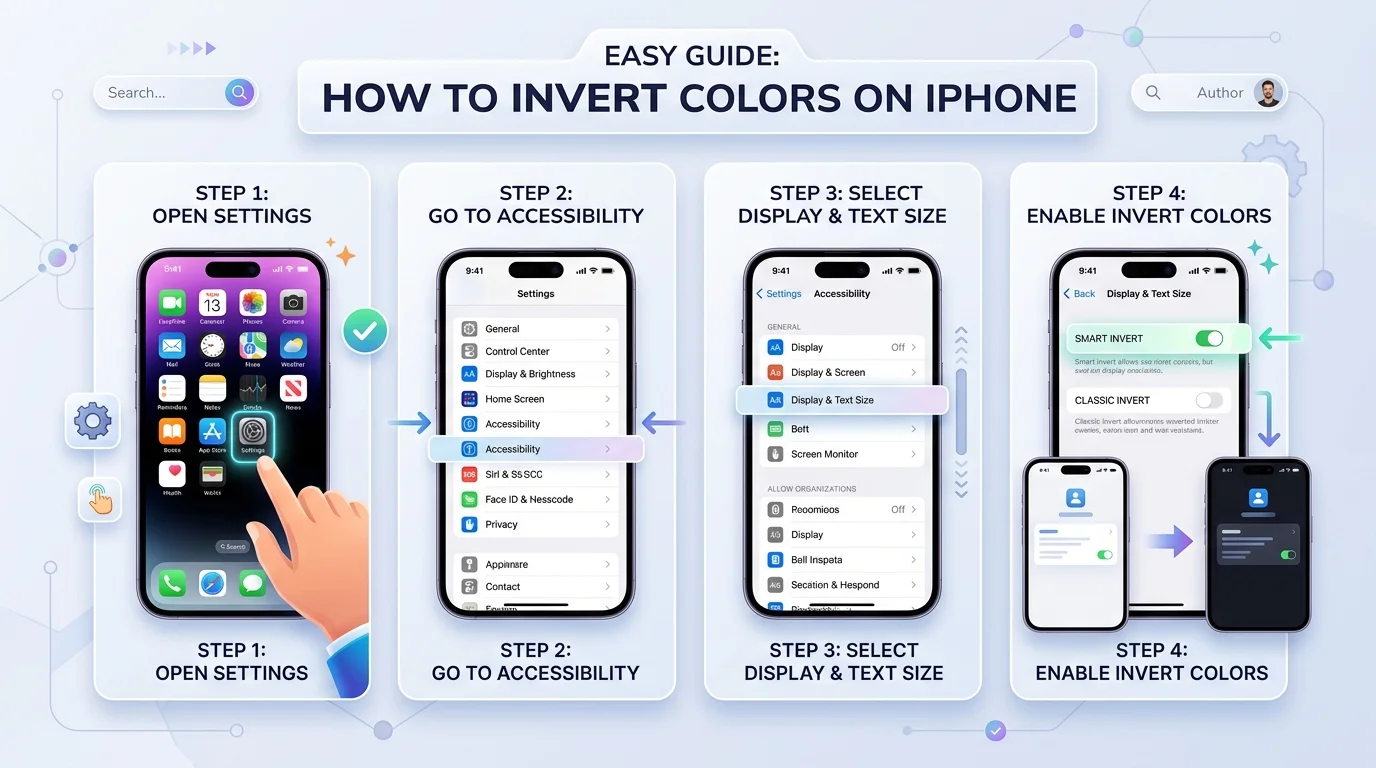
To invert colors on iPhone, open Settings, tap Accessibility, tap Display & Text Size, then switch on Smart Invert or Classic Invert. Smart Invert leaves photos and media alone. Classic Invert flips everything. You can also toggle it by triple clicking the side button.
I've squinted at a blinding white screen at midnight more times than I'd like to admit.
So let me save you the trouble. This guide shows you every method, explains which mode to pick, and fixes the glitches that trip people up.
Ready? Let's dive in.
What Does Invert Colors Do on iPhone?
Simply put, color inversion flips your screen's palette. White turns black, and light shades turn dark.
Apple built it as an accessibility feature, so it helps people with low vision and light sensitivity. But plenty of everyday users switch it on to reduce eye strain at night. Apple itself says it suits people who benefit from viewing items against a dark background.
Before you flip the switch, you need to know there are two versions.
Smart Invert vs. Classic Invert
Neither mode wins every time. Which one you want depends on what's on your screen.
Feature | Smart Invert | Classic Invert |
|---|---|---|
Inverts UI, menus, backgrounds | Yes | Yes |
Inverts photos and video | No | Yes |
Keeps dark style apps dark | Yes | No |
Best for | Daily reading, browsing | Apps and sites Smart misses |
Smart Invert arrived with iOS 11, and the older all out mode was renamed Classic.
My advice? Start with Smart. Switch to Classic if parts of an app refuse to change.
How to Invert Colors on iPhone: Step by Step
This is the route I use most. It works on every modern iPhone, and Apple documents it in its display and text size guide.
You'll be done before your coffee cools.
The Four Step Method
Open the Settings app.
Tap Accessibility.
Tap Display & Text Size.
Toggle on Smart Invert or Classic Invert.
That's it. Seriously.
To turn it off, repeat the steps and flip the toggle back.
Like quick iPhone tweaks? You'll also enjoy this walkthrough on how to resize an image on iPhone.
Faster Ways to Toggle Inverted Colors
Digging through Settings every time gets old fast. Luckily, Apple gives you several shortcuts.
Here's how they compare, so you can pick your favorite.
Method | Where to set it up | How you trigger it |
|---|---|---|
Accessibility Shortcut | Settings > Accessibility > Accessibility Shortcut | Triple click side or Home button |
Control Center | Control Center > top left > Add a Control | Swipe down, tap once |
Back Tap | Settings > Accessibility > Touch > Back Tap | Double or triple tap the back |
Siri / Vocal Shortcuts | Built in | Say the command |
Triple Click With the Accessibility Shortcut
The Accessibility Shortcut is my personal favorite. Choose Smart Invert or Classic Invert in its settings, then triple click.
According to Apple's quick toggle guide, if you select only one feature, it switches on or off immediately.
If the clicks don't register, you can slow down the click speed in your side button settings.
Add It to Control Center
Prefer a tap over a click? Open Control Center, tap the top left corner, then tap Add a Control. Pick the invert option.
Next time, swipe down and tap once.
Use Back Tap
Back Tap debuted in iOS 14, as iMore explains. Assign your Accessibility Shortcut to a double or triple tap, and you've got a discreet, fast toggle.
Invert Colors vs. Dark Mode: Which Should You Use?
People mix these up constantly. Dark mode is a theme that apps adopt on purpose. Inversion is a blunt tool that flips colors no matter what the developer intended.
Each has its place.
When Invert Colors Wins
If an app or website has no dark theme, inversion rescues you. Apple notes inversion is especially useful in apps and websites that don't support Dark Mode.
My rule: use dark mode first. Then bring in Smart Invert for the stubborn holdouts.
Related Display Tools Worth Knowing
Inversion isn't your only option. Apple packs several display accommodations into the same menu.
Try a few and see what suits your eyes.
Tool | What it does |
|---|---|
Color Filters | Adjusts colors for color blindness or tints the screen |
Reduce White Point | Tones down bright colors |
Night Shift | Warms the screen after dark |
Increase Contrast | Improves foreground and background contrast |
One catch. Apple states that Night Shift automatically removes inverted colors and color filter effects, except grayscale. So you can't stack them all.
Want a calmer look without full inversion? Our guide to the black and white filter shows another way to tone down color.
Does This Work on iPad and Mac?
Yes, and the idea is identical. On iPad, use the same path as iPhone. On Mac, go to Apple menu > System Settings > Accessibility > Display and turn on Invert colors, then choose Smart or Classic, per Apple's Mac guide.
As for compatibility, Pocket-lint notes the feature runs on the iPhone 5s and later with at least iOS 11. Your phone almost certainly qualifies.
Troubleshooting: When Inverted Colors Act Weird
Let's be real. Sometimes the feature misbehaves. Usually, it's a simple fix.
Run through these checks before you assume something is broken.
Screen Inverts Randomly
You probably set an Accessibility Shortcut and triple clicked by accident. One Apple Community thread describes exactly this. Change or remove the shortcut.
Colors Look Blue Tinted
Users have reported Smart Invert clashing with Night Shift, as discussed on MacRumors. Since Apple says Night Shift removes inversion anyway, turn Night Shift off.
Photos Look Creepy
Switch from Classic to Smart Invert.
An App or Website Won't Invert
Try Classic Invert, or use the app's own dark theme. Developers can also mark content to opt out of inversion, per Apple's developer guidance.
Stuck on another iPhone setting, like a browser stuck in private mode? Here's how to get out of incognito mode on iPhone.
Frequently Asked Questions
How do I invert colors on iPhone?
Go to Settings > Accessibility > Display & Text Size, then turn on Smart Invert or Classic Invert.
What's the difference between Smart Invert and Classic Invert?
Smart Invert skips images, media and dark style apps. Classic Invert reverses every color on screen.
How do I turn off inverted colors?
Repeat the same steps and switch the toggle off. Or triple click the side button if you set up the shortcut.
Why does my iPhone keep inverting colors by itself?
Most often it's the Accessibility Shortcut triggering from accidental triple clicks. Change the shortcut in Settings.
Is inverting colors the same as dark mode?
No. Dark mode is an app level theme. Inversion flips colors system wide.
Does inverting colors save battery?
On OLED screens, darker pixels can use less power, but I haven't found an official Apple figure, so treat it as a bonus, not a promise.
Why an iPhone Is Worth Buying for This Alone
Here's my honest take. Plenty of phones offer a dark theme. Few make iPhone accessibility this easy to reach.
Everything above is built in and free. No extra apps. No subscriptions.
If you're on an ancient device struggling with glare, upgrading gets you the latest iOS with all these controls in one place. So buy the iPhone that fits your budget. Your eyes will thank you.
Final Thoughts
You now know how to invert colors on iPhone, which mode to choose, and how to toggle it in one tap.
Try Smart Invert tonight. Then set up the Accessibility Shortcut so it's always a triple click away.
Got a trick I missed? Tell me in the comments.
About the Author

Rachel Hammond
Rachel Hammond is an AI tools writer and content automation specialist at Postunreel, where she covers everything from AI carousel generators to social media scheduling workflows. She has spent five years helping digital creators and marketing teams understand how to use AI tools practically — not just theoretically. Rachel personally tests every tool she writes about, documents real results, and breaks down complicated AI features into simple, step-by-step guides that anyone can follow regardless of their technical background. Her work focuses on saving creators time while helping them produce content that genuinely performs.
🔥 Limited Time Deal
NewGet lifetime access to Postunreel with a one-time payment. Never pay again!
Your Go-To Solution for Stunning Carousels using AI!
Postunreel is a free AI carousel generator tool that helps you design captivating carousel posts for LinkedIn, Instagram, and other platforms. It makes it easier to increase social media engagement and grow your audience.
Create Free Carousel Now 🚀Related Blogs
Dark Blue Hex Code: #00008B, Navy Midnight Shades
Dark blue hex code is #00008B (RGB 0,0,139). Compare navy, midnight blue, contrast ratios, and pairing tips in this quick guide.
Best Free Photo Editing Software in 2026
Find best free photo editing software in 2026. Compare Affinity, GIMP, darktable, Photopea and Paint.NET, with edit workflow for bloggers.